

Ongoing contracts
Handle your company's recurring invoicing with automatically created invoices.
Ongoing contracts in Kleer is a functionality to manage your company’s ongoing invoicing.
Ongoing contracts can be used to invoice a fixed amount every month/quarter/year and will let you know in advance what is to be invoiced with out having to manually create each invoice.
By creating a ongoing contract you will get help with creating the recurring invoices during the whole validity of the contract. Kleer creates the invoice automatically and the only manual work needed is to certify and send the customer invoice.
Overview
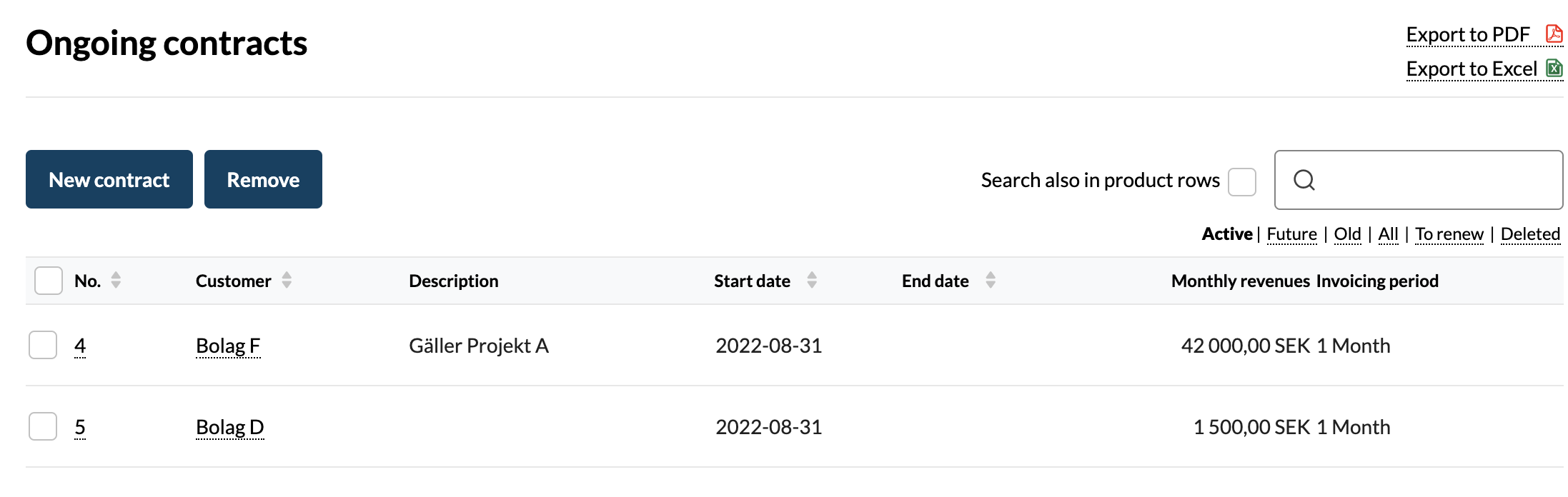
You find Ongoing contracts under Customer invoices in the left hand menu in Kleer.
The first view that appears is the company’s active contracts. It is also possible to filter the contracts that are; upcoming, old, in need of renewal or removed.
Create a new contract
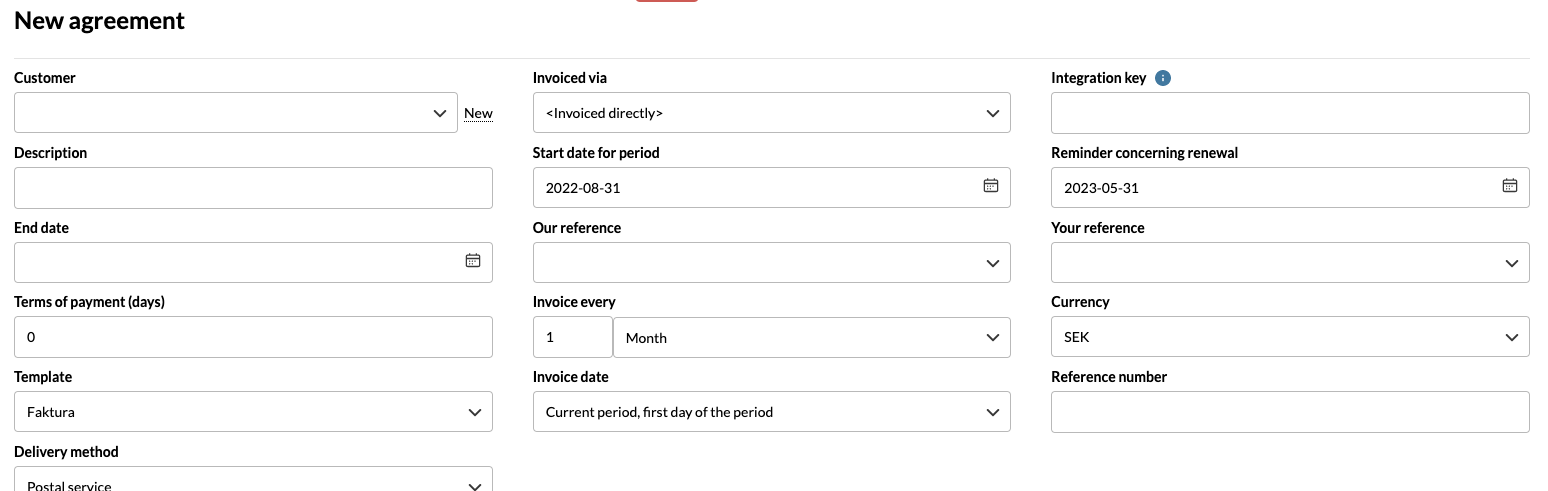
You create a new ongoing contract by clicking the “New contract” button that appears in the overview.
As can be see in the picture on the right, it is possible to enter a lot of information when a new agreement is created. This to help create an recurring billing that works as desired. Each field is explained below.
-
Customer - Select which customer the agreement applies to. Only customers in your customer register will appear. You can click on “New” next to the field to create a new customer in your register.
-
Invoiced via - If the customer is to be billed via another company, select that company here. This information must be in the customer register in order to be selected.
-
Integration key - The field is used for foreignId if the invoices/contracts are created via API
-
Description - Only for internal use and will not be visible on any customer invoices. For example, you can name the contract by using this field.
-
Start date for period - The date entered here will be the start date of the agreement and it is as of that date that the invoice will be created. To create an invoice on the 1st of each month, the start date must also be the 1st.
-
Reminder concerning renewal - Add a date here to get a reminder that the contract needs to be renewed. A warning icon is displayed in the overview when this date has passed.
-
End date - The date on which the contract ends. If it is unknown when the agreement will end or when the last invoice will be sent, no end date needs to be specified. If the field is left blank invoices will continue to be created according to the desired invoicing plan until someone manually stops it.
-
Our reference - The own company’s reference person
-
Your reference - The customer’s reference person
-
Terms of payment (days) - Automatically the same payment terms that the company has in general or the specific terms that has been set for the customer in the customer register. If you would like something else to apply to the invoices that are to be created from the current contract, you can change it here.
-
Invoice every - Setting for how often the system should generate a customer invoice based on this contract.
-
- If you would like an invoice to be created every month, note “1” and Month.
-
If you would like to invoice once a quarter, note “3” and Month, the invoice is thus created every three months.
-
If you would like to invoice once a year, note “1” and Year.
-
Currency - The desired currency to be used. The exchange rate is based on the exchange rate on the invoice date.
-
Template - The invoice template to be used for the invoices that are created.
-
Invoice date - In this field, you specify when the invoicing should take place in the current contract:
-
- Current period, first day of the period - The invoice is issued on the first day of the period, according to the date written in the Start date for period field. The due date will be according to the number of days written in the Payment terms field.
-
Advance, due date on period start - Means that the invoice should be paid based on the date in the Start date for period field. E.g. if the start of the period is 1st of November and the payment term is 20 days, the invoice will be issued 20 days before the start of the period, i.e. on October 12th.
-
Advance, first day of the previous month - The invoice will be issued on the first day of the month, one month in advance. E.g. if the start of the period is November 1st, the invoice will be issued on October 1st and be due according to the number of days noted in the Payment terms field.
-
**Advance, 60 days prior to period start
-
**Current period, last day of the period
-
Arrears, first day of the month after end of period - The invoice is issued on the first day of the month, one month in arrears. E.g. if the start of the period is November 1st, the invoice will be issued on December 1st and be due according to the number of days stated in the field for Payment terms.
-
**To be billed one day before the period start
-
To be billed five days before the period start
Currently, it is not possible to control the invoicing day besides the options above.
-
Refrence number - If you would like to enter a reference number to the customer, you can do so here.
-
Delivery method - The way in which the created invoices will be sent. You can choose between Email, EDI invoice, Postal service and Not sent.
-
Email - Use if the chosen delivery method is E-mail.
The invoice
The products that can be selected for invoicing are the same products as when a normal invoice is created. If you want to learn more about products and how they are set up, read more here.
The first invoice

In the ongoing contract, it is possible to control what should be included on each invoice that is created. But it is also possible to add specific items that should only be included on the first invoice.
Ongoing products/services
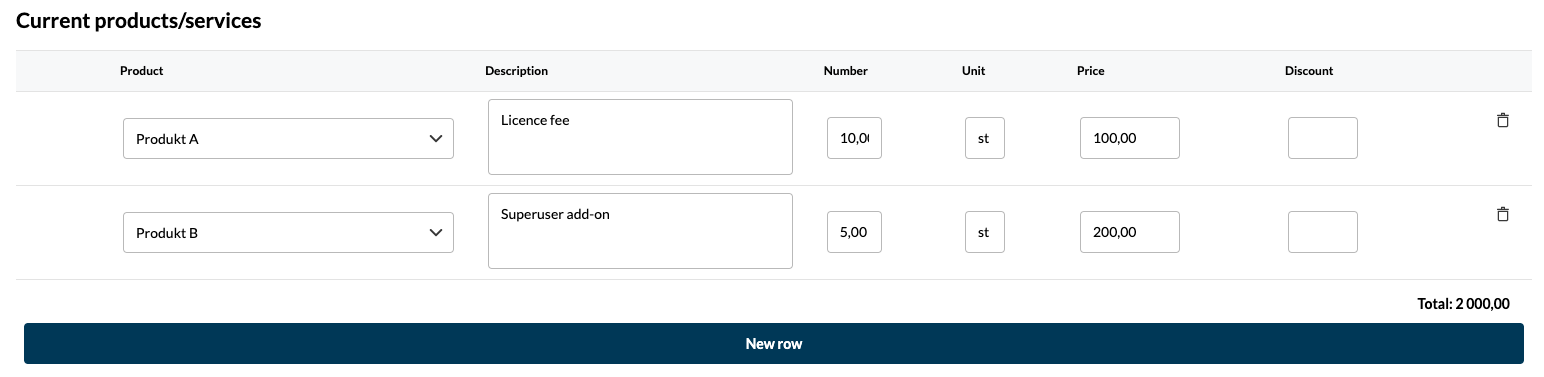
When different items are added to the agreement, it is always possible to follow the total at the bottom, below the invoice lines. The sum is exclusive of VAT.
Notes - external and internal
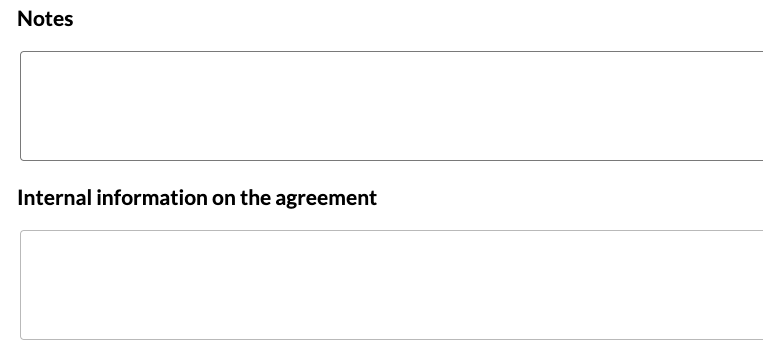
Things written in the Notes field will be visible on the customer invoice when it is created. At the bottom of the page, you can always preview the next invoice and see what it will look like.
The field called Internal information on the agreement is for internal information, what is noted here will not be shown on the invoice. Here you can document important information about the agreement that you do not wish to appear on the invoice.
Audits
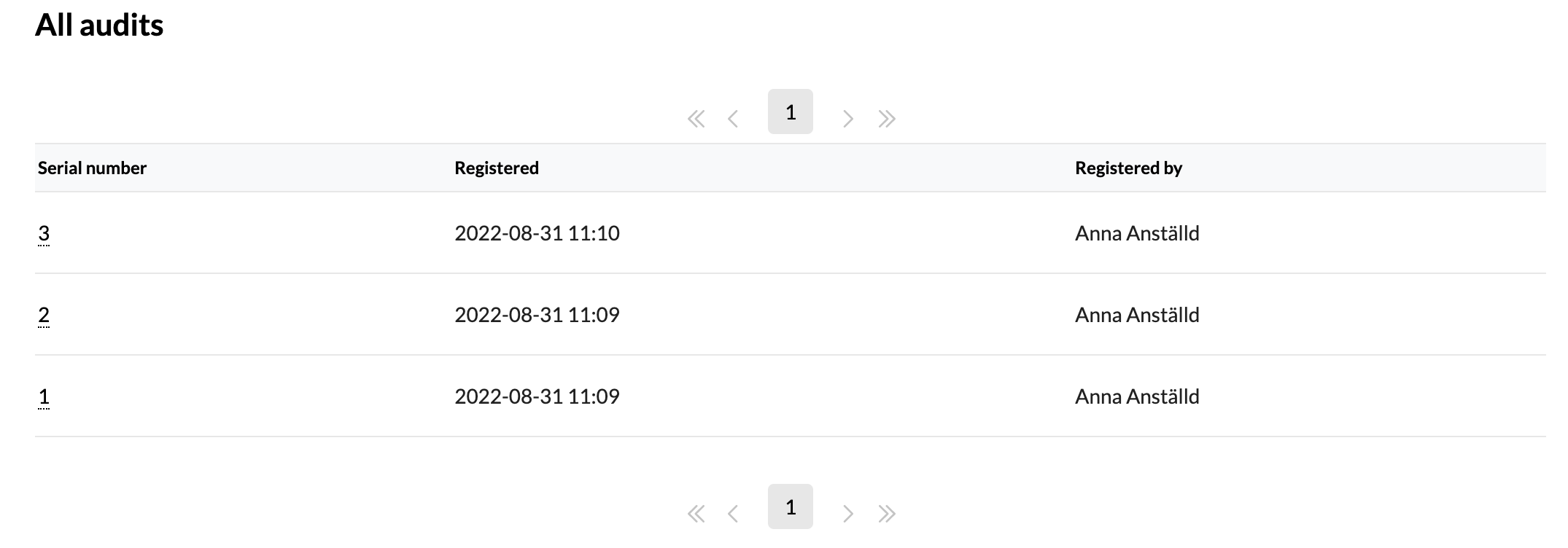
Even after one or more invoices have been created based on an agreement, it is still possible to go in and change various parameters. When the agreement is then saved, the change constitutes a revision, the agreement is still the same but a new revision of the agreement has been made.
After changes to the agreement, it is always possible to go back and see previous revisions of the agreement to e.g. see which items the agreement contained then.
Invoicing through the contract
Authorise and send
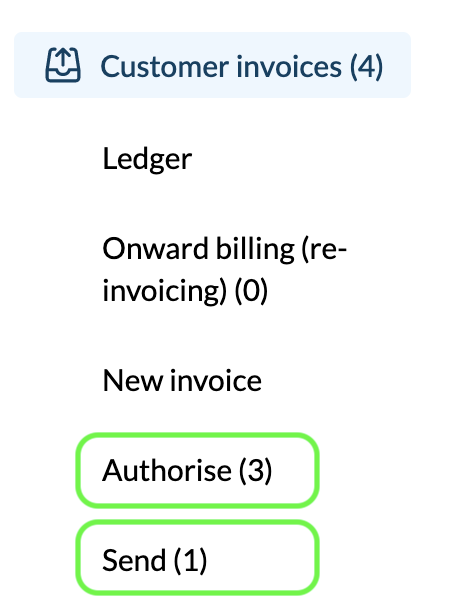
The invoices that have been created according to the agreements can be found in the menu under Customer invoices > Authorise. From here someone in the company needs to authorise and then send the invoices in order for them to reach the customer.
Recreate removed invoices
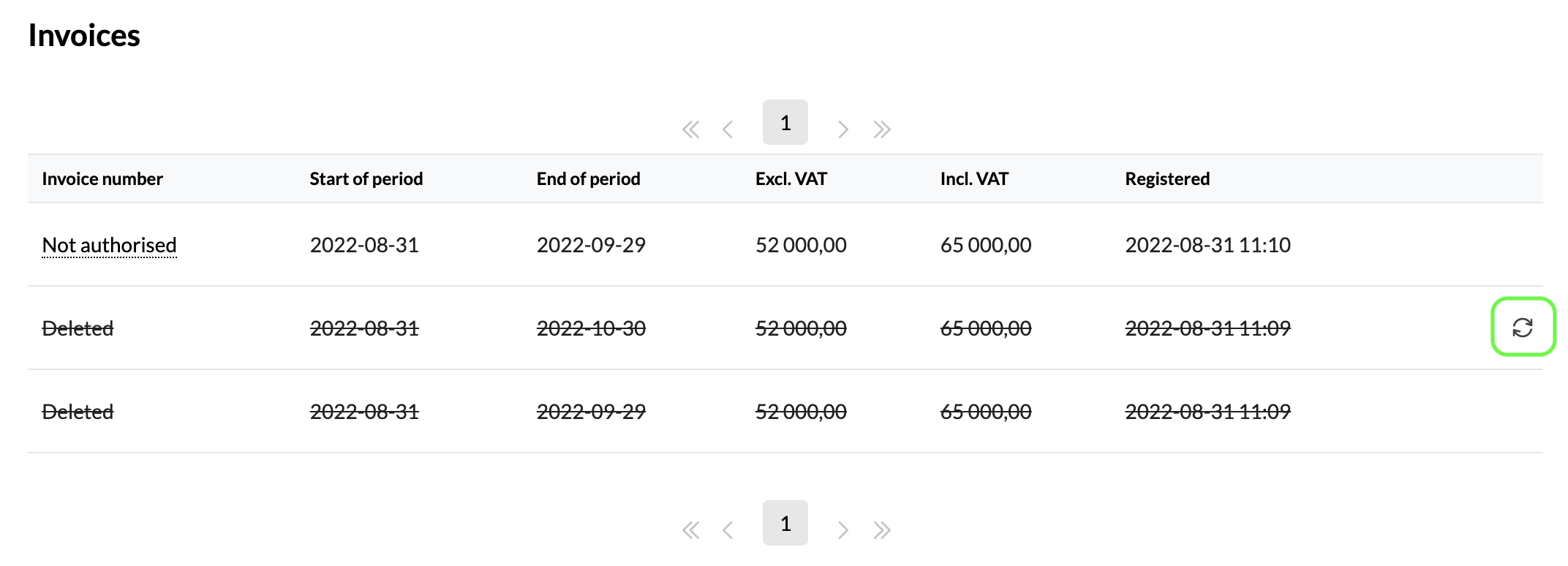
If for some reason choose to delete the invoice instead of authorising it, you can go back into the agreement and recreate the invoice by clicking the icon on the right, the two arrows.
If you recreate a deleted invoice, a new invoice with the same content is created and will appear under Authorise and the invoice can now be authorised and sent again.
Credit invoices
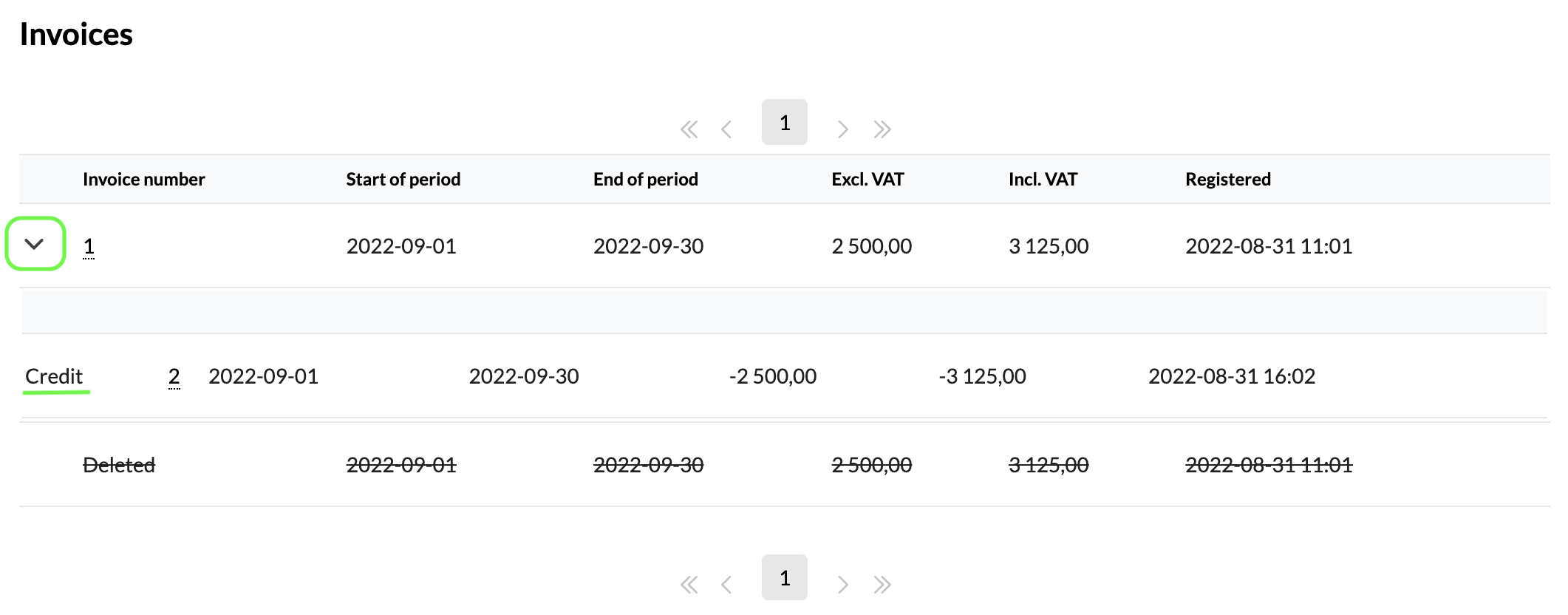
Once invoices created from the ongoing agreement are sent, it is documented which invoices these are in the ongoing agreement. Should any of the invoices have been credited, it can be seen via an arrow in front of the invoice number. Clicking on the arrow the credit invoice will appear.