

Follow-up in projects
Depending on what you want to follow up on, there are many places to look.
How do you keep track of what happens in the project on an ongoing basis?
Depending on what you want to follow up on, there are many places to look. Read more below about which information you will find where.
The project view
What do you see in the project view?
On the Projects page (reached via the left-hand menu), all projects are shown with details of the customer, the project name, the project number and so on. If you have set up a revenue budget, the hours worked out of the total budgeted hours are shown, and the revenue budget you have set is also shown in the overview.
Can you customise the project view?
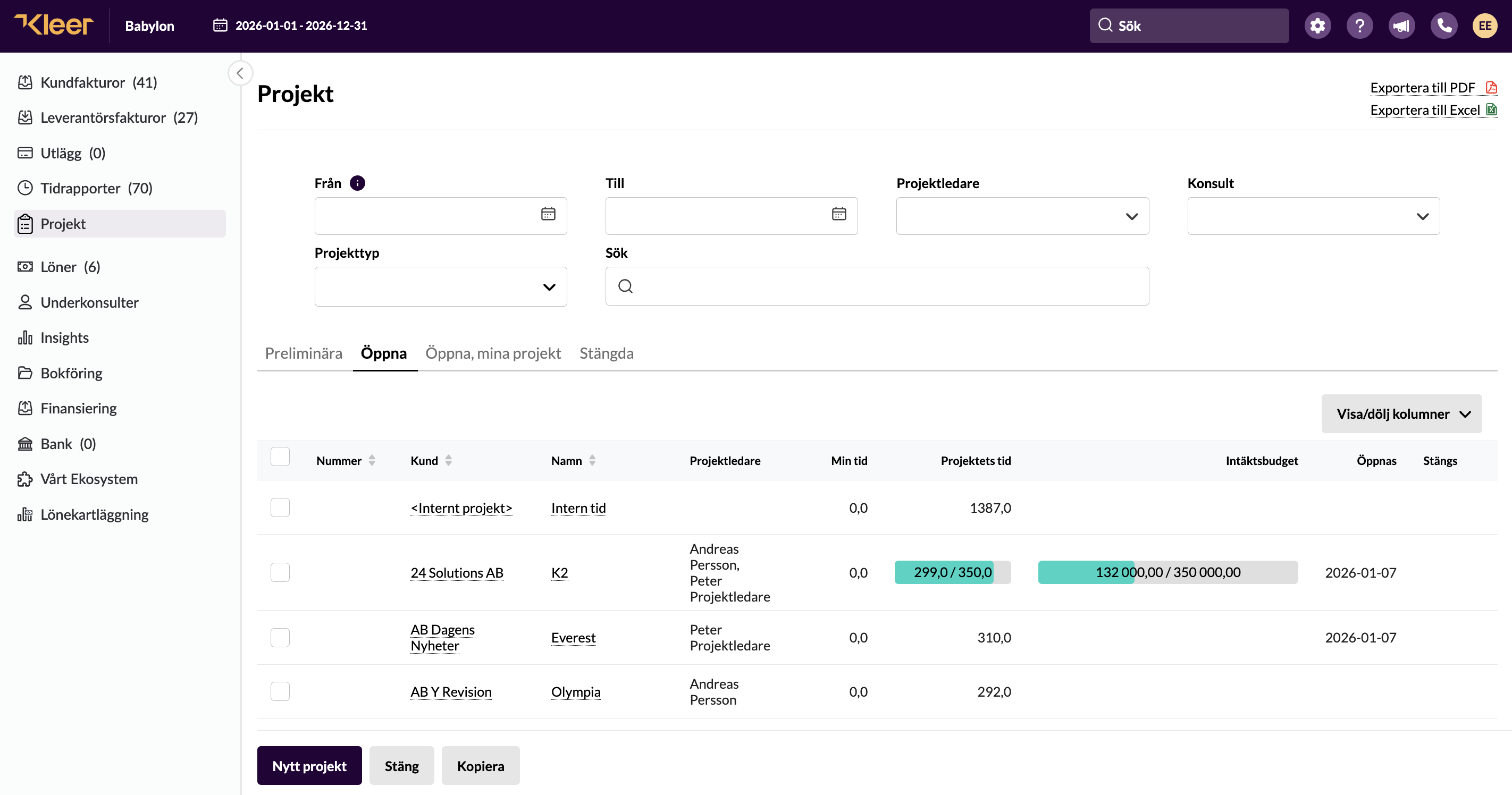
Hide/show columns
You can choose to hide or show different columns in the list, such as time, name and so on.
Sort the view
You can also filter the view by date, project manager, which consultants are members, or search for any project or similar that you are looking for.
The filters are kept in the address of the page. You can therefore save a filtered view as a bookmark or send the link to a colleague, who sees the same selection if they have permission to it. The back button takes you back to the selection you left. Clear all filters clears only the page you are on. If you switch company, the filters are cleared.
Search
You can also choose which filter you search in: preliminary projects, open, fixed price, closed and so on.
The overview
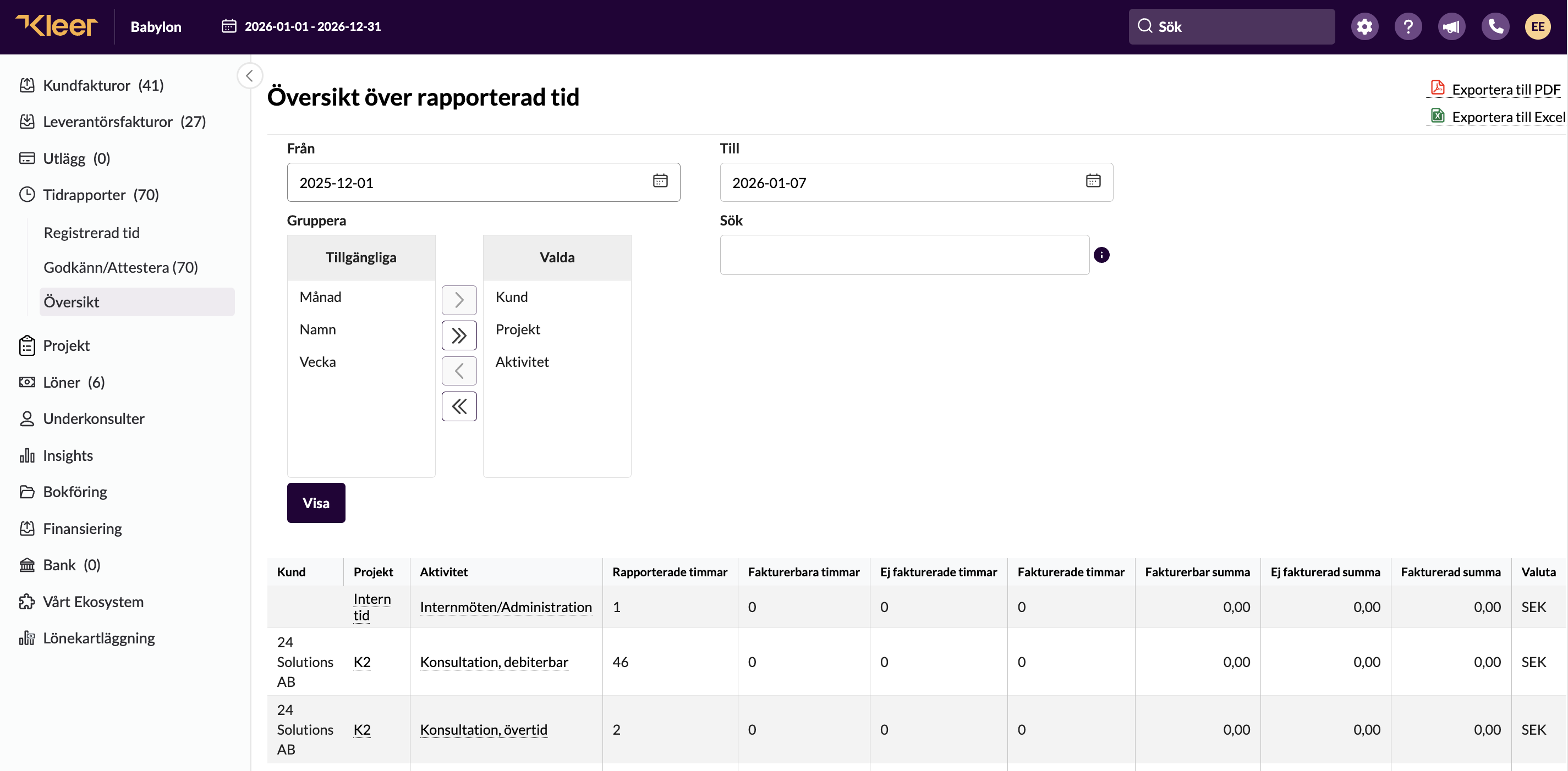
The heading “Overview” found in the time reporting module in Kleer is really an overview of the reported time. However, projects are included in this list, and if you choose project as the basis for how the list is sorted, it also becomes a good way to follow up on projects in terms of hours, activities and more.
Follow up the result for the project
In the project
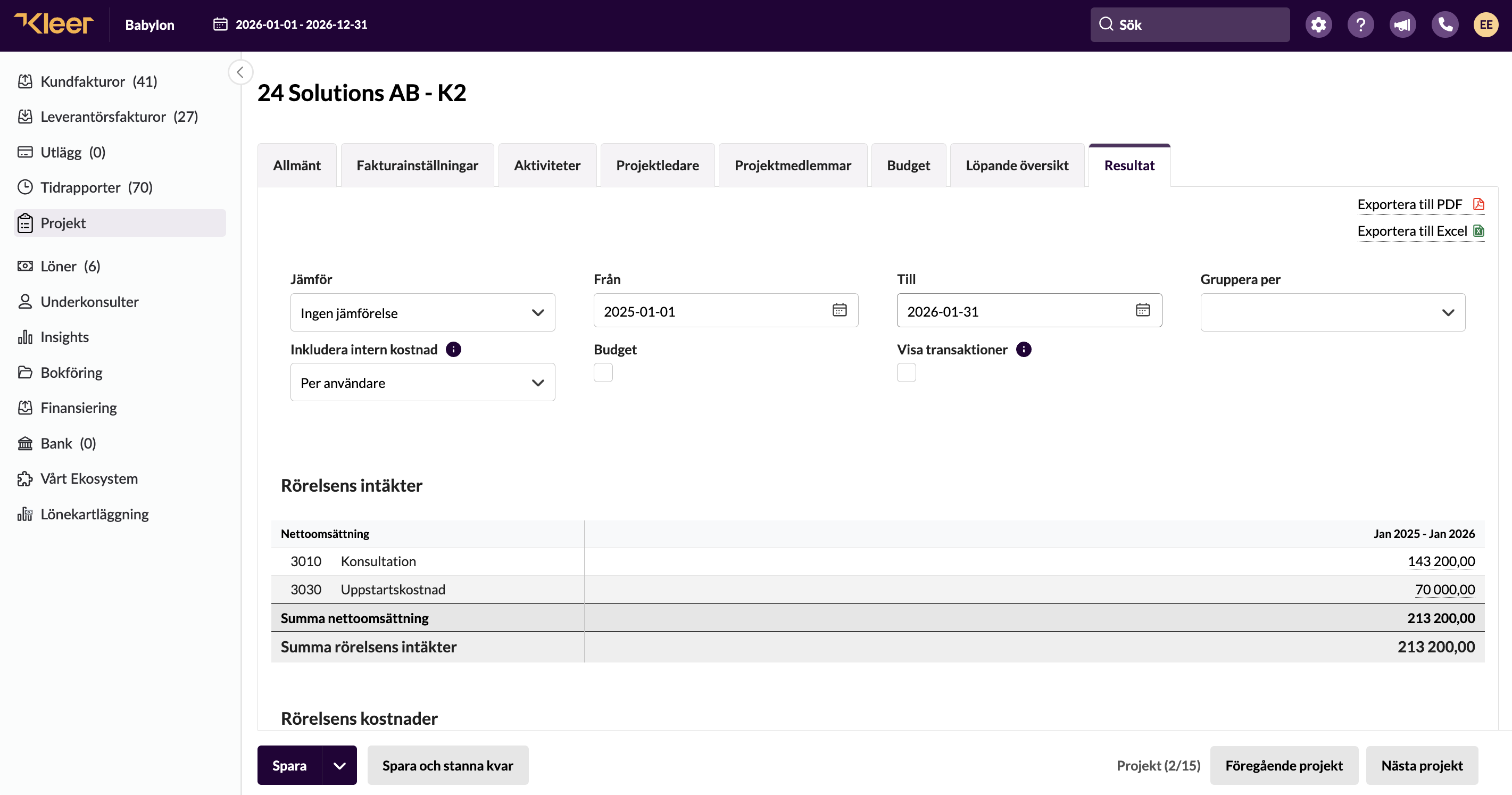
Various follow-up options are available within the project. There is the invoicing plan for fixed-price projects, and otherwise the overview and also the result tab, where you can follow up on how the project is going and compare the outcome against the budget.
In the income statement
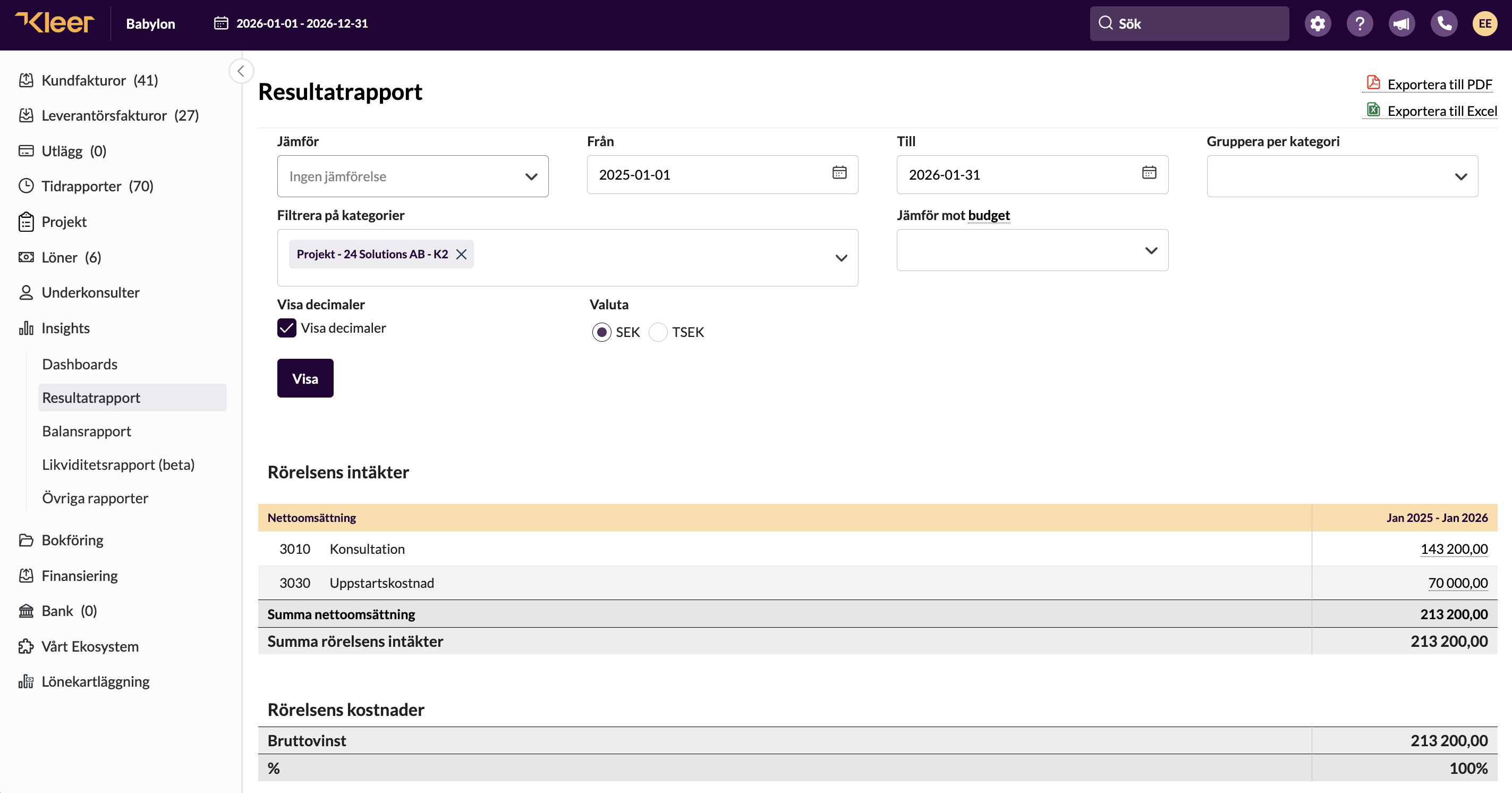
Under Insights > Income statement you can choose to look only at the project’s result (under Filter on category) and also compare against the budget. However, the budget added to the project is not shown here; the budget that can be selected from the list must have been set up under Settings and Budget in the company.