

The subcontractor module and self-billed invoices in Kleer: for administrators
Kleer has a subcontractor module as an add-on service.
The subcontractor module and self-billed invoices in Kleer
The subcontractor module
Kleer has a subcontractor module as an add-on service. It is there to make things easier for companies that have hired consultants to carry out assignments for their customers.
The consultant invoices the Kleer customer, who in turn invoices the end customer. Our Kleer customer then wants to be paid by the end customer before the subcontractor is paid, and the documents also need to match between the invoices, for example in the number of hours. This module makes that easier.
Introduction
With Kleer’s subcontractor module, self-billed invoices can be generated automatically and linked to customer invoices. The self-billed invoices are authorised as soon as the customer invoice is authorised, and they only appear for payment once the customer invoice has been paid.
For this to work, you need to do three things:
1. Add subcontractors
Users and companies/suppliers must be linked together in the subcontractor register in Kleer. This must be done before the first customer invoices for the supplier in question are created.
2. Enter the correct prices
The correct customer prices and self-billed invoice prices must be entered for users, activities, project members and projects, depending on where you set the prices.
This must be done before the first time reports from subcontractors are authorised.
3. Make the products available to the subcontractors
“Products” that subcontractors should be able to use (that is, products linked to activities that subcontractors can report time on) must have the box “Can be used by subcontractors” ticked and must also have an accounting account for self-billed invoices. This must be done before the first customer invoices are created.
This guide describes how to do the steps above in the system and how invoicing then works.
Subcontractor register
For self-billed invoices to be generated automatically and for the accounting to be correct, Kleer needs to know which users are subcontractors and which company they belong to. This is handled in the subcontractor register, which you find in the left-hand menu under Subcontractors > Register of subcontractors.
The page shows a list of all your suppliers that are subcontractors, grouped by company. ID number = an internal ID number that is used to generate unique serial numbers for all self-billed invoices. See the heading later on.
Add a new subcontractor
To add a new supplier as a subcontractor, click Create new subcontractor company. The first step is to choose which company it concerns. You can choose an existing company from your supplier register or create a completely new one.
If the company has no email address in the supplier card, you get a warning that you need to add one. This is needed because the self-billed invoices will be sent to that address.
When you have chosen or created a company, the next step is to state which user or users belong to this company. Here too you can choose among existing users (active users who have no employment contract) or create new ones.
If you create a new user in this view, the person automatically gets permission to report time and expenses.
Edit a subcontractor
To edit a subcontractor, click the company name in the subcontractor register. On the screen that follows you can then click:
- The company name, to change details in the supplier card
- The user’s name, to edit the user card
- The Settings link in the Time reporting column, to change, for example, the default hourly prices for customer invoices and self-billed invoices
- The wastebasket, to disconnect (inactivate) the user
Set self-billed invoice prices
1. Reported time
There are several places in Kleer where you can enter default prices for a given activity, both for customer invoices and for self-billed invoices. You can also change the price when you edit the invoicing basis just before you invoice, but these are the places where you can set default prices for self-billed invoices:
- User: In the user’s time reporting settings, which you reach via the subcontractor register (see the heading Edit a subcontractor above or the page Settings > Users in Kleer), you can set default prices for customer invoices and self-billed invoices for a given user. Note: depending on the company’s settings in Kleer, the boxes for income allocation may not be shown. They have no use in the context of self-billed invoices.
- Activities: In Settings > Activities, which you reach via the top menu in Kleer, you can set default prices for an activity, for customer invoices and self-billed invoices. By default the product’s default price is shown in blue text, but you can overwrite it.
- Activities in a project: Under the Activities tab of a project (found in the left-hand menu under Projects) you can set default prices for a given activity in a given project. By default the activity’s default prices are shown in blue text, but you can overwrite them.
- Project members in a project: Under the Project members tab of a project you can set default prices for customer invoices and self-billed invoices for a given activity and user in that specific project.
- Price hierarchy: If prices are set at several levels in Kleer, the most specific price is suggested, in this order:
- The project’s price per activity and project member
- The user’s own price for the activity according to the time reporting settings
- The project’s price for the activity
- The activity’s price
- The product’s price (The actual invoice prices can be changed in the Edit basis for invoice step before the invoices are created.)
2. Expenses
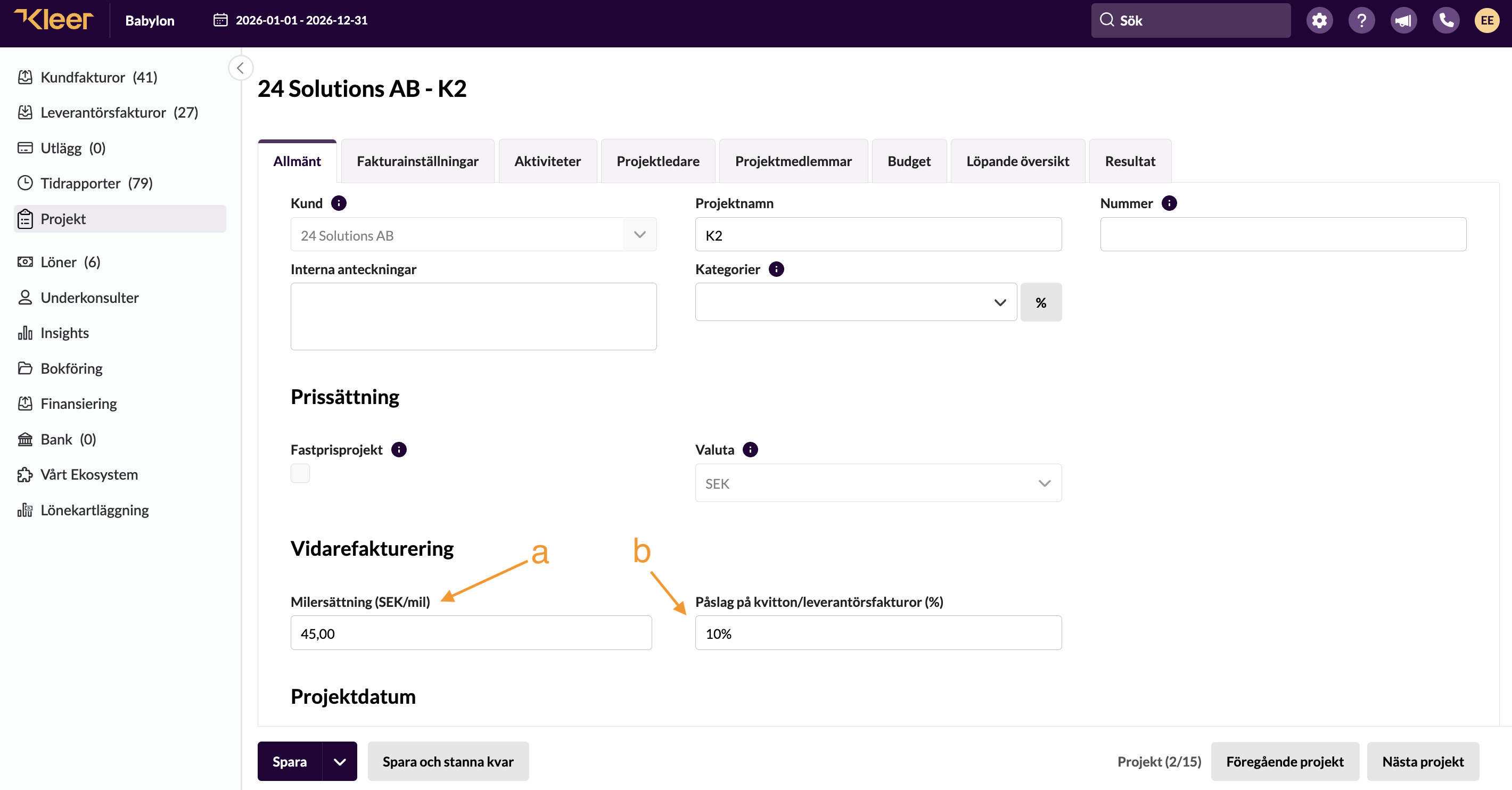
This is how the self-billed invoice price is set for expenses:
- Receipts: the receipt amount excluding VAT ends up on the self-billed invoice.
- If you have set a percentage mark-up for onward invoicing in the project’s General tab (see marker b in the image below), this mark-up only ends up on the customer invoice. On the self-billed invoice the amount is the original amount.
- Mileage allowance: The allowance is controlled by what has been set in the project’s General tab (see marker a in the image below). This amount ends up on both the customer invoice and the self-billed invoice. (If nothing has been set in the field, the Swedish Tax Agency’s standard amount is used, currently 25 SEK/mil.)
- Per diem allowance: The allowance is controlled by the Swedish Tax Agency’s standard amounts for a full day or half day, in Sweden and abroad respectively. The same amount ends up on both the customer invoice and the self-billed invoice.
Mileage allowance and per diem allowance are available to all subcontractors.
Set up products
For the accounting to be correct, you must state which products a subcontractor can use and how they are to be booked. This is set under Settings > Products, which you reach in Kleer’s top menu. Click the product and tick the box “Can be used by subcontractors” at the bottom, and enter the accounting account for self-billed invoices. The default is 4601 Subcontractors.
Invoicing
This is how invoicing works with Kleer’s subcontractor module:
- The consultant reports time and expenses in Kleer and approves their time for invoicing
- The person responsible for invoicing first authorises the time and expenses and then goes in and creates a customer invoice. When the customer invoice is created, Kleer automatically creates a supplier invoice that is issued by your company in its capacity as the consultant’s client: a so-called self-billed invoice.
- When the customer invoice is authorised, the self-billed invoice is authorised automatically. At the same time it is emailed as a PDF file to the consultant, together with any expenses that have been invoiced on.
When the customer invoice is then paid, the self-billed invoice is placed automatically under “Pay”. This typically means that if the customer invoice is paid before the due date, the consultant is also paid early, but if the customer invoice is not paid on time, the payment to the consultant is also delayed. (The due date of the self-billed invoice is by default set automatically to 5 calendar days after the due date of the customer invoice, but the number of days can be adjusted by Kleer’s consultant team.)
Preview self-billed invoices
When time and expenses have been authorised, they are shown under Customer invoices > Time & Expense billing. From this view you can preview both the customer invoice and the self-billed invoice before you invoice. You can also click Edit basis for invoice if you want to change, for example, the customer prices or the self-billed invoice prices. From that view too you can preview both the customer invoice and the self-billed invoice.
Create self-billed invoices
When you choose to invoice from the project list or from the edit invoicing basis view, all the necessary customer invoices and self-billed invoices are created. Because the self-billed invoices are pre-coded and tagged with the same categories as the customer invoices, they end up directly under Supplier invoices > Authorise.
Please note:
- If several subcontractors work in the same project, a single customer invoice is created, but one self-billed invoice per consultant.
If the same subcontractor works in several projects, one self-billed invoice is created per project.
Authorise self-billed invoices and send them to the consultant
Self-billed invoices do not need to be authorised separately. They are authorised automatically when the customer invoice is authorised. To prevent self-billed invoices from being authorised and paid by mistake, it is also not possible to authorise a self-billed invoice whose customer invoice has not been authorised.
When the self-billed invoice is authorised automatically, it is sent as a PDF in an email to the consultant, to the email address stated on the consultant’s supplier card (reached via Supplier invoices > Register of suppliers, or via Subcontractors > Register of subcontractors for someone who only has permission to administer subcontractors). Any expenses that have been invoiced on are also attached to the email.
When the invoice has been authorised but not paid, you find it under the heading Pay and the filter Dormant self-billing.
Pay self-billed invoices
In most cases, self-billed invoices should only be paid once the related customer invoice has been paid. When the customer invoice has been paid, the self-billed invoice shows up under the tab Supplier invoices > Pay. Until then you find it under the filter Dormant self-billing, see above. Note that you need to pay the self-billed invoice actively, by selecting the invoice and clicking the Pay button.
The due date of the self-billed invoice is by default set automatically to 5 calendar days after the due date of the customer invoice, but the number of days can be changed by Kleer’s consultant team.
Next to this is an example of what a self-billed invoice can look like. Note the following:
- The invoice number is created automatically according to a serial number system, where each subcontractor gets its own number series. In the example the number is 1-1, that is, the first invoice for the consultant with ID 1.
- The due date is set automatically to 5 calendar days after the due date that the customer invoice gets when it is created. If the invoice date or due date of the customer invoice is changed before the customer invoice is authorised, the same dates are updated automatically on self-billed invoices that have not yet been authorised: the invoice date and the booking date are set to the new invoice date of the customer invoice, and the due date is recalculated according to the same day rule as when the self-billed invoice was created.