

The Kleer card, for you as an administrator
For you who manage the company cards in the company.
The Kleer card is a credit card that Kleer issues in cooperation with Mynt.
The card can be used as a credit card, or loaded with money in advance and used more like a debit card.
Get started with the Kleer card
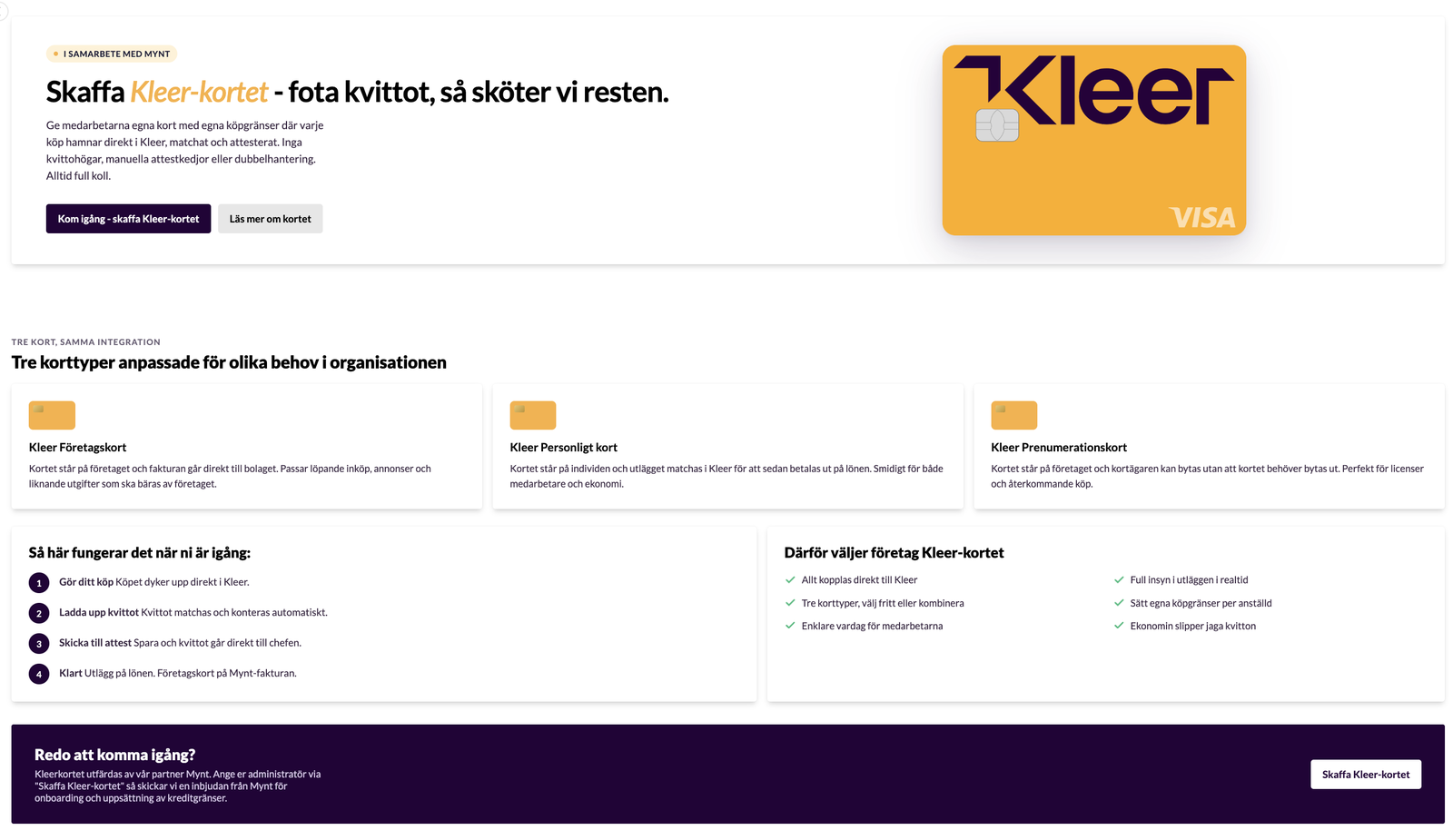
To get the Kleer card, go to Expenses > Company cards in the left-hand menu and click the button Get started - get the Kleer Card / Get Kleer Card. (If you already have other company cards, only the dark banner is shown.)
Then do steps 1 and 2. If you are already up and running, you can go to step 3 to read how it works on an ongoing basis.
Step 1
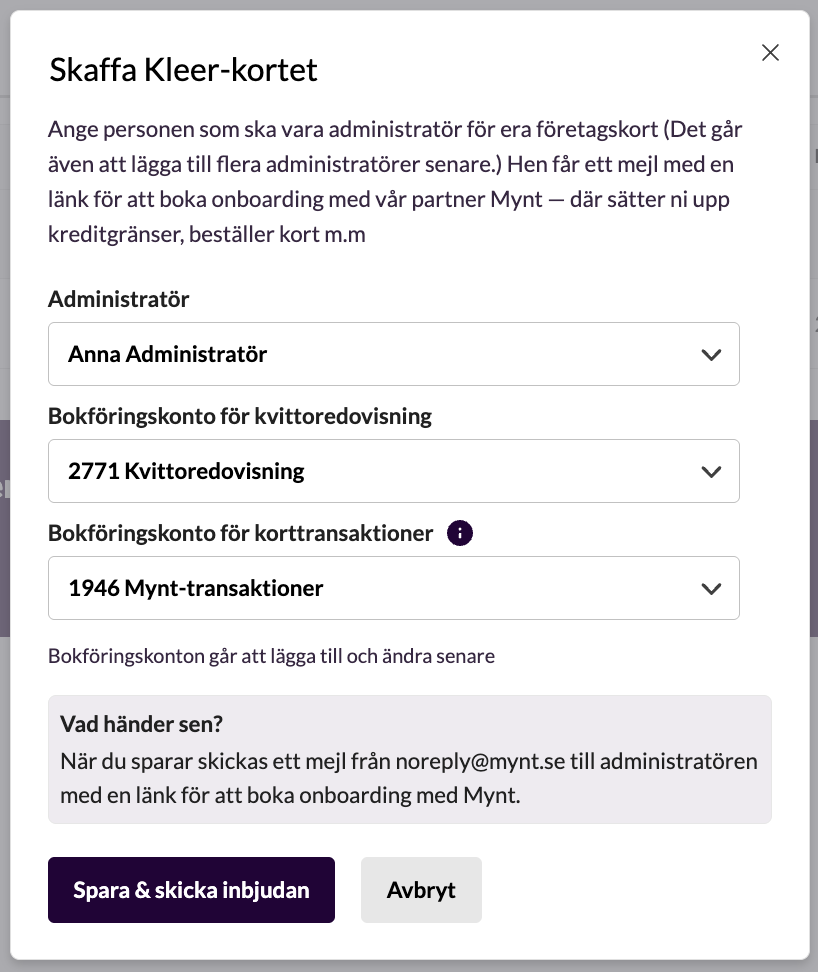
When you have clicked the button, a form is shown where you state who in the company is to be the administrator at Mynt. You can choose freely among all the users who have been added in Kleer.
You also state which accounting accounts are to be used:
Accounting account for receipt reconciliation
The account for unhandled card purchases. When a purchase is made, the purchase is booked up against the account, and when the expense reporting has been done it is booked off the account and booked instead on a suitable cost account.
Accounting account for card transactions
The account that all completed (settled) transactions on company cards are booked against. If you use the company cards with a prepaid pot, you should use an asset account in class 19XX, so that each purchase makes the asset go down. If you use the company cards’ credit, you should instead choose a liability account in class 28XX, so that each purchase makes the liability go up. When direct debit/invoice payment is then made to Mynt, the liability goes down.
If you are unsure which account to choose, contact your Kleer consultant.
Step 2
Mynt sends an email to the person who was stated as administrator in step 1.
Click the link in the email and follow the onboarding at Mynt, create an account, complete KYC and set up credit limits and so on. It usually takes only a few minutes.
On an ongoing basis
To make the administration of the Kleer cards easier, Kleer and Mynt are integrated and sync information between the systems.
In brief: users are managed in Kleer and cards are managed at Mynt. All expense reporting takes place in Kleer’s system.
Step 3
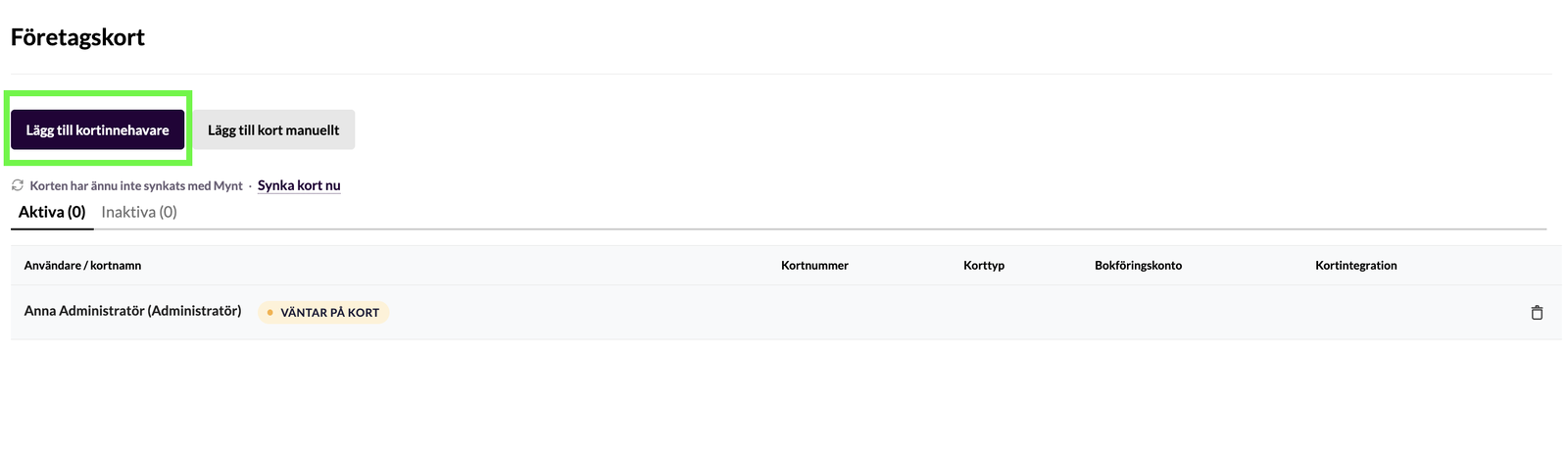
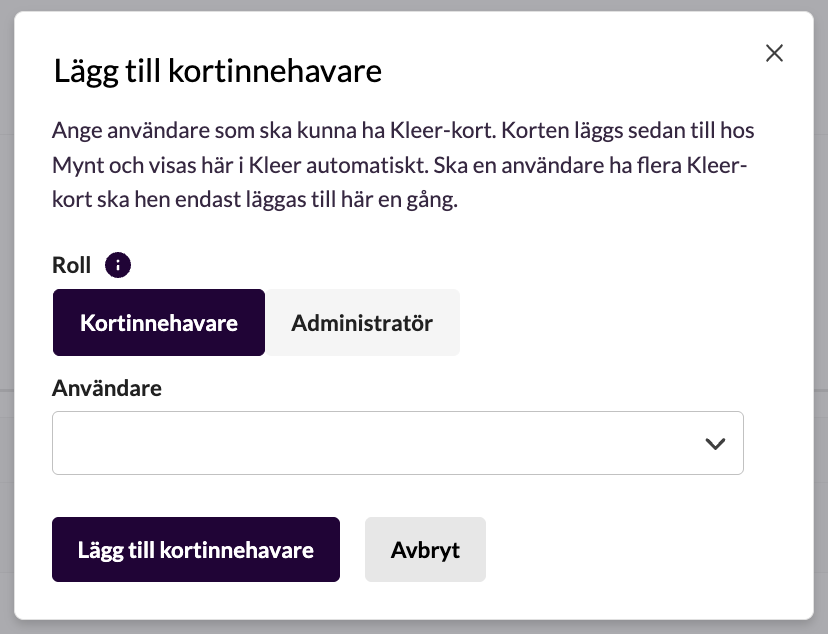
State in Kleer which people in the company are to be cardholders or administrators. Administrators automatically count as cardholders and do not need to be added separately.
If a user is to have several company cards, they only need to be added once as a cardholder.
You can prepare this step even before step 2 is completely done.
The people you state in Kleer are synced automatically to Mynt, and the process then continues in step 4.
Step 4
Add the company cards in Mynt.
Cards can only be added for people who have been synced from Kleer (step 3).
The cards are synced automatically to Kleer once a day. A sync also takes place when someone opens the Company cards page in Kleer, and you can click Sync cards now at any time to start an extra sync.
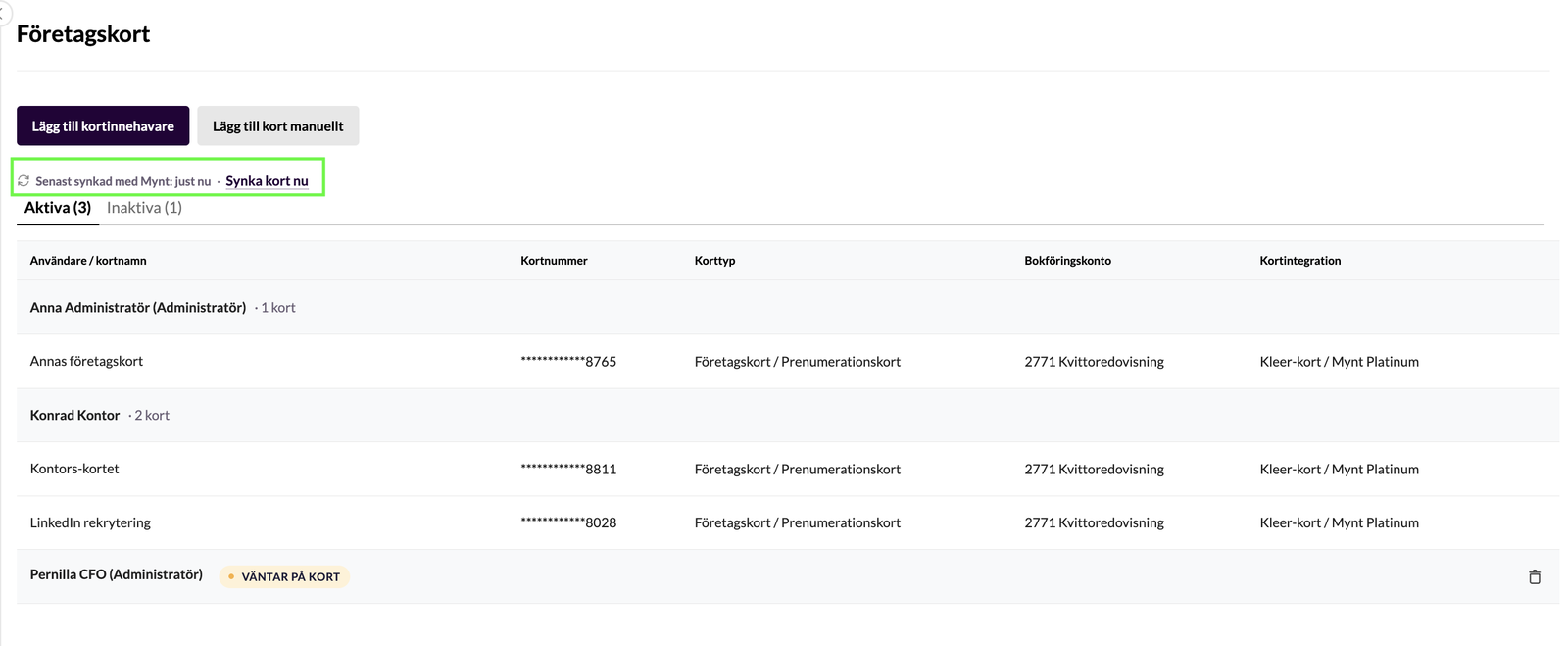
Step 5
The cardholder reports the expenses in Kleer, in the app or on the web.
When the reporting is done, the purchase is booked automatically on the right cost account.
Here is a guide for cardholders who are to report the expenses: Report purchases with the Kleer card.
How a purchase is booked
- The transaction comes in from Mynt as a reservation. Nothing is booked.
- The transaction is settled and a T voucher is created. The account for card transactions (19XX or 28XX) is credited and the account for receipt reconciliation (27XX) is debited with the full purchase amount including VAT. The voucher gets the settlement date, or the closest open date if the period is locked, and a system-generated supporting document from Mynt.
- The cardholder reports the receipt.
- The expense journal is approved and booked:
- The full purchase amount including VAT is moved off the account for receipt reconciliation.
- Any VAT is booked against the VAT account.
- The cost is booked against the account of the selected receipt type.
- With accruals, the cost is moved to an accrual account and recognised in the right period.
- The payment to Mynt (by invoice or direct debit) is booked against the account for card transactions.
Let more people handle card purchases on a card
On each Kleer card you can add more users who get to handle the card purchases in Kleer. This makes it easier to cooperate on the handling, and means that, for example, a department’s company card can be handled by several people. One person then does not have to sit alone with all the receipt reporting, and instead of documentation being emailed around, people can handle the card purchase directly in the system.
Click the pencil at the right edge of the row for the card. In the field “May handle card purchases” you state who should have access to the card in question. The access to handle purchases is per card, so if a person has several cards and someone else is to help with all of the person’s card purchases, the user must be added to all the cards.
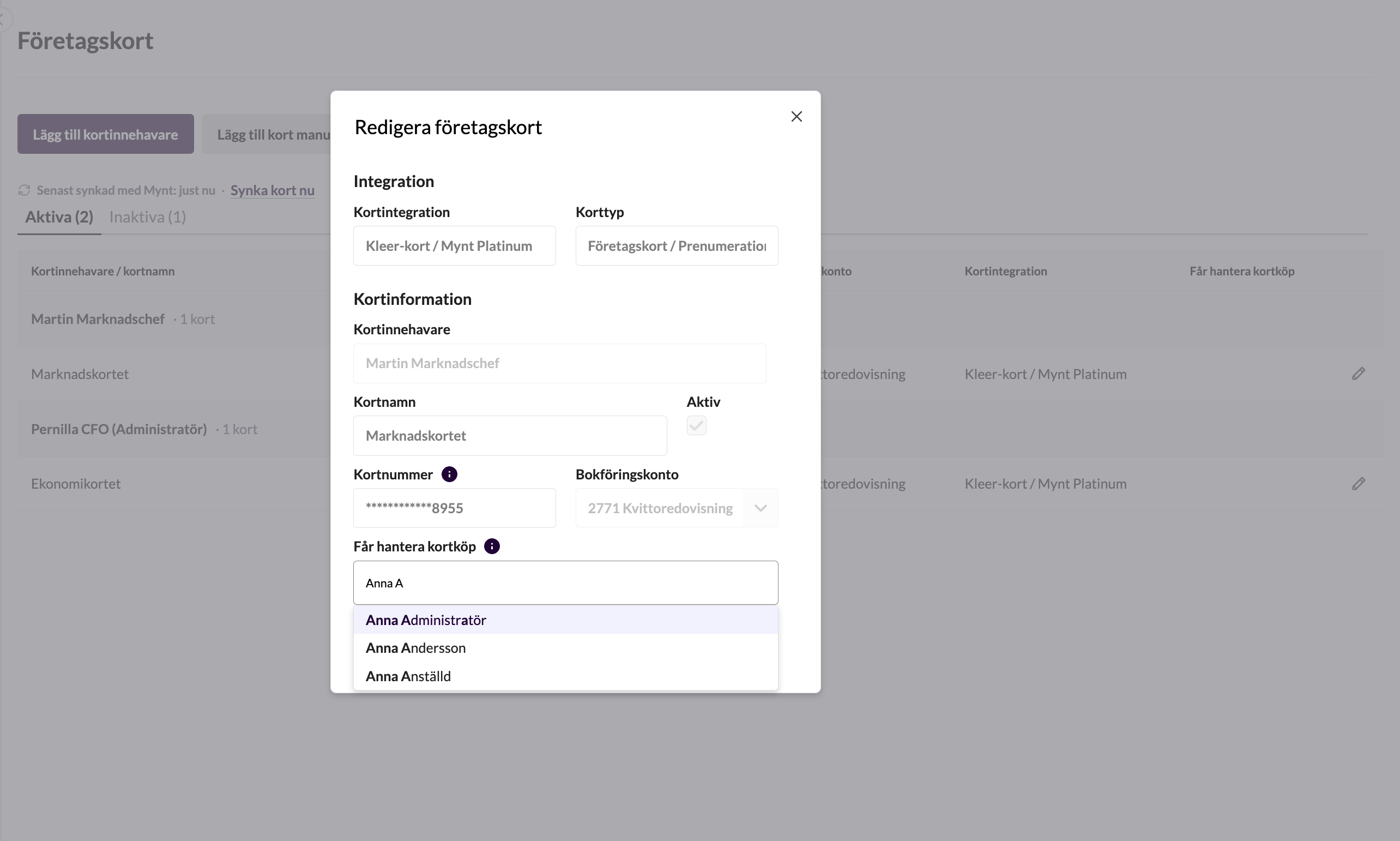
When a user has been added to a company card, the card will appear in the drop-down list in Manage expenses for the user.
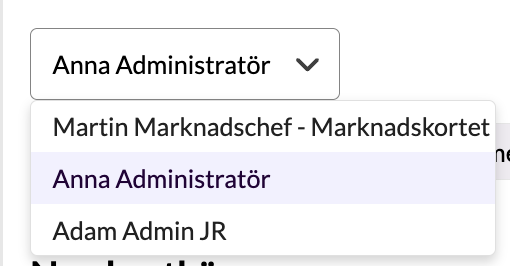
It is the cardholder who has the right to submit the journal. (Their manager and users with Administer all expenses can also do this.)
End the Kleer card
If the company wants to stop using the Kleer card, you end the integration between Kleer and Mynt from the Expenses > Company cards page.
- Close all Kleer cards in Mynt’s admin portal.
- Go to Expenses > Company cards in Kleer and click Sync cards now, so that Kleer sees that the cards are closed.
- Click End the Kleer card. The button only appears when the company has no active Kleer cards left.
- Confirm that you want to end the integration.
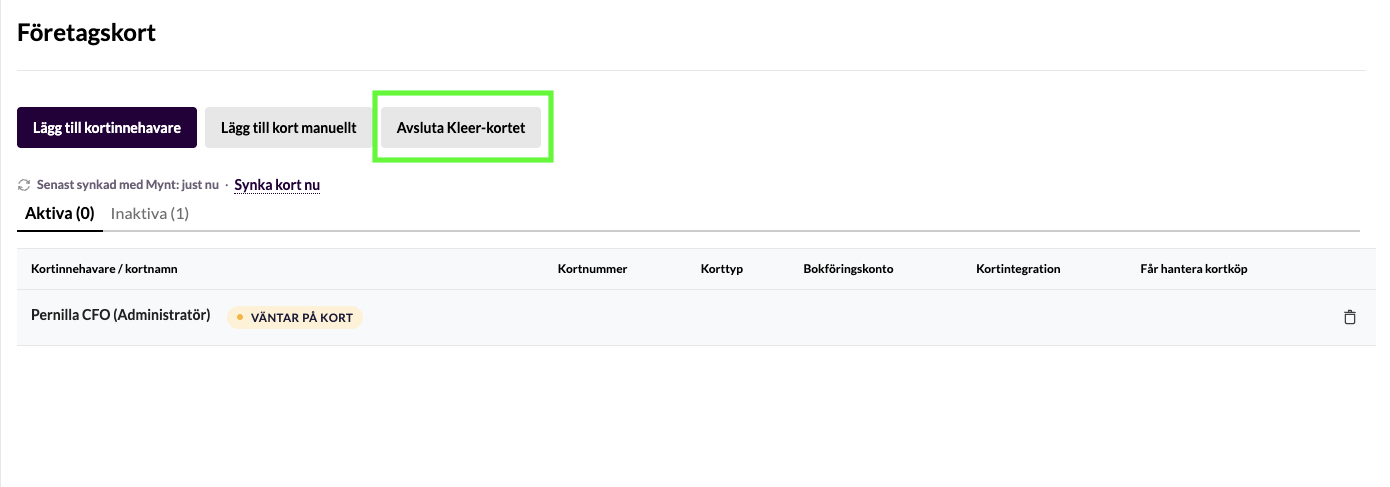
When the integration has ended, the cardholders are terminated at Mynt, the company is disconnected from Mynt and the cards are no longer synced to Kleer.
If you want to start using the Kleer card again later, do as you did the first time, see Get started with the Kleer card.
FAQ
I want to remove a user as a cardholder, how do I do that?
Start by closing any cards in Mynt. When the person no longer has any company cards linked to them, a bin icon appears in Kleer on the row for the user.
Click the bin icon and confirm that you want to remove the person as a cardholder. The person is also deactivated at Mynt.
If you change your mind, just add the person as a cardholder again, see step 3 in the guide.
Can I add a Kleer card directly in Kleer?
No. In Kleer you only state who are to be cardholders, and the cards are then synced from Mynt. Everything about the cards is controlled in Mynt’s admin portal: type of card, name of card, credit limit and so on. The integration makes sure that Kleer and Mynt always have the same information about cardholders and cards.
The Add card manually button must never be used for Kleer cards! If a card does not show up in Kleer, get in touch with your Kleer consultant.
We also have other company cards, from another card issuer. How do I handle them?
Then you use the Add card manually button and enter all the card’s details.
The transactions on the card are then added manually under Manage expenses.
I get an error message when I try to get started with the Kleer card, what is the cause?
The most common causes are:
- The administrator has no email address. An email address is required, because Mynt sends an email to the person. Enter the email address under Settings > Users and try again.
- The company has no complete address in Kleer. Contact your Kleer consultant and ask them to check the address that has been entered.
Who in the company may handle company cards in Kleer?
The permission Administer company cards is required to handle the company’s company cards. The permission is also included in the Finance manager role.
Users with the role Full read access or Auditor can access the page, but can only read.
Related guides
- Report purchases with the Kleer card, for you who are to account for your own card purchases
- Report purchases with an AirPlus or SEB Corporate card
- Card transactions and Mynt balance: reports for following up card use