

Send in receipts from several email addresses
How to add extra email addresses to a user, so that receipts emailed from for example a shared address end up with the right person in Kleer.
Kleer matches an emailed receipt to the user the email comes from. To begin with, that only applies to the user’s login address. If you also want to be able to send in receipts from another address, for example a shared address such as receipts@yourcompany.com, you add it as an extra email account on the user. The receipts can then be forwarded straight from there, without first going through someone’s personal inbox.
Add an extra email address
- Go to Settings > Users and open the user.
- Under Email accounts allowed to submit receipts for this user, click Add extra email account and enter the address.
- Click Save.
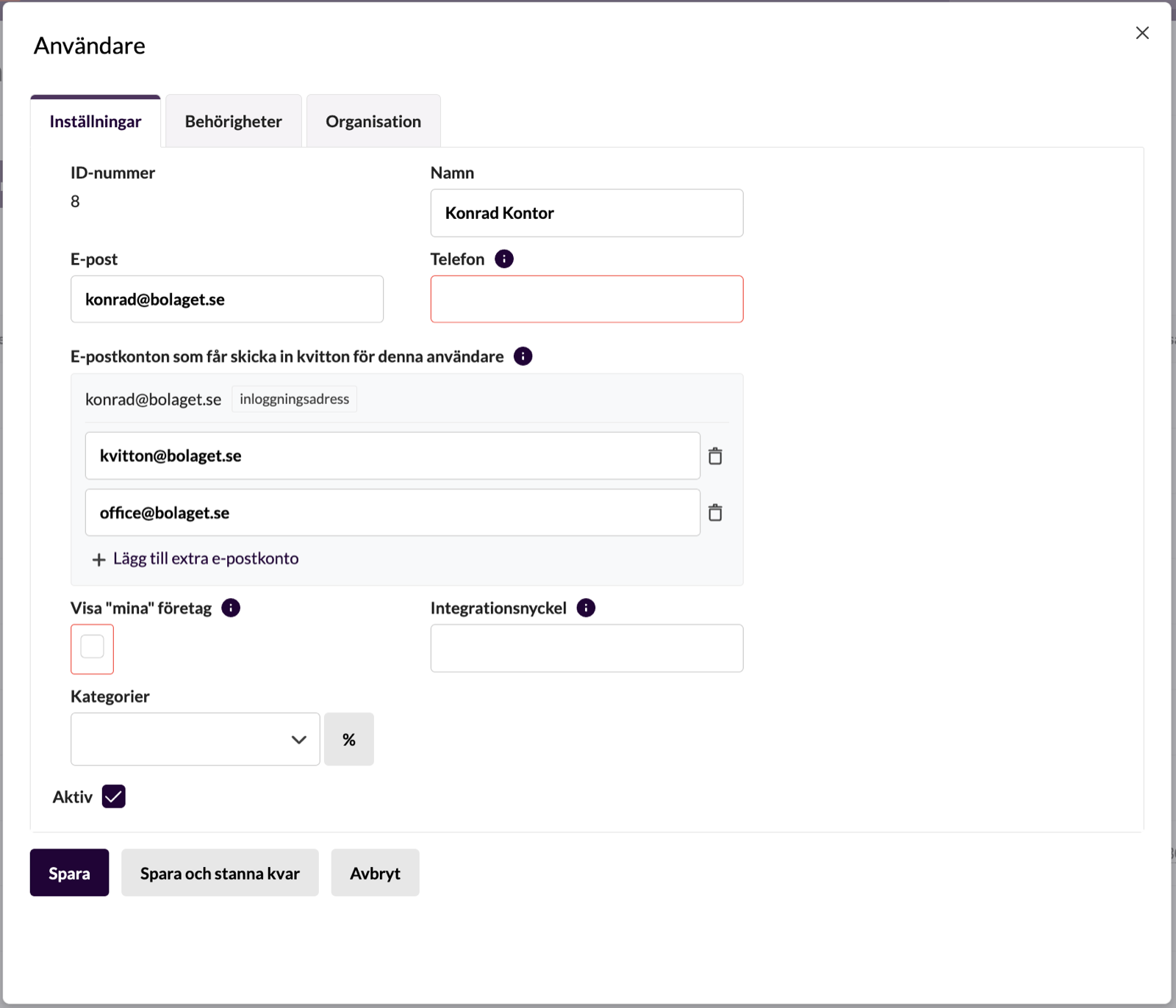
The login address is at the top with the label login address. It always applies and does not need to be added.
To remove an address, click the trash can next to it and save. The address then stops applying to the user and can be added to someone else.
What applies to the addresses
- At most five extra addresses per user and company.
- An address can only belong to one user in the same company. The same address can, however, be used in several companies.
- Another user’s login address cannot be added.
Where to email the receipts
The receipts are emailed to the same address as usual, kvitton@expense.kleer.se. If the user is set up in several companies, the receipt should be emailed to the company’s own address instead. The company’s address is shown under Expenses > Manage expenses.
Where the user sees their addresses
Under Expenses > Manage expenses it says “For the receipt to turn up here, the email must come from:” followed by all of the user’s addresses. The same addresses are also shown in the panel under the phone icon, after “Send receipts from:”.
Related guides
- Report expenses, on how receipts are submitted and handled