

Settings for time reporting and activities
Time is reported in connection with projects.
Why do activities and pricing need to be in place before a project starts?
Time is reported in connection with projects. Since users may, among other things, have different pricing arrangements, this needs to be set up before you make the project available for your employees to report on.
Price settings
The price in a project determines partly what is invoiced to the customer based on the hourly rate. How much of the revenue is to be allocated to the company or to the user can be controlled via revenue distribution, either per user or per activity.
Which price actually applies?
You could say that there are four different levels of pricing, two at activity level and two at user level. Believe it or not, it feels quite logical once we present them.
The activity’s price hierarchy
-
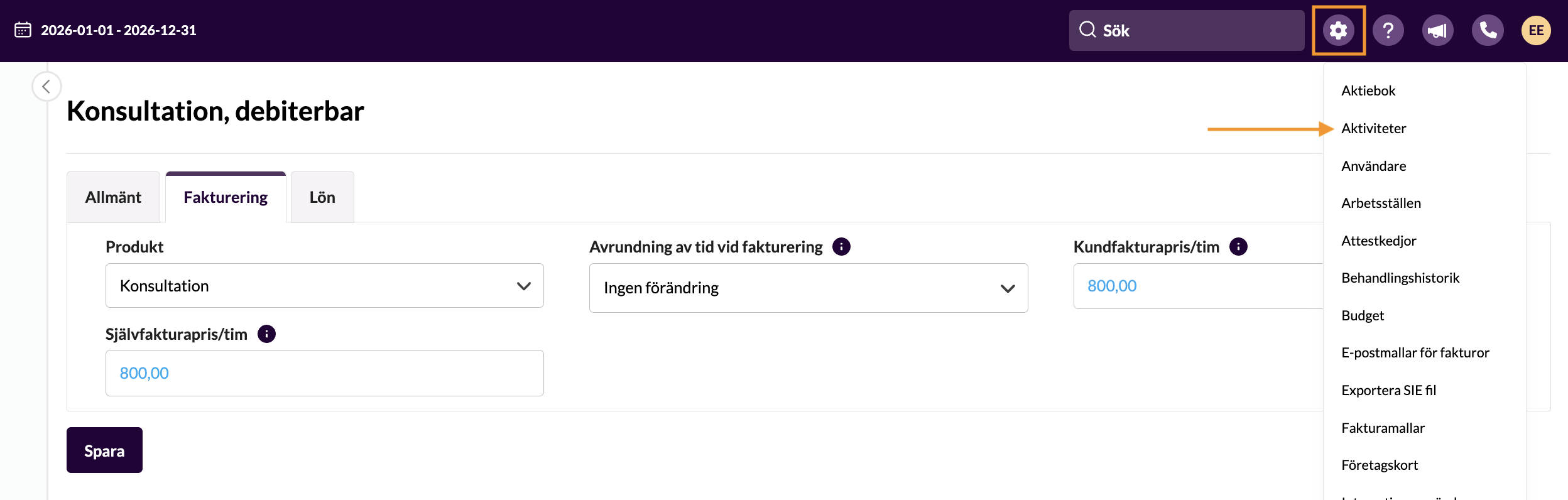
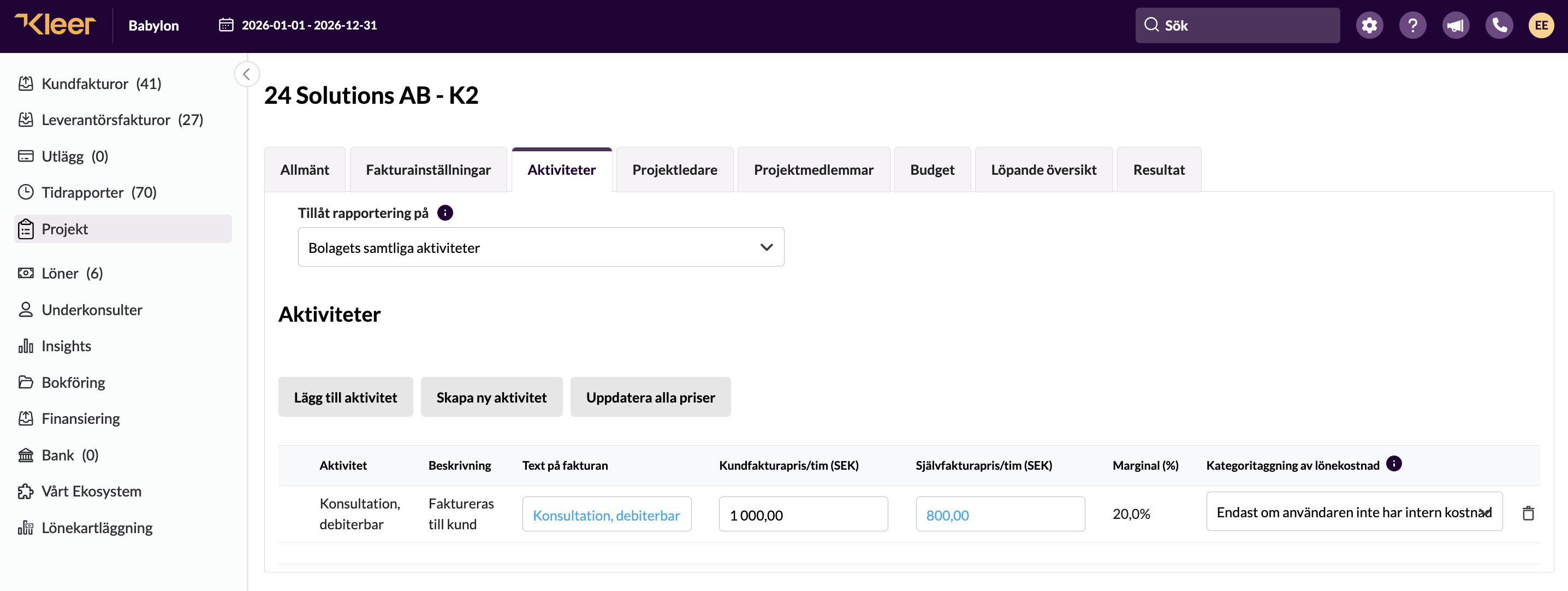
The basic price setting belongs to the activity. If the billable activity has a price and an employee reports on it, that is enough to create revenue and a billable basis for the customer.
-
Do you want to use the same activities for different projects but with differing prices? In that case you add the activity to the project and select a different price. That price is then the one that applies.
The employee’s price hierarchy
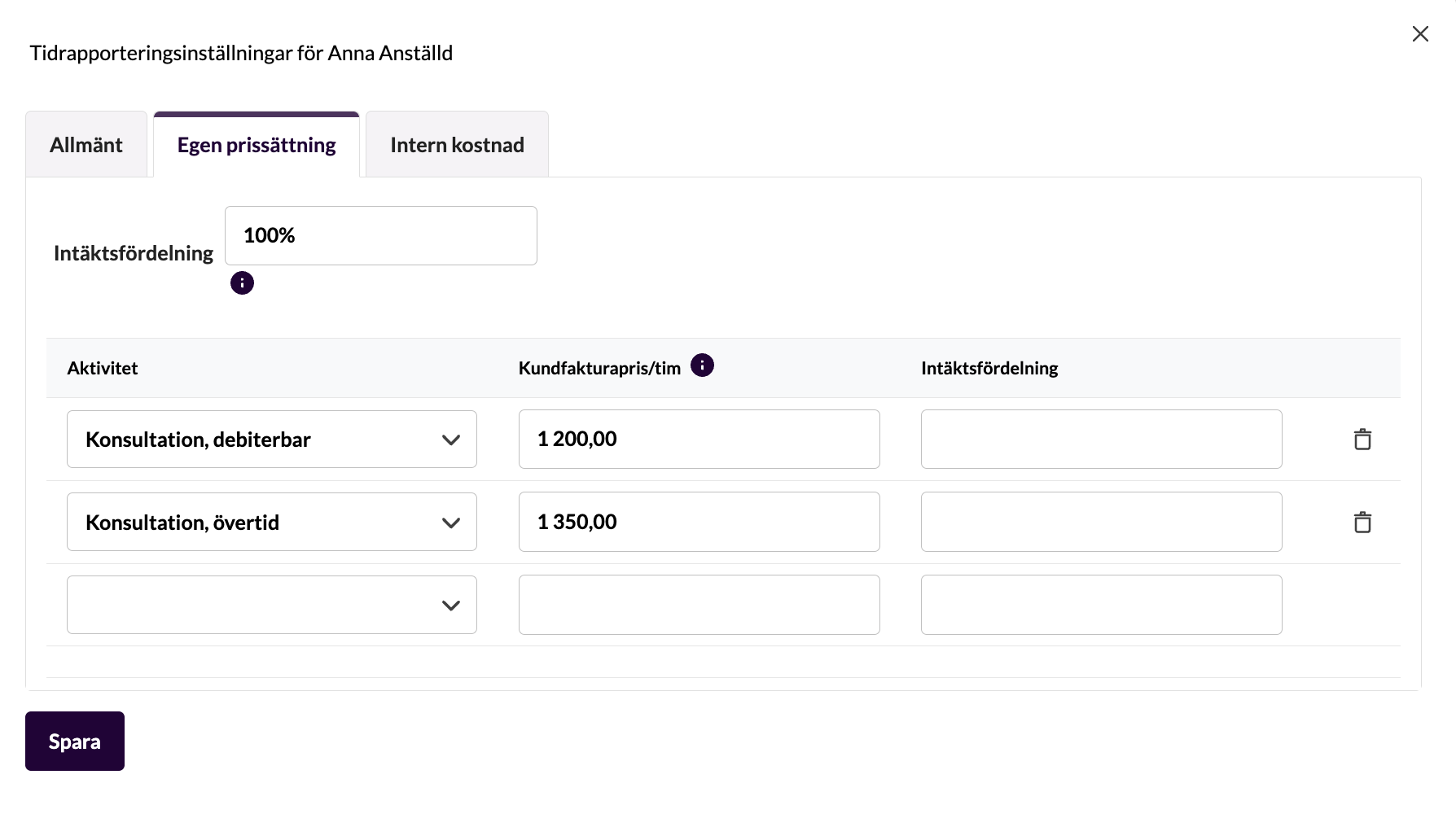
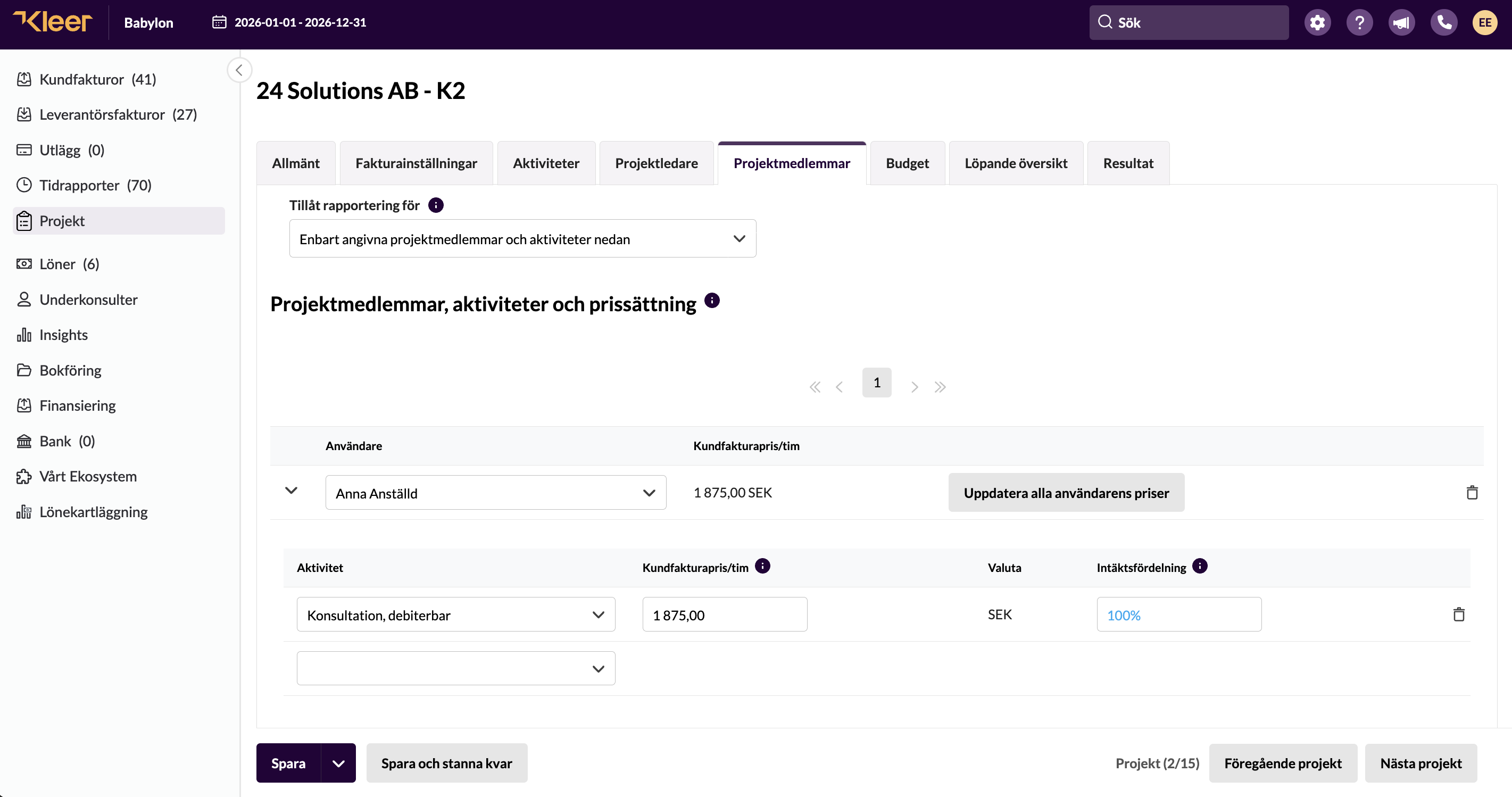
The employee’s price will always override the activity’s price, whether it is project-specific or not.
- First and foremost, there is a price option in the user’s time reporting settings (Settings > Users > click Time reporting settings to the right on the user’s row).
This controls revenue per activity specifically for that user. This setting takes precedence over the activity’s general and project-specific settings.
- In the project, the user’s price can be set per activity if it needs to be adapted to the project. This overrides all other pricing. In project v2 you can select several activities at once and set the price on them in one go, instead of one activity at a time.
Revenue distribution
Revenue distribution is available as an option in Kleer and means that the user is automatically allocated a share of the revenue in connection with invoicing. The setting can be made generally for the user or per activity.
The revenue distribution specified in the user’s settings is proposed when you register them as a project member in a project. However, you can change the distribution on the project. Contact your consultant at Kleer if you would like to know more about how this works.
On the project’s Project members tab you choose, per member, whether the revenue distribution should follow Standard (the value from the user’s time reporting settings) or Override in this project with its own percentage for that project.
Internal cost
The cost is calculated manually and by the company itself, as there are many different calculation models.
This is set per user, or for all or individual activities. You can also enter a time period for how long the cost is to apply.
The cost is shown in the income statement for the project category when the time report is approved.
Time off in lieu
“Show time off in lieu” is set at company level and per user. It means that the user can see their surplus or deficit hours per week both in the web interface and in the mobile app. Read more in the comp time report.
Activity settings
The activities in Kleer correspond to the work you carry out. The more services you need to follow up on, the more activities you create to match them.
TIP! In the project you can control what text is to appear on the invoice regarding the activity. So you do not need to create several activities for that reason, for example if different customers have different requirements as to what should appear on the invoice.
NOTE! Project managers cannot create activities. This is done instead by the finance manager or the project administrator.
The list can be sorted on any column by clicking the column heading, for example to quickly find all group activities.
If an activity has been removed from a project (made inactive), you can now create a new activity with the same name.
How do you create activities in Kleer?
Activities can be created in two ways, either under Settings and Activities or directly in the project. In the project itself, you then control whether all activities are to be available, or whether only one or a few activities are relevant to the project. You can also set whether certain project members should only be able to report on certain activities. Even if you choose to create the activities directly in the project, it is useful to know what needs to be filled in so that you can save the project once you are up and running.
What needs to be filled in when an activity is created?
1. Name
Enter a name for the activity.
2. Description
The description is shown when the person reporting time is to select an activity.
3. Comment required when time is reported
Tick the checkbox if a comment is to be required from the person reporting time. It will then not be possible to save a time report that contains an activity without a comment.
4. Internal cost per hour
Enter the activity’s internal cost here.
5. Billable activity
Tick the checkbox if the activity is to be billable. Where the activity is internal, or external but not billable, the checkbox should not be ticked.
NOTE! When you create an activity that is to be billable, make sure there is a product you can link to the activity. The product determines the revenue account, VAT and accrual principle.
Once the activity has been set as billable, a tab called “Invoicing” opens. Here you link the activity to a product. If a price has been set on the product, it will be shown as the default. This price can be changed.
Non-billable activity
Time recorded on an internal or non-billable activity will not generate an invoice basis. However, the time will be recorded on the respective project, and if the activity has an internal cost, that cost will be shown in the project report.
6. Salary-generating activity
Overtime and travel allowance are examples of activities that can be salary-generating. Contact your consultant at Kleer to set this up correctly.