

Group
How to activate the group module in Kleer: the share register links the companies' ownership shares, and transactions are tagged automatically with organisation numbers, for a live balance sheet and income statement for the whole group.
A live balance sheet and income statement for a group. Is it really possible?
YES, in Kleer it is possible. Watch or read on in this guide, and we explain how it works when you use Kleer’s group module.
Who can use the group module in Kleer?
The module can be used by Swedish companies, and to get the full effect we recommend that all the companies are in Kleer. When all the transactions are in Kleer, you have access to a live balance sheet and income statement for your group. That gives you full control, in the same way as for each company separately.
1. Share register
The share register is a central function for this to work.
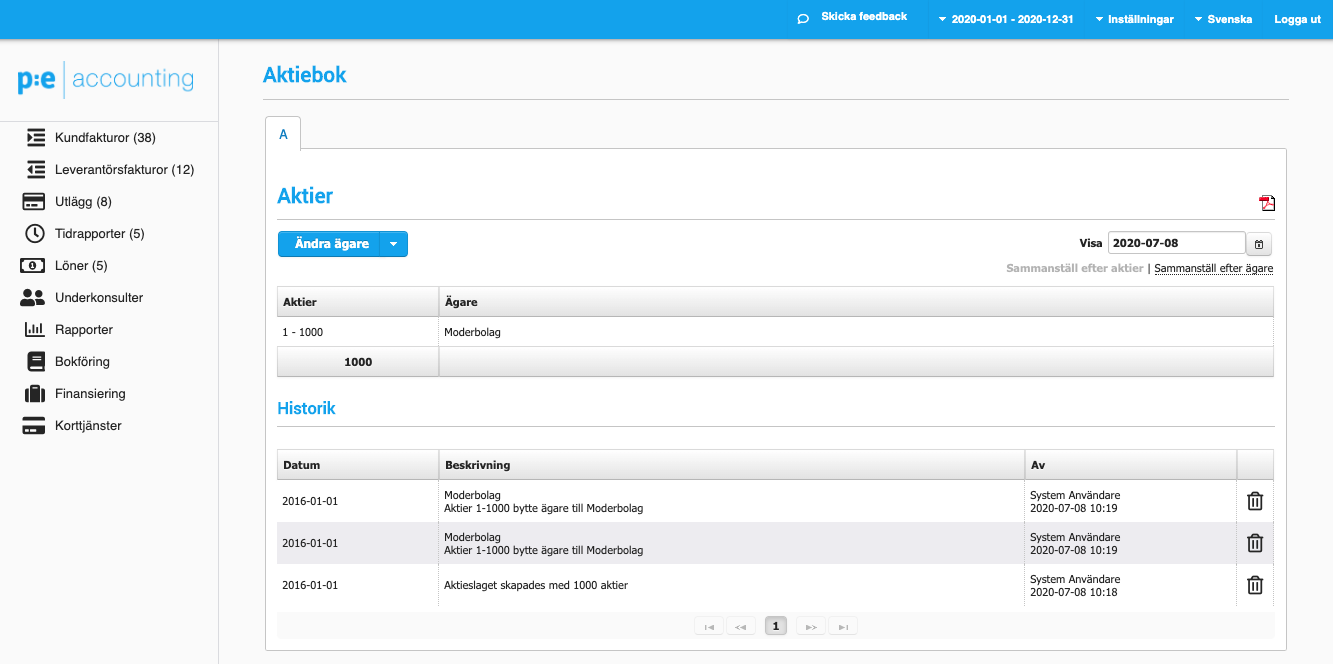
Provided that Kleer has all the information about which company owns which, and to what share, the rest is more or less like a self-playing piano.
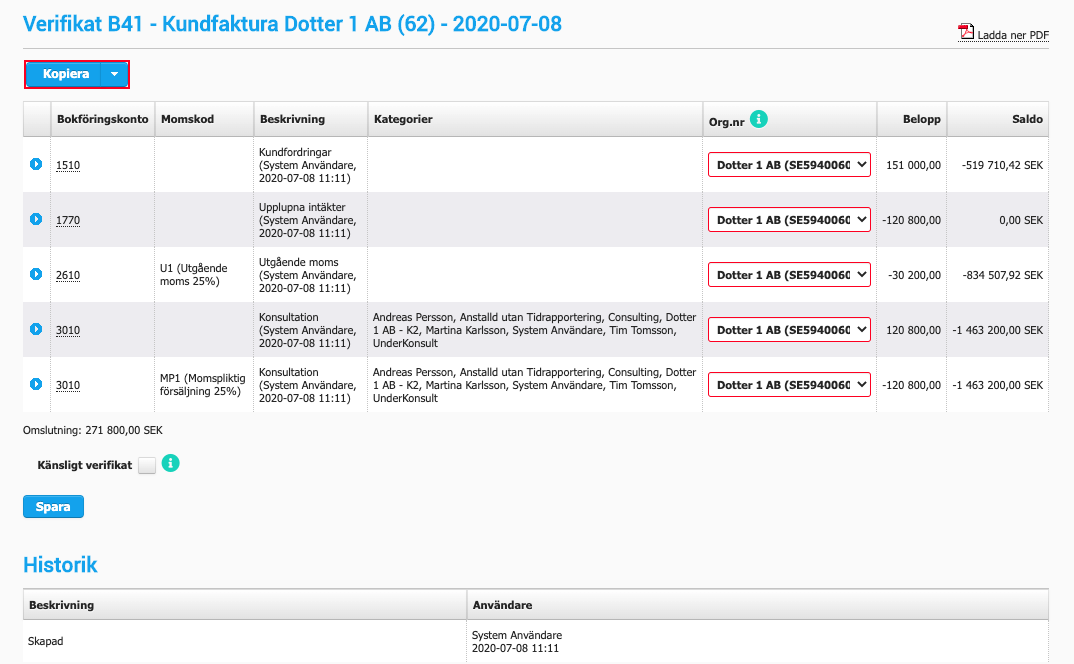
The automation is based on every transaction and voucher being “tagged” with an organisation number. Kleer gets this information from the organisation number registered on the customer and supplier cards.
When the company switches on the group module in Kleer, customer and supplier cards for the group’s companies are registered automatically. If they are already registered, no duplicates are of course created.
Kleer tags group vouchers automatically, retroactively, based on the known organisation numbers.
2. Overview
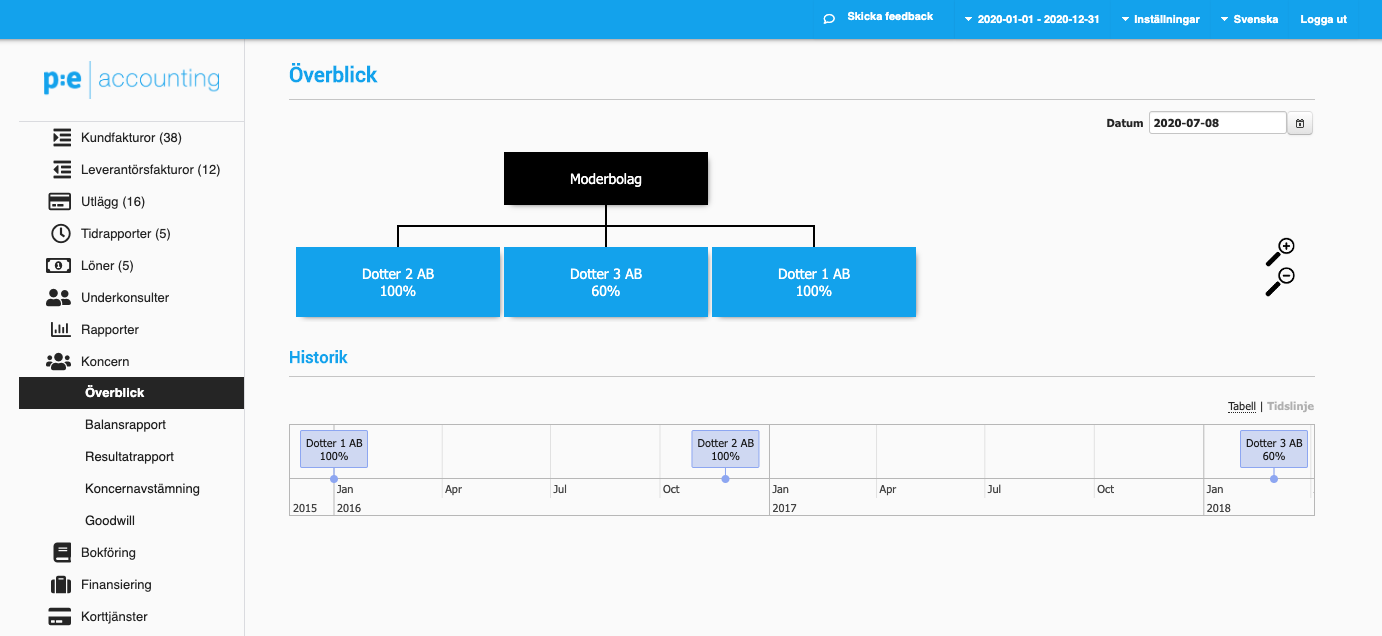
The group tree is shown based on the ownership registered in the share register.
Here you can choose a specific date to see what the group looked like at that time.
Choose whether you want to see the overview as a timeline or as a table.
If the ownership structure changes, Kleer keeps track of it, and the group’s income statement and balance sheet are adjusted immediately and automatically, also retroactively.
3. Balance sheet
Choose whether you want to produce the report grouped by company or by account.
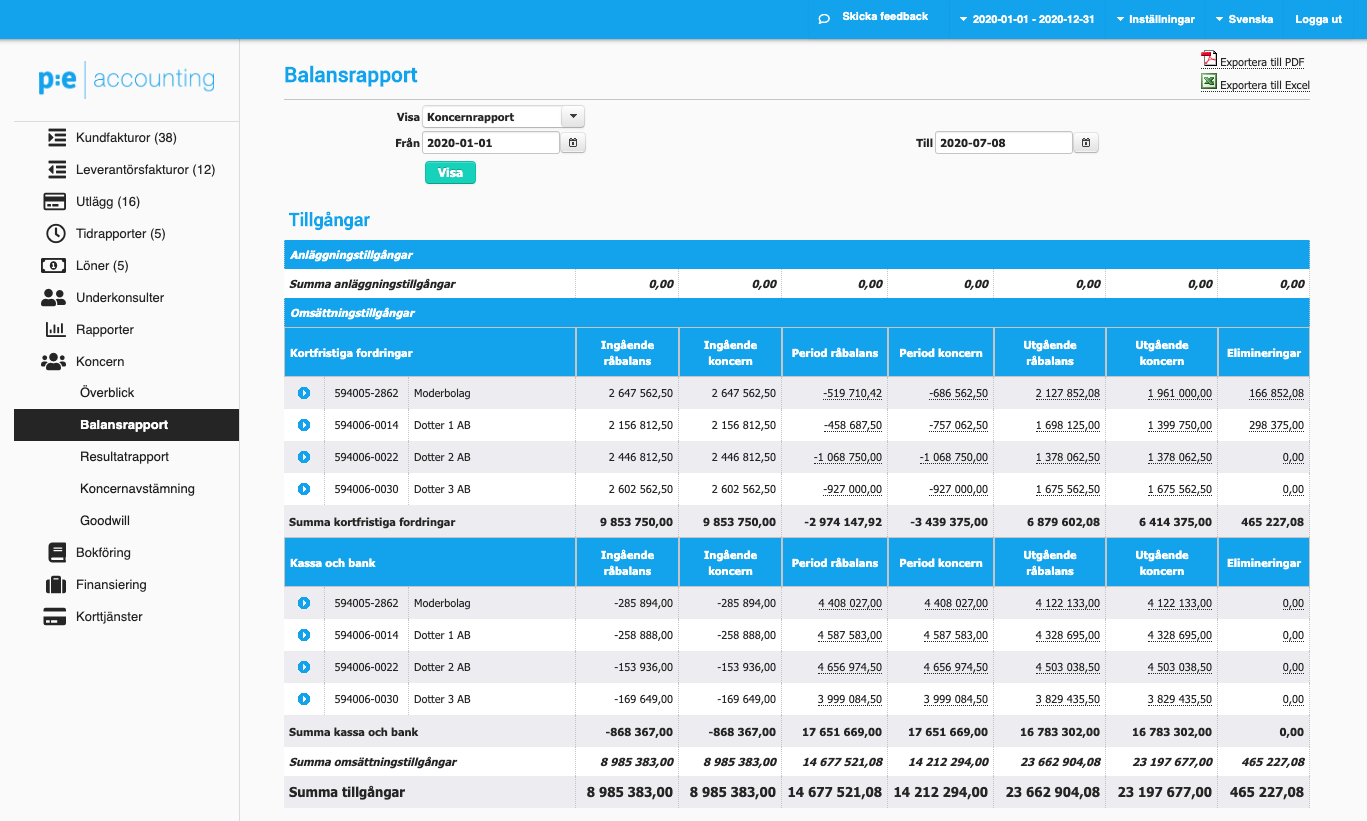
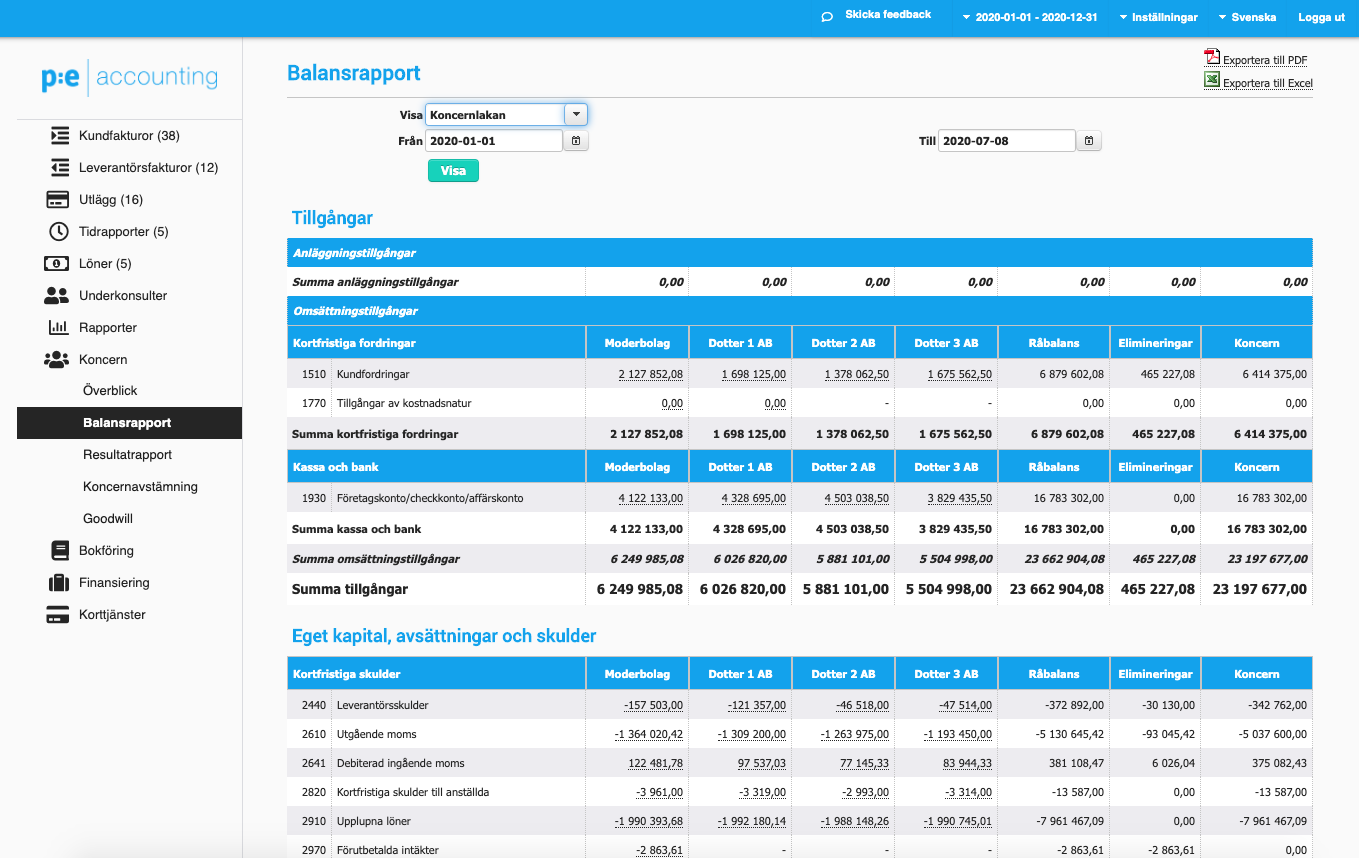
Use Kleer’s drill-down function throughout the group report. From here you can find every transaction in each specific company.
Eliminations are of course included, whichever view you choose.
4. Income statement
Choose whether you want to produce the report grouped by company, accumulated or month by month, or alternatively grouped by account.
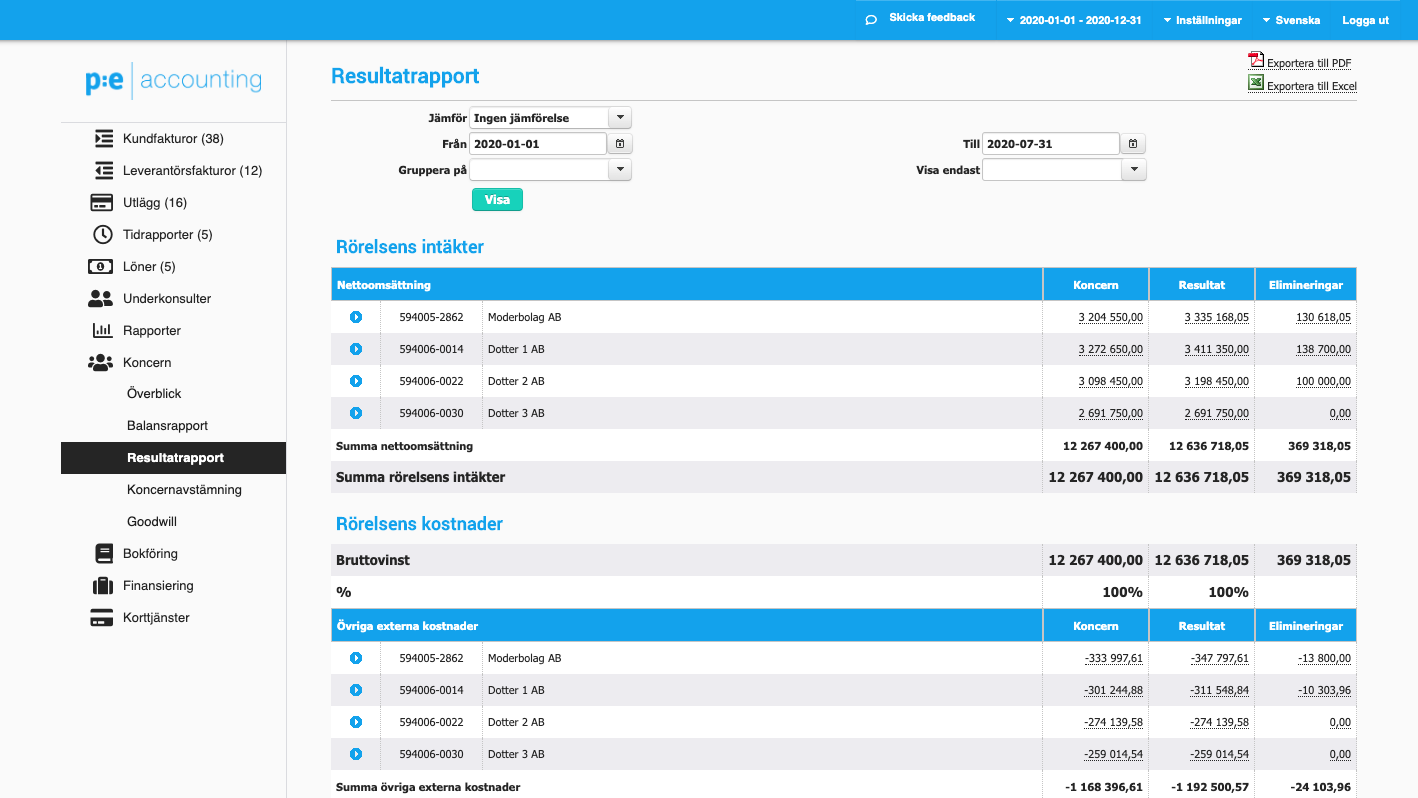
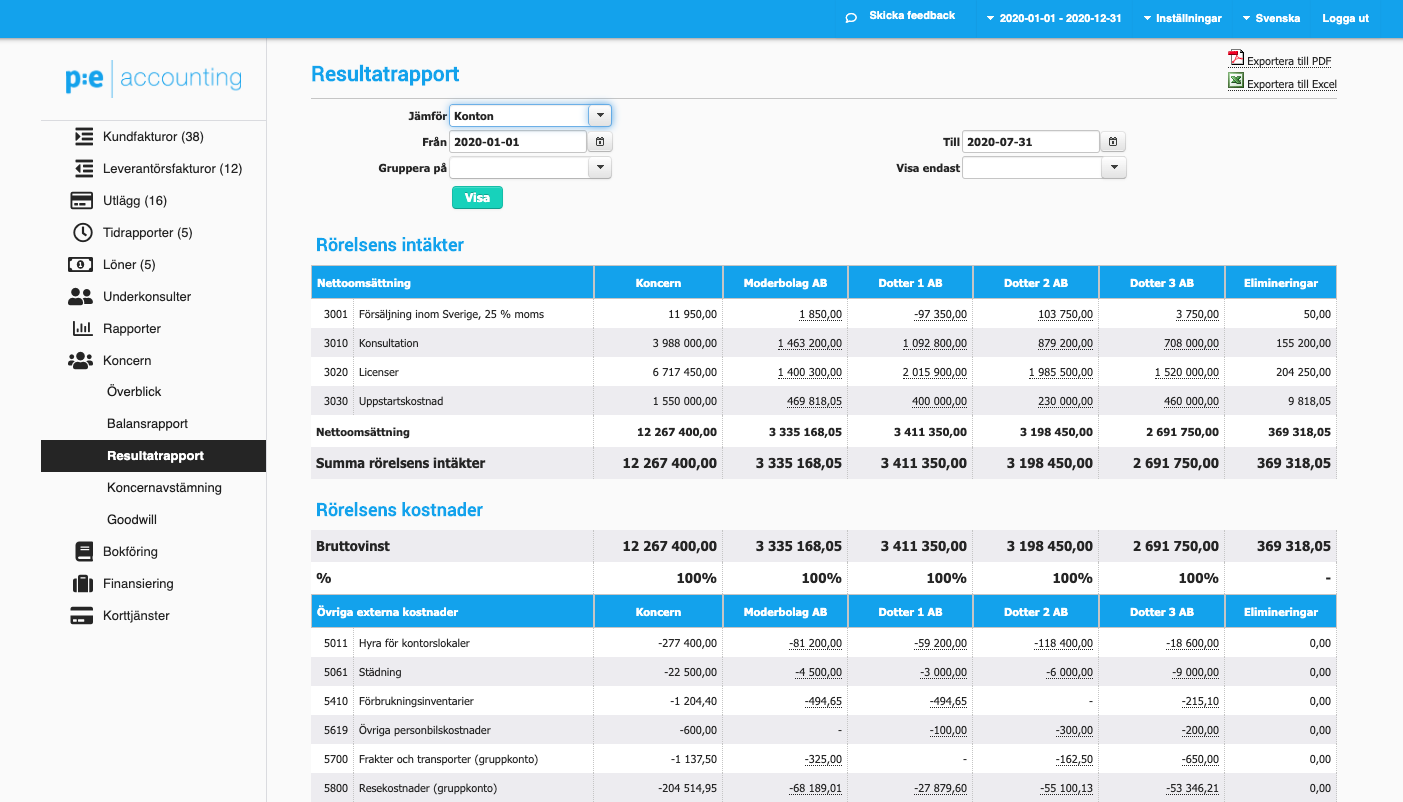
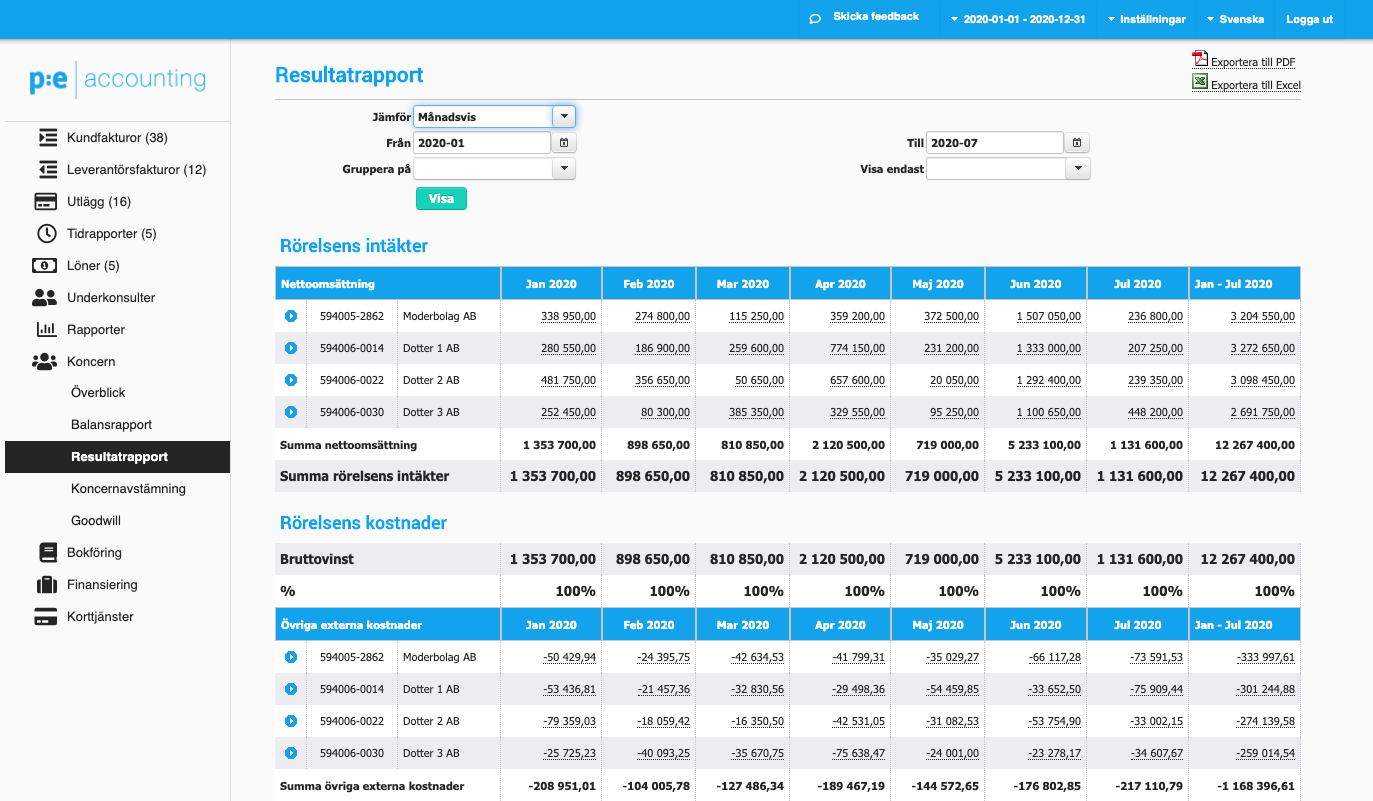
If you have chosen the setting to control categories at group level, you can also produce the income statement grouped by category. Read more about this setting in point 7 of this document.
Use Kleer’s drill-down function throughout the group report. From here you can find every transaction in each specific company.
Eliminations are of course included, whichever view you choose.
5. Group reconciliation
To find any problems in the reconciliation between the group companies, we have built a simple group reconciliation function.
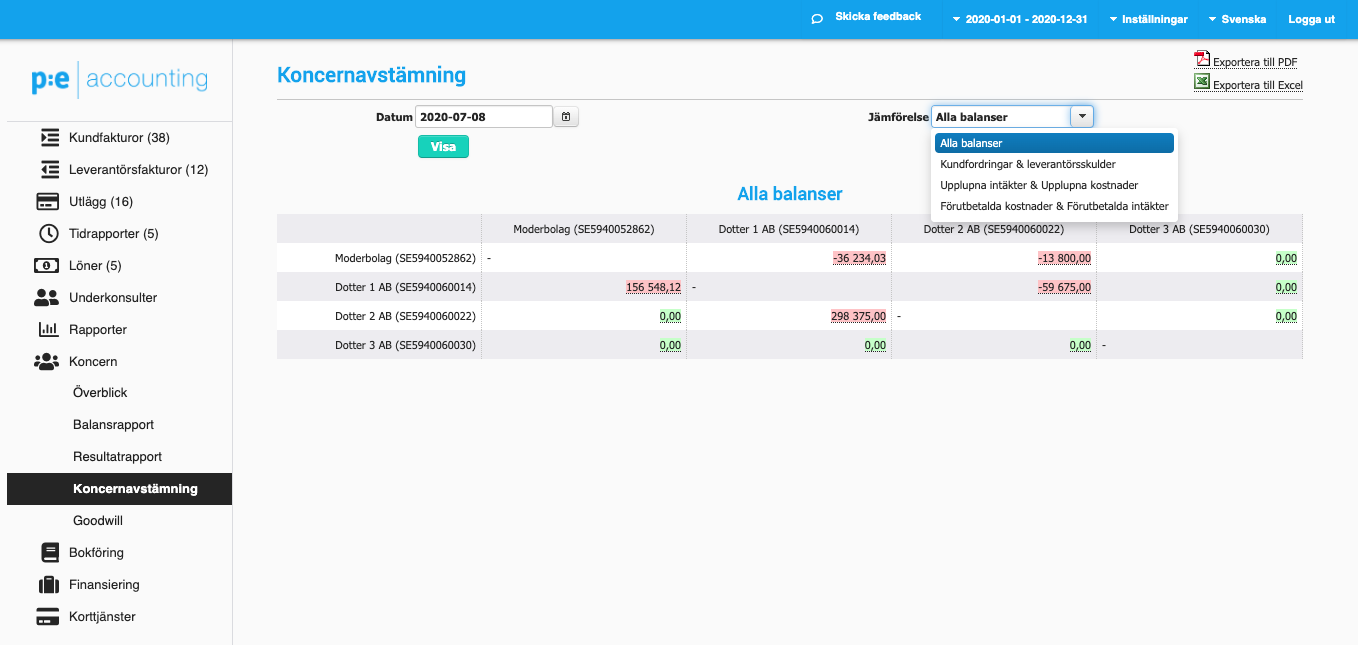
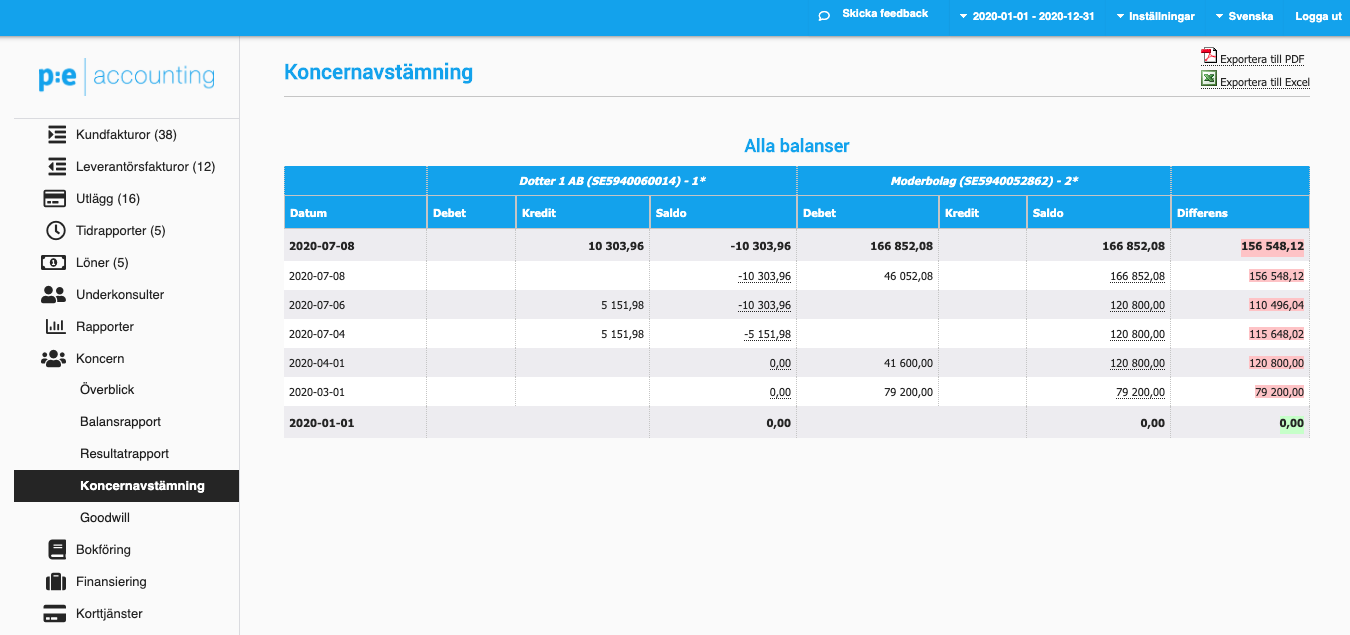
It should be EASY to find what is wrong. In this view you can choose to see all the balances or go into more detail, depending on what you are looking for.
If everything is green, the group’s intercompany balances match. If it is red, Kleer shows what is wrong by letting you click further down to transaction level.
Kleer’s recommendation is that you do this check regularly, for example in connection with the monthly closing. That way you create an efficient process where you can sort out and understand the problems faster and more easily, instead of waiting until the year-end closing.
6. Intra-group transactions
In all group companies you can produce intra-group transactions.
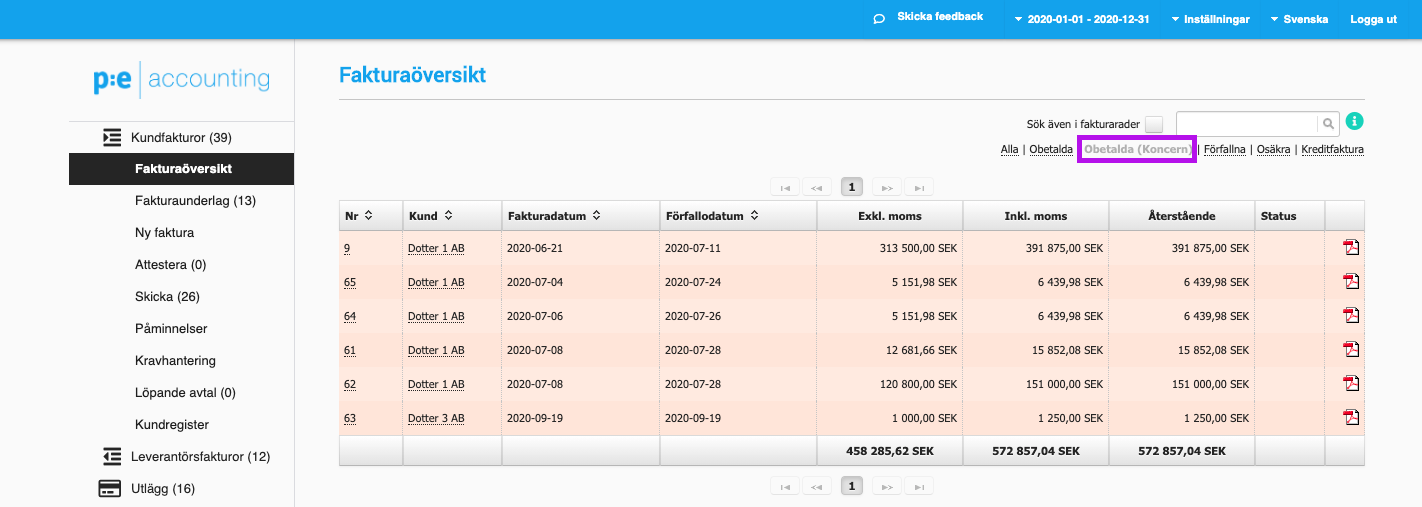
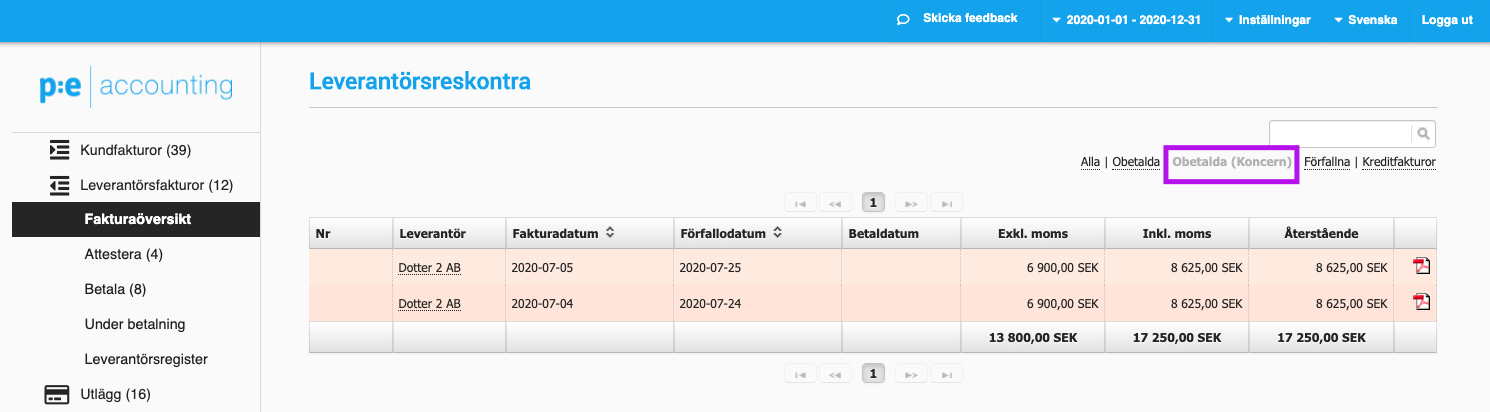
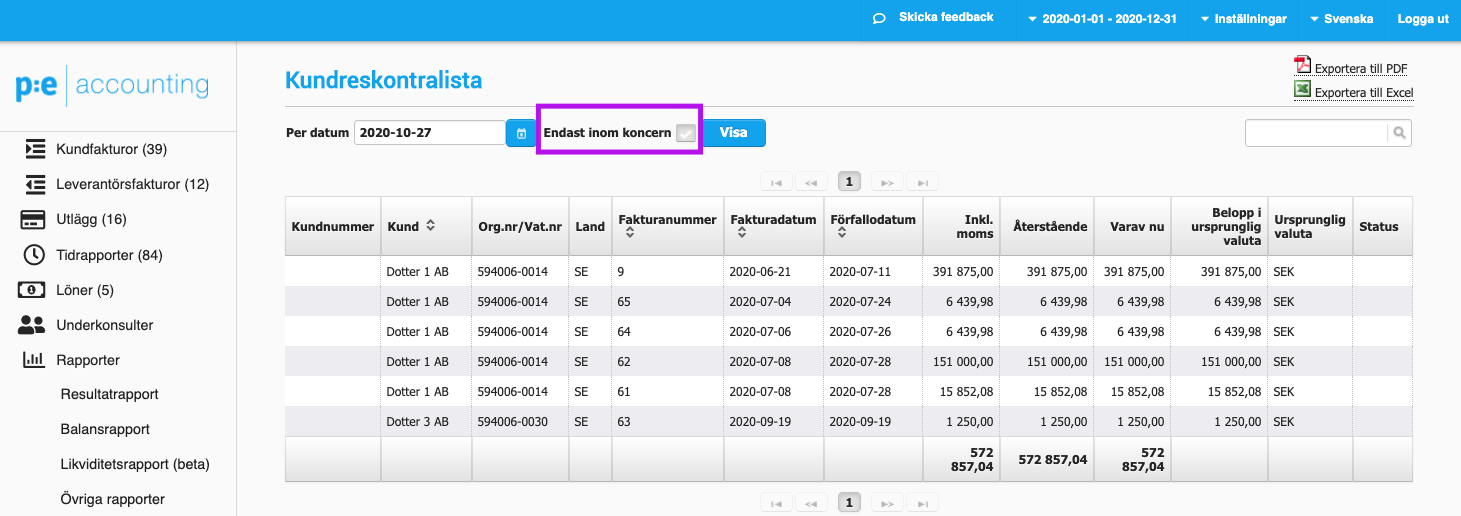
These are found in the invoice overview for customer and supplier invoices, in the accounts receivable and accounts payable ledgers and in the accrual report.
7. Goodwill
Amortisation of goodwill is handled as a fixed asset and is written off according to the depreciation plan that has been registered.
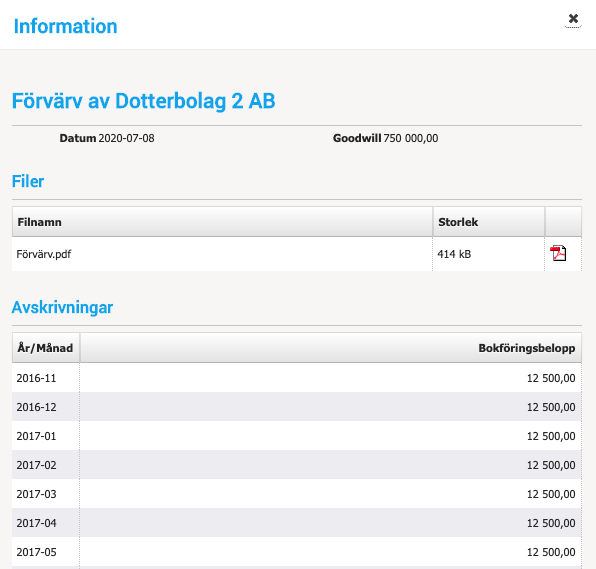
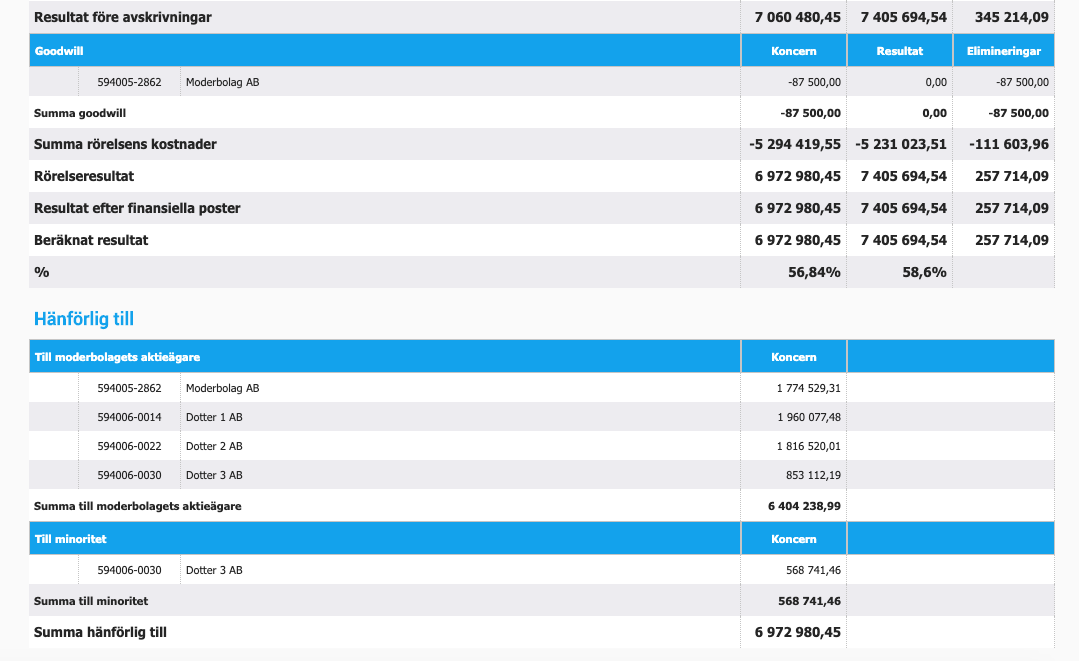
A template for acquisition analysis does not currently exist in Kleer, but you can attach your own template to the fixed asset.
The amortisation is made only in the group and ends up in the elimination column in the balance sheet and income statement.
8. Control the chart of accounts and category from the parent
You can choose to add a setting that makes it possible to control the chart of accounts and categories in the parent. The settings are inherited automatically by the subsidiaries. The setting is activated by a Kleer consultant.
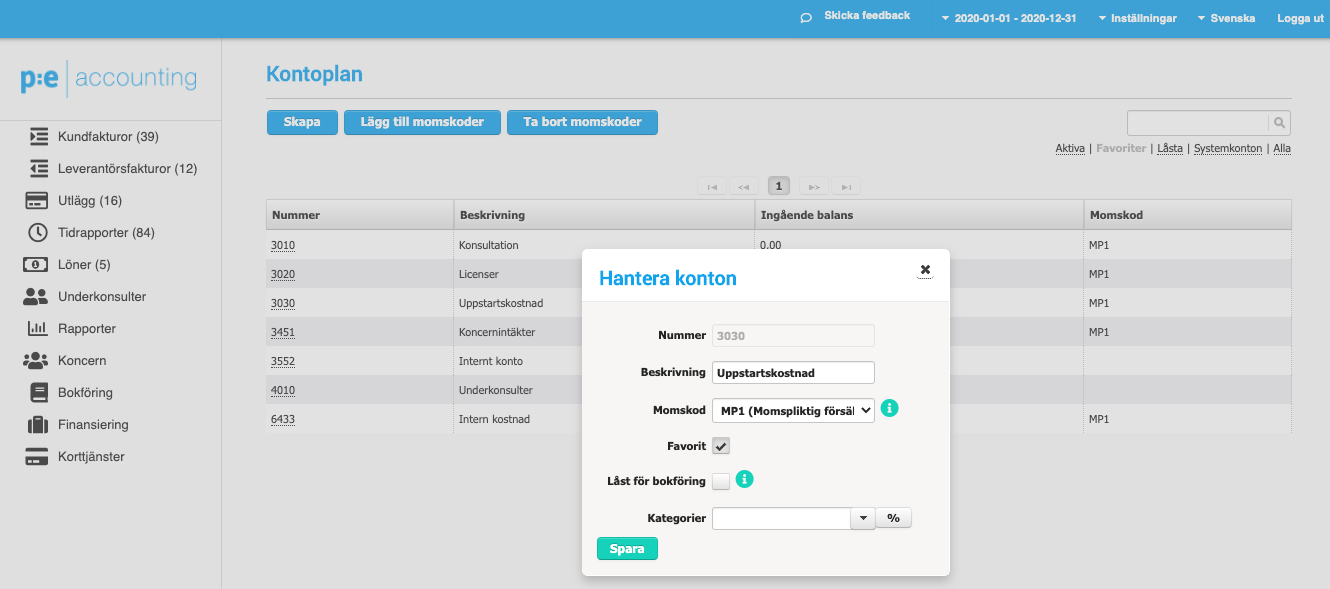
Control the chart of accounts in the parent
All settings made in the parent’s chart of accounts are inherited by the subsidiaries, including the group category. In a subsidiary you can change the description text and add a company-specific category. All other fields are controlled entirely from the parent.
In a subsidiary it is not possible to add or inactivate accounts. Kleer recommends that, in connection with onboarding of the group module, you take the opportunity to set up your favourite chart of accounts, which makes future work and follow-up easier.
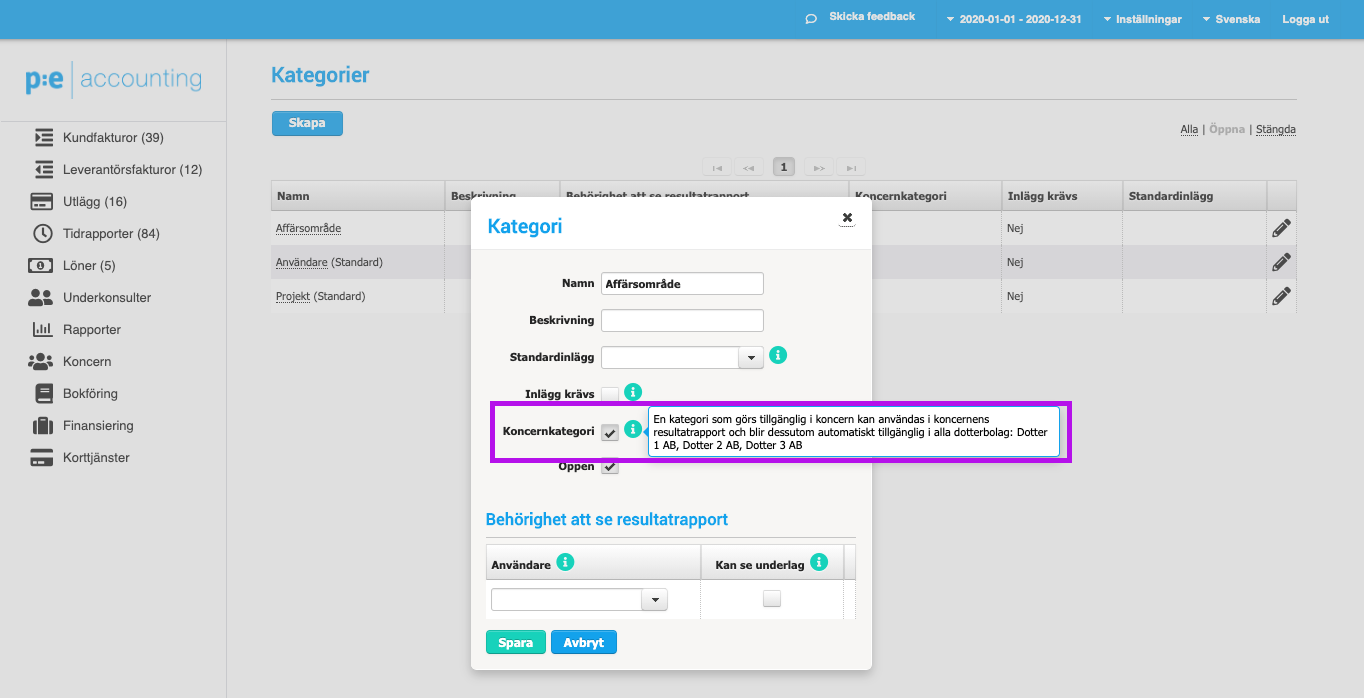
Control categories in the parent
If you use categories in Kleer, you can control settings from the parent in the same way as for the chart of accounts. In Kleer we call this group categories. In the parent’s settings for categories there is a checkbox that you tick if you want to use this main category in the subsidiaries as well.
A group category is inherited automatically by all subsidiaries and works just like regular categories. This means you can have categories that are controlled at group level and at company level.
If you use group categories, you can produce the income statement grouped by a certain category.
Kleer recommends that, in connection with onboarding of the group module, you take the opportunity to create group categories, which makes future work and follow-up easier.