

Approve and Authorise supplier invoices
A guide to how approval and authorisation of supplier invoices works in Kleer
For approval and authorisation of supplier invoices in Kleer you can use automated authorisation workflows, or the Finance manager can send the invoices manually.
This guide is for companies that use authorisation workflows.
A supplier invoice route through Kleer

Approval
The first step in handling a supplier invoice is approval. This step is optional and can be skipped if you want.


This step is usually done by the person who has bought something for the company, as a check that what was ordered has been delivered as agreed.
All users in Kleer can be approvers.
You approve a supplier invoice by clicking the Approve button at the bottom of the invoice page.
Change approver
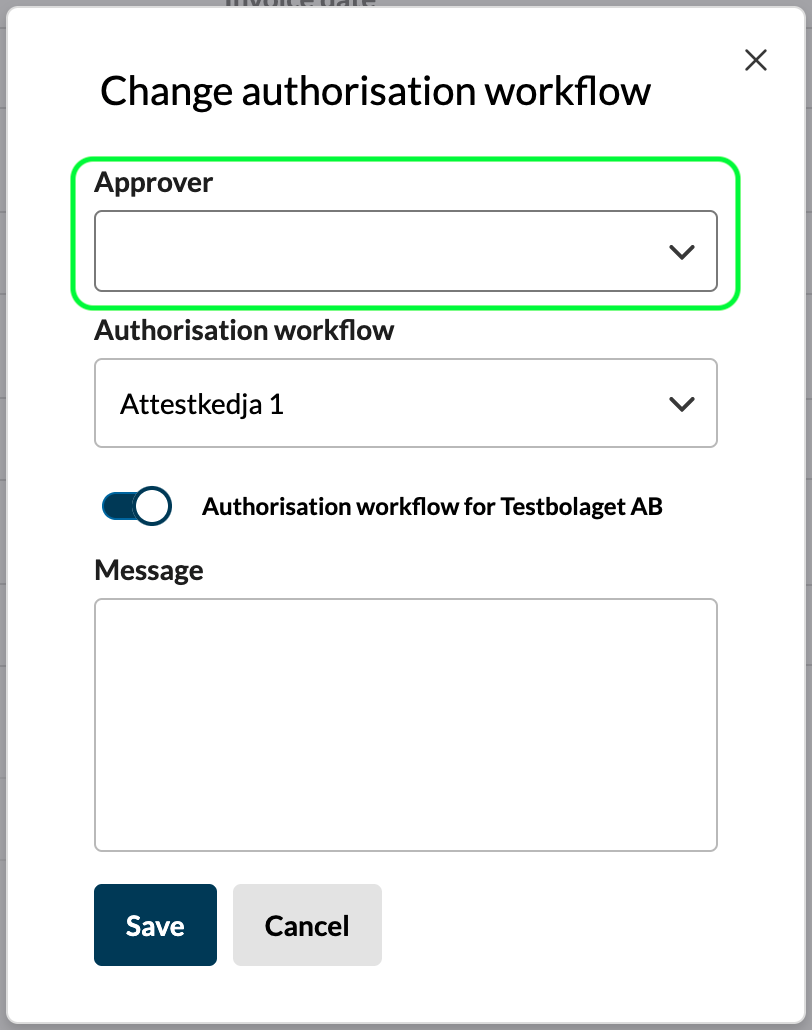
If you have received an invoice for approval by mistake, you can choose a new approver. Click “Change authorisation workflow” on the invoice and choose the person you want to send it to in the Approver field.
Skip the approver
You can also skip the approver by leaving the field empty and choosing only an authorisation workflow.
Reject an invoice
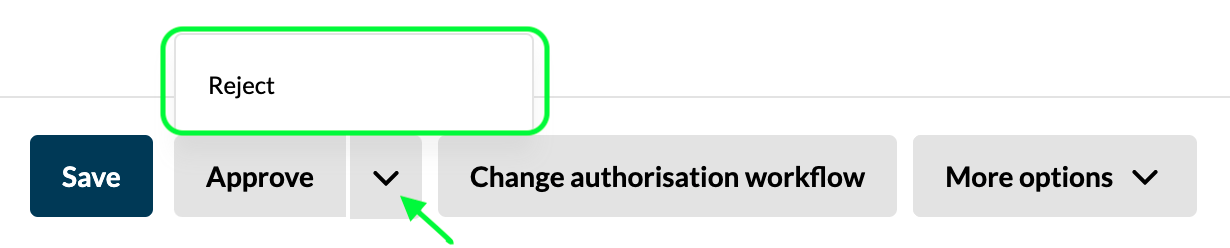
To reject an invoice, click the arrow next to Approve and the option Reject appears. If you reject, the supplier invoice ends up with the Finance manager, who handles it.
Where do I find the invoices that have been sent to me for approval?
You find the supplier invoices you are to approve under Supplier invoices > Approve/Authorise in the left menu. The page has a filter called Mine to approve. Note that the filters you see depend on your permissions.
Authorisation
When the approval is done, the invoice is sent to the first person in the chosen authorisation workflow for authorisation.


This step is usually done by people who have the right to accept a cost in the company. They confirm that the amount is within budget and that they are willing to accept the cost.
Only users with the permission Authorise own and my team’s supplier invoices or Finance manager can authorise supplier invoices.
You authorise a supplier invoice by clicking the Authorise button at the bottom of the invoice page.
The invoice’s way through the authorisation workflow
The supplier invoice is sent to one person at a time, in the order of the authorisation workflow. If the approver is the same person as the first authoriser, the approval step is skipped.
The invoice is fully authorised when it has passed at least two people and one of them has a sufficient amount limit. If you use approvers, the approval counts as one of the two steps. If you do not use approvers, at least two people must therefore authorise. The invoice continues in the workflow until both conditions are met, and then it stops. People after that point in the workflow are not involved.
How authorisation workflows and amount limits are set up is described in Get started and administrate authorisation flows for supplier invoices.
Change authorisation workflow
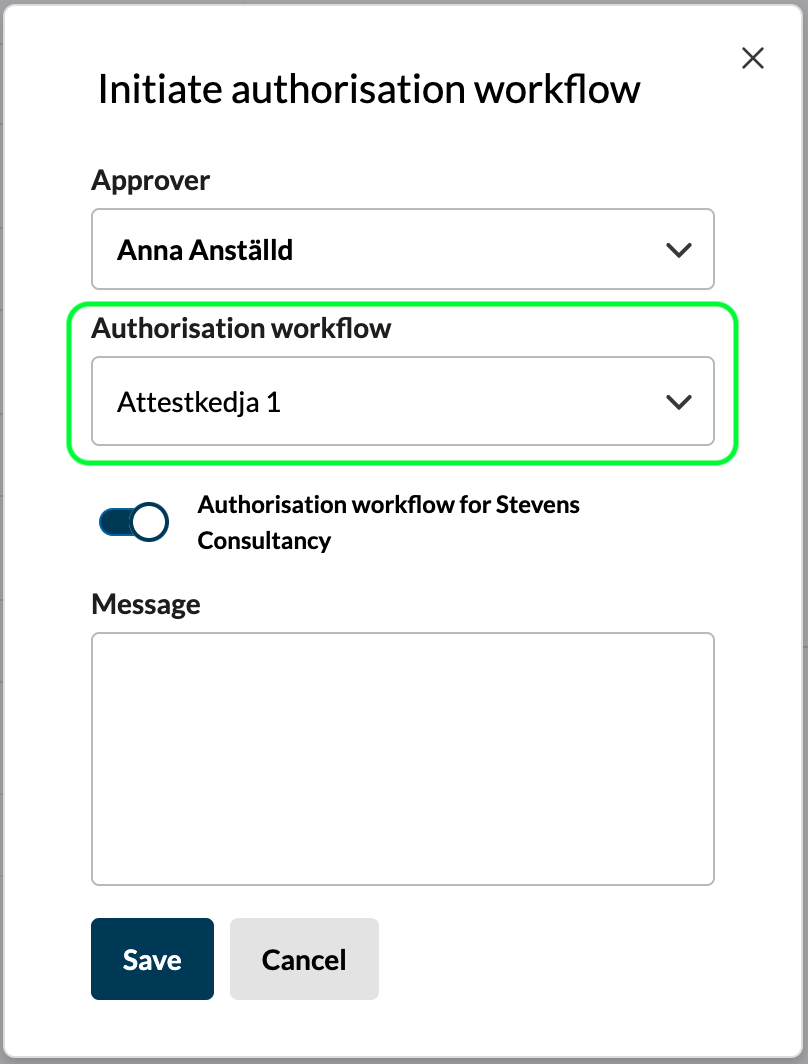
If you have received an invoice for authorisation by mistake, you can choose a new workflow. Click “Change authorisation workflow” on the invoice and choose the workflow you want to use in the Authorisation workflow field.
Reject an invoice
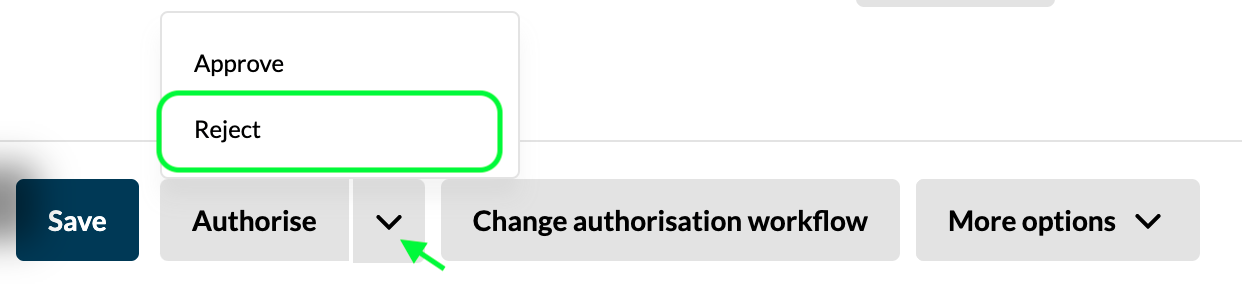
To reject an invoice, click the arrow next to Authorise and the option Reject appears. If you reject, the supplier invoice ends up with the Finance manager, who handles it. The approval made before the authorisation workflow is still valid. Only the people who are to authorise change.
Where do I find the invoices that have been sent to me for authorisation?
You find the supplier invoices you are to authorise under Supplier invoices > Approve/Authorise in the left menu. The page has a filter called Mine to authorise. Note that the filters you see depend on your permissions.
FAQ
Who can change approver on a supplier invoice?
Anyone who has access to the supplier invoice can change the approver.
Who can change authorisation workflow on a supplier invoice?
Users with the right to authorise can change the authorisation workflow on a supplier invoice.
Can a user be involved more than once in handling a supplier invoice?
No. If a user is both approver and first authoriser, the approval step is skipped. That is why every authorisation workflow needs at least two people, so that at least two different people always review the invoice before payment.
What happens if someone changes the authorisation workflow when another one has already started?
If the workflow is changed, the process starts over and person 1 in the new workflow receives the invoice for authorisation. Any authorisations made in the first workflow become invalid.
What is an amount limit?
You can set a maximum amount for what a person may authorise, called an amount limit. A supplier invoice is fully authorised when a person with a sufficiently high amount limit authorises it. People after that person in the chosen authorisation workflow do not receive the invoice.
Amount limits also apply to credit invoices. A user with an amount limit of 5 000 SEK may also authorise credit invoices down to - 5 000 SEK.
All amounts include VAT.
What happens if the last person in the authorisation workflow has an insufficient amount limit?
If the last person in an authorisation workflow does not have a high enough amount limit, the supplier invoice is not fully authorised. It then appears under the filter To do for users with the Finance manager permission.
How many people are in an authorisation workflow?
How many people are in a company’s authorisation workflows is up to the Finance managers who administer them. Kleer guarantees that the supplier invoice always passes at least two different people before it is authorised and can be paid.