

Remuneration outside Sweden
Guide to remuneration that is to be paid to people outside Sweden
How does the handling differ from Swedish remuneration?
Foreign remuneration is handled differently from Swedish remuneration. Different information needs to be collected, and it is handled differently in Kleer.
This guide sets out step by step how you add a remuneration for a person outside Sweden.
What information do I need to collect from the recipient?
- Name
- Address
- Personal identity number or date of birth (see the description of date of birth in step 3)
- TIN (Tax Identification Number)
- Country code for the TIN
- Place of birth
- Country code for place of birth
- Country code for non-Swedish citizenship
- Street address of the workplace (where the work was carried out)
- City of the workplace (where the work was carried out)
- If the payment concerns board remuneration, email your customer manager at Kleer about it (do not fill it in under Notes)
For SINK (special income tax for people living abroad):
- The SINK decision can be uploaded in Kleer, but it does not have to be. It should still be available if, for example, the auditor wants to see it.
Step by step: add a foreign remuneration recipient in Kleer
1. Create the user
- Go to Settings > Users and click New user.
- Fill in the name and, if applicable, the email (the email is not mandatory but is used when the payslip is sent out)
- Go to the permissions tab and tick “Remuneration”
- Save
2. Create the user’s employment contract
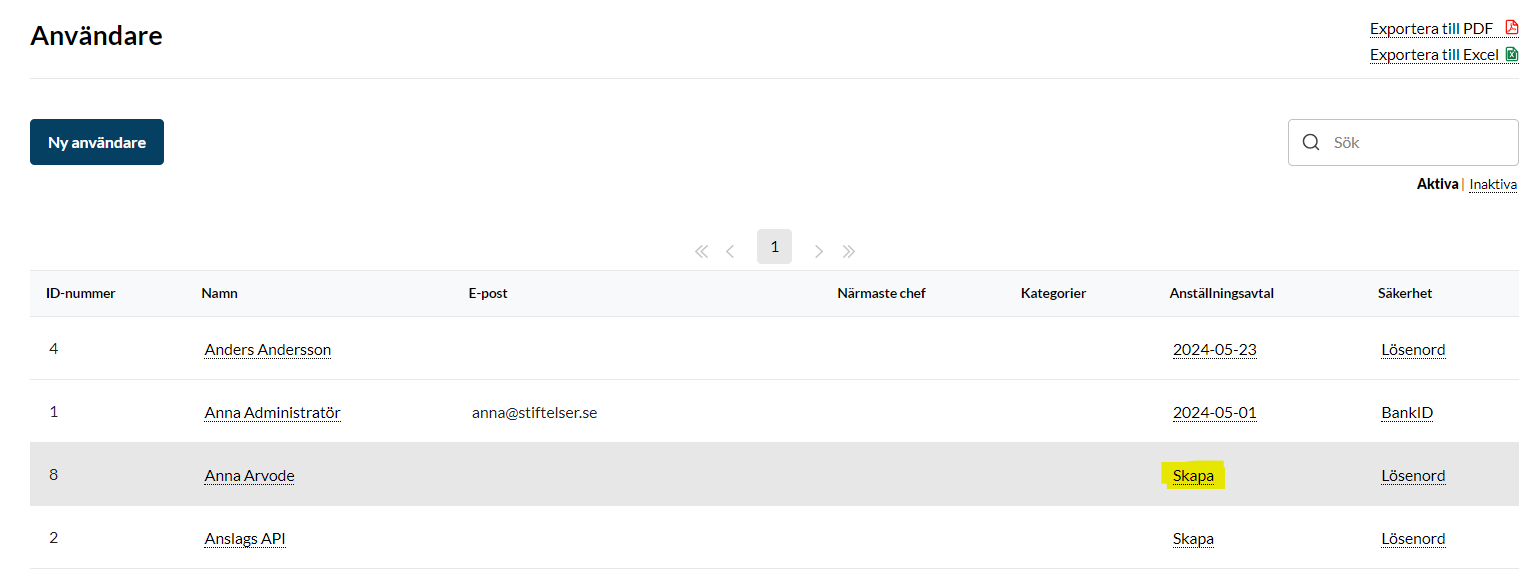
The next step is to create the user’s employment contract. It is not a legal employment contract, only a technical one in the system, for entering information about the user.
To create the employment contract, click Create in the employment contract column.
3. Enter the user’s details in the employment contract
The information collected from the remuneration recipient needs to be entered in the employment contract in Kleer.
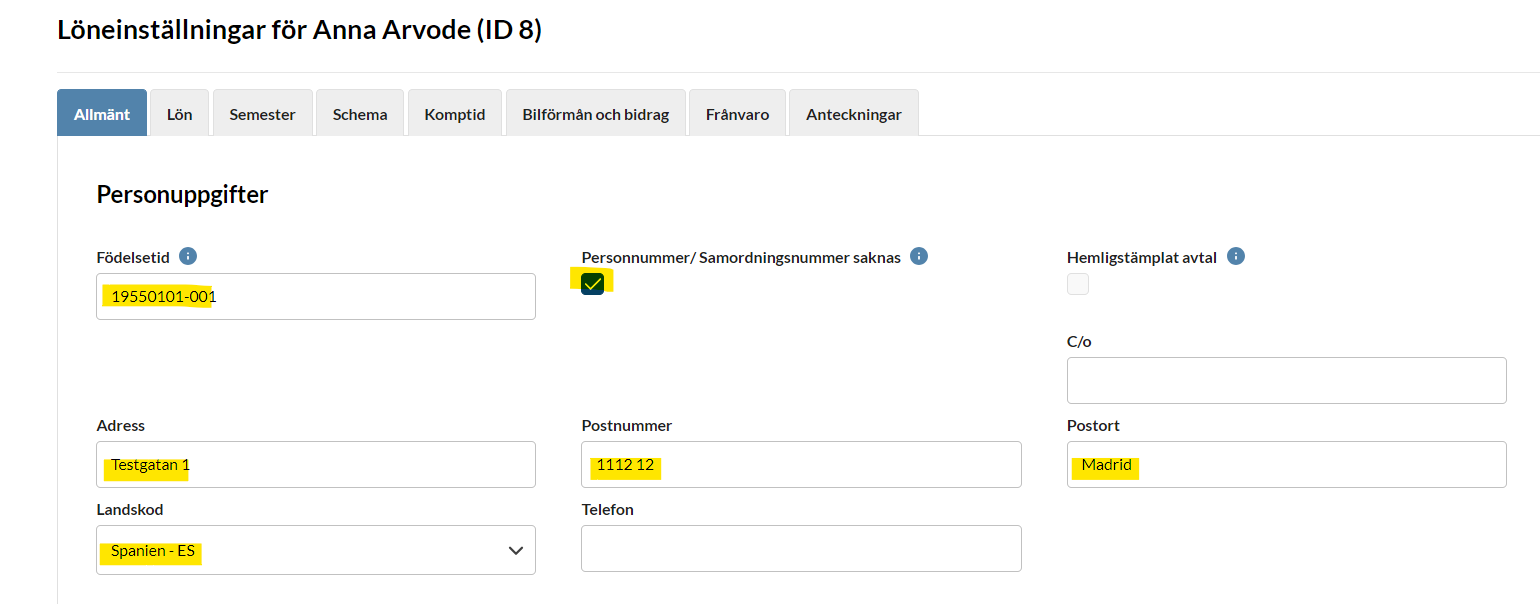
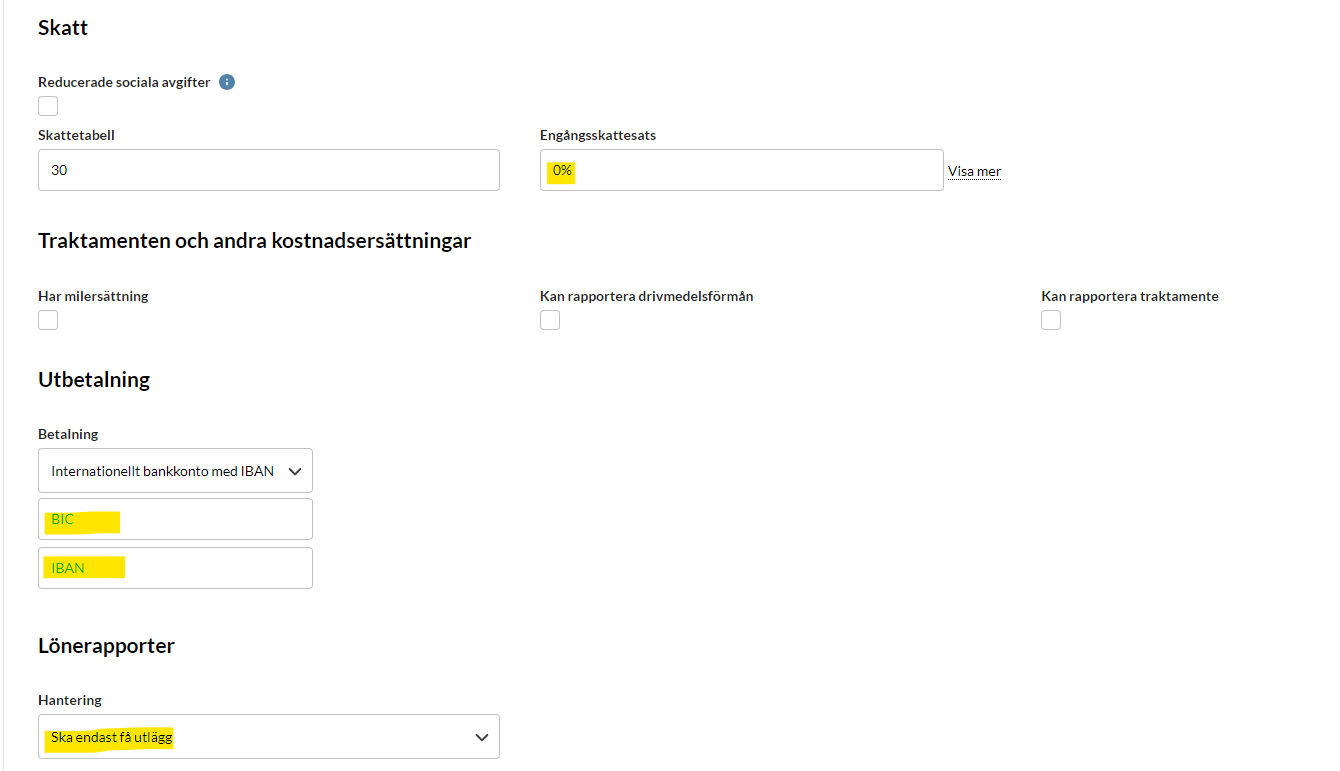
The General tab
- Personal data: Tick the box “Personal identity number/Coordination number missing”. Fill in Date of birth, Address and Country code. The date of birth is entered as the person’s birth date with three arbitrary digits at the end (YYYYMMDDnnn)
- Tax: Change the one-off tax rate to 0%
- Payout > Payment: change from “Swedish bank account” to “International bank account with IBAN” and enter the account details
- Salary reports > Handling: change from “Employee must submit salary report” to “Should only receive expenses”
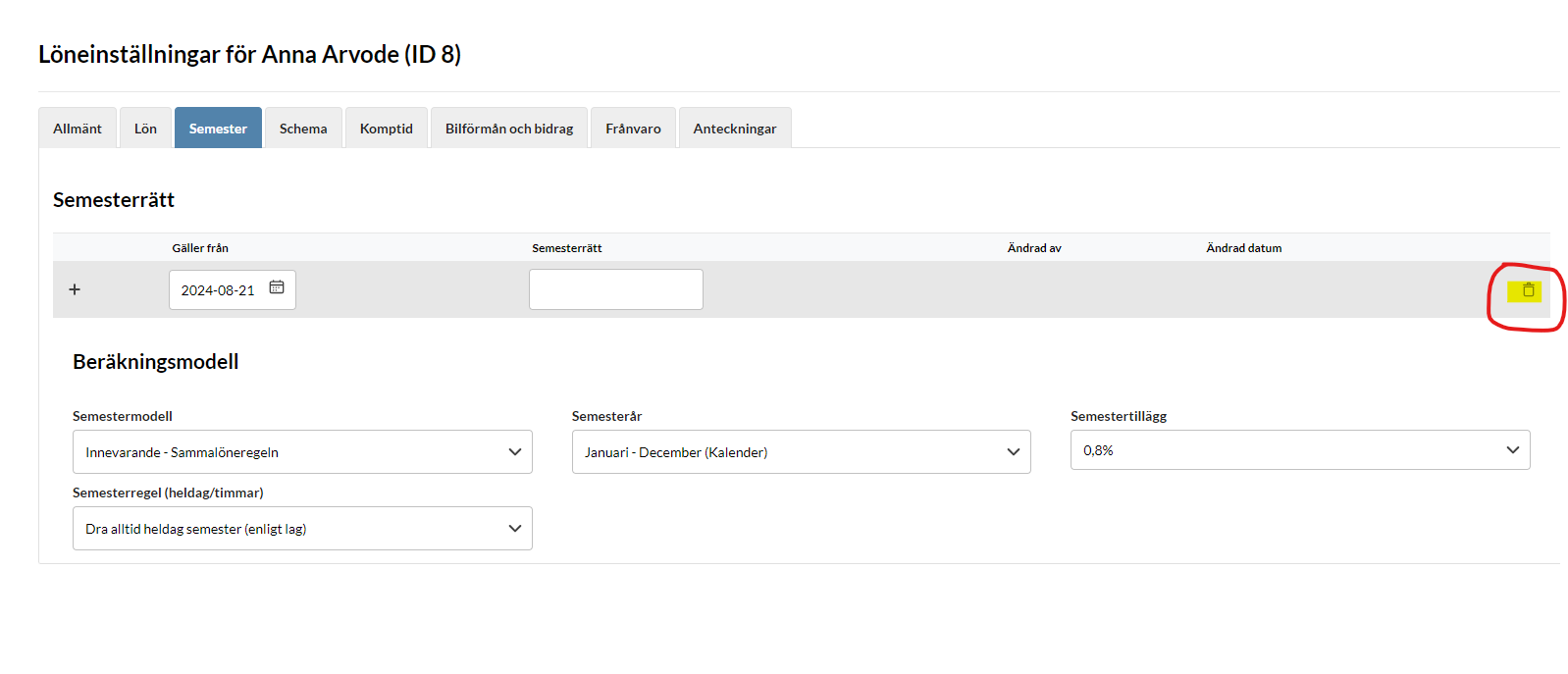
The Vacation tab
Vacation entitlement: Click the wastebasket and remove the vacation days
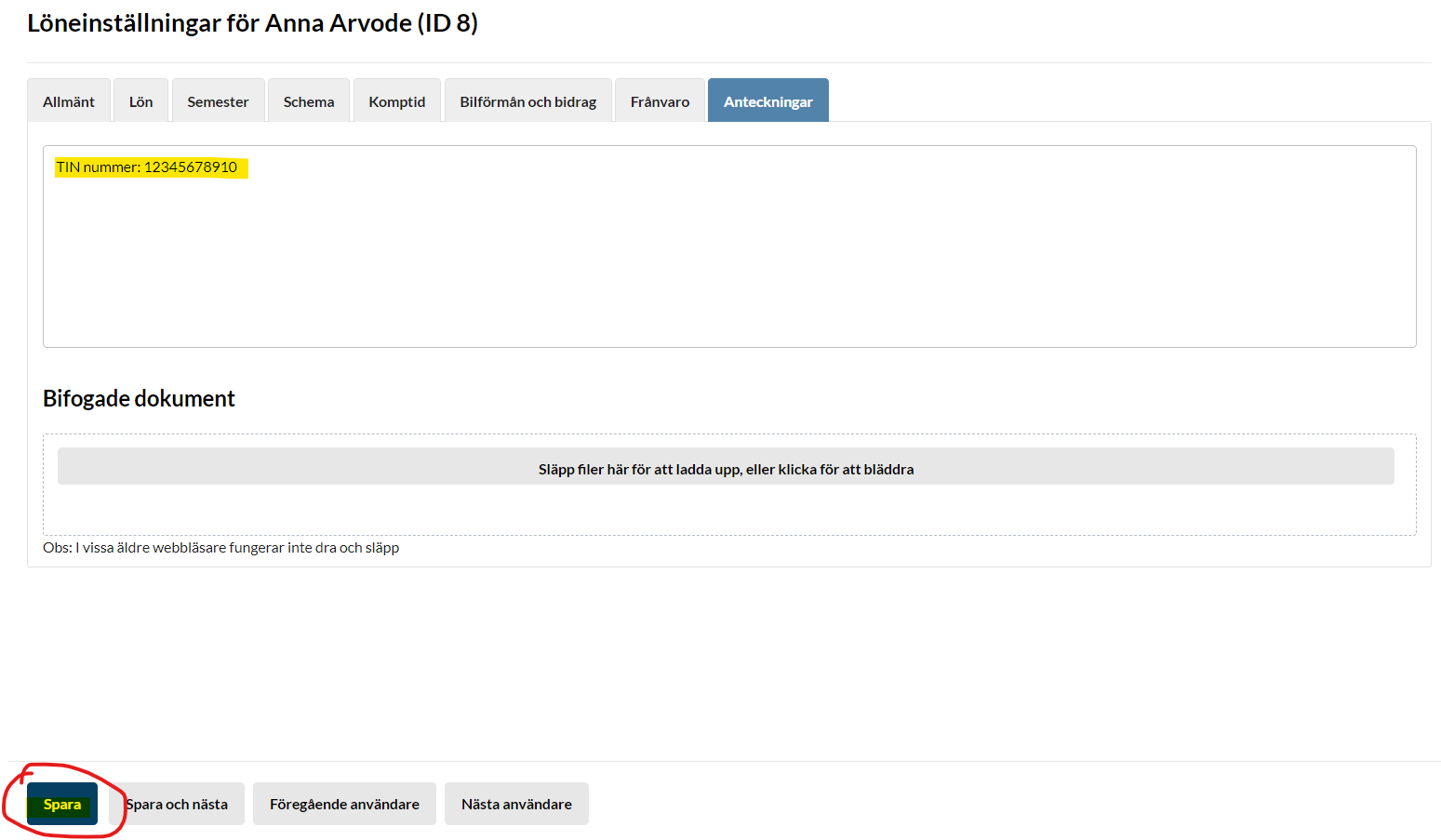
The Notes tab
Fill in the remuneration recipient’s information here (TIN, country code and so on)
When everything is filled in, click Save.
4. Register remuneration
When the remuneration recipient has been created and the details have been entered, it is time to make the payment. If the recipient has account details other than BIC/IBAN, or the receiving bank does not accept payments in SEK, contact your customer manager at SEB for the payment. Otherwise follow the steps below.
-
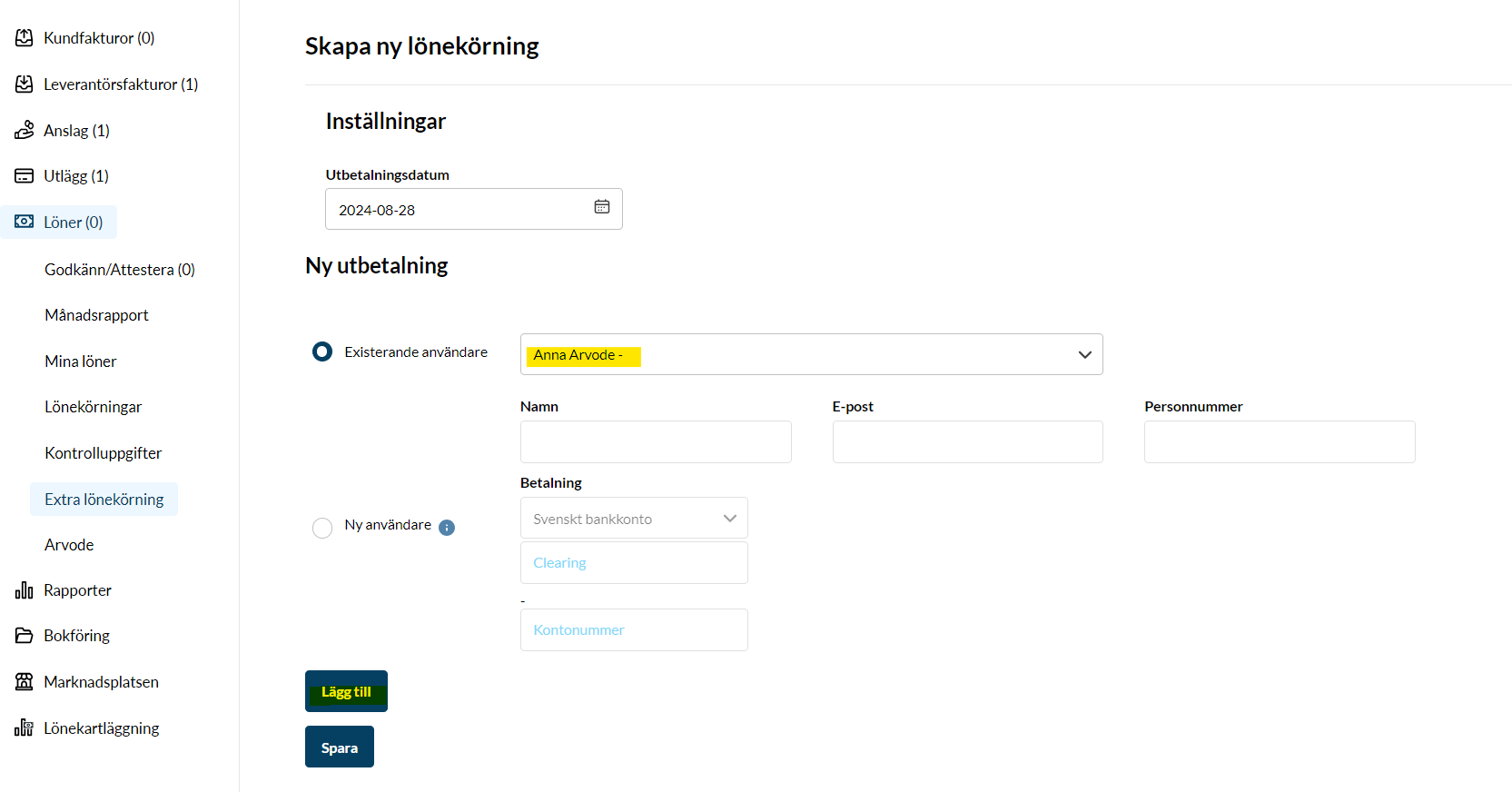
Go to the Payroll module and the heading Extra payroll run
-
Under the heading New payment, choose the remuneration recipient in the list of existing users. Then click “Add”
-
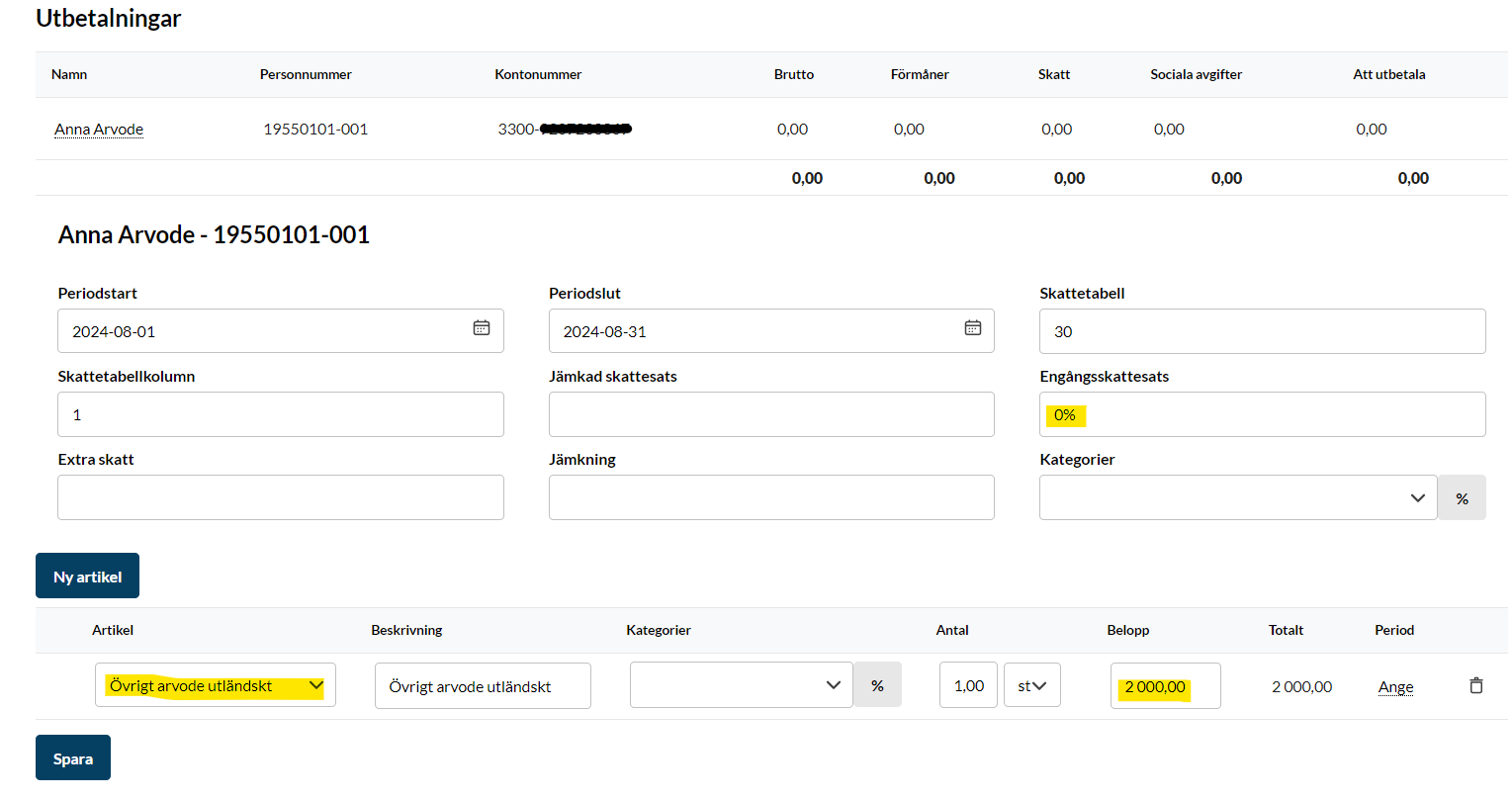
When you have clicked “Add”, a payment is created further down the page. There, choose the article “Other remuneration, foreign”. If there is a SINK decision, choose Other remuneration, foreign: SINK. If the correct article is missing, contact your customer manager at SEB or your accounting consultant to have it added
-
Check that the one-off tax rate is 0%, and otherwise adjust it to 0%. Fill in the amount to be paid out in SEK. If you want something different to appear on the payslip, you can change the text in the “description” field. Otherwise it will say “Other remuneration, foreign”.
-
Save
5. Authorise and pay out the remuneration
When the remuneration is saved, you will see it under Payroll > Approve/Authorise.
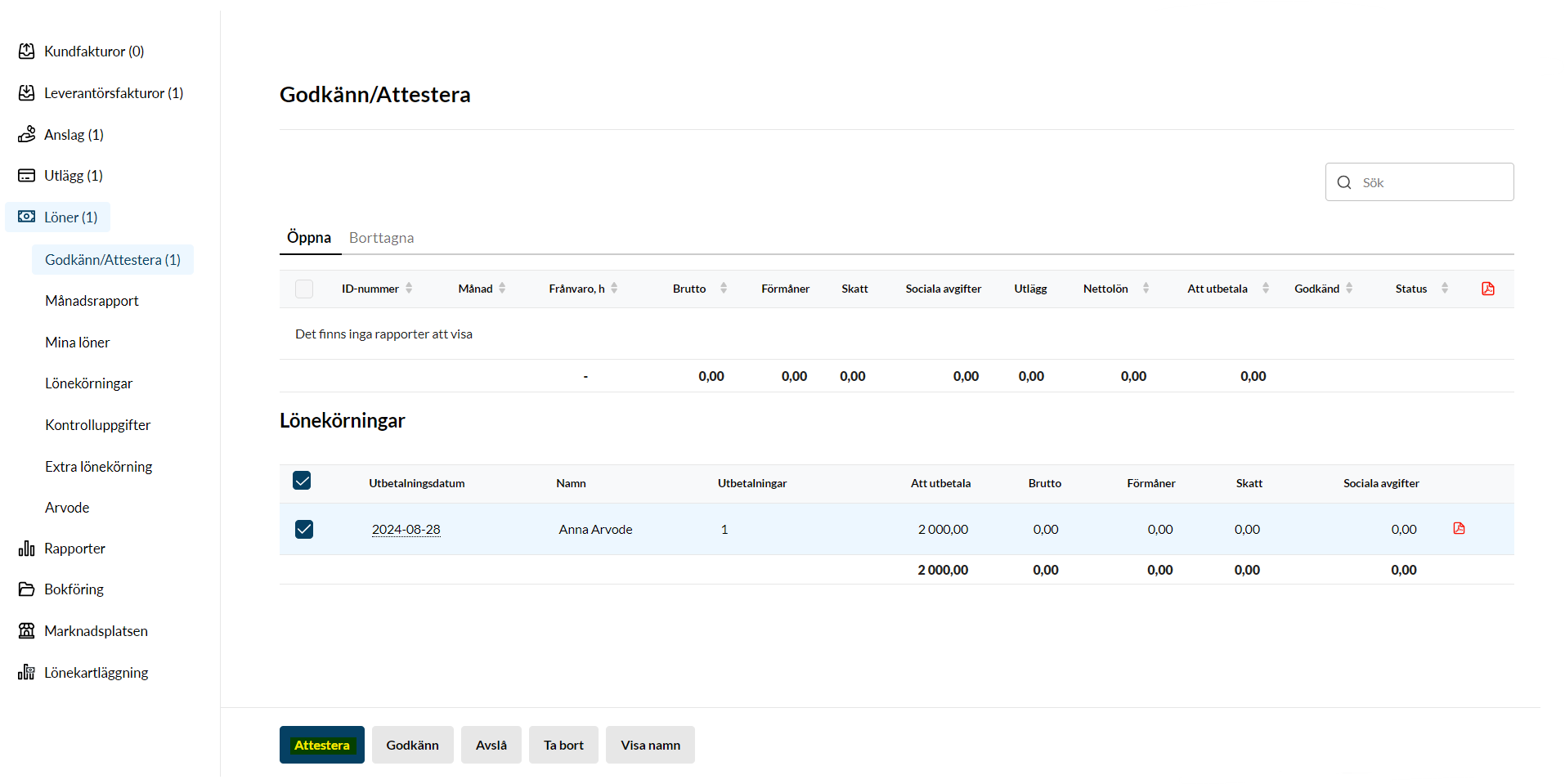
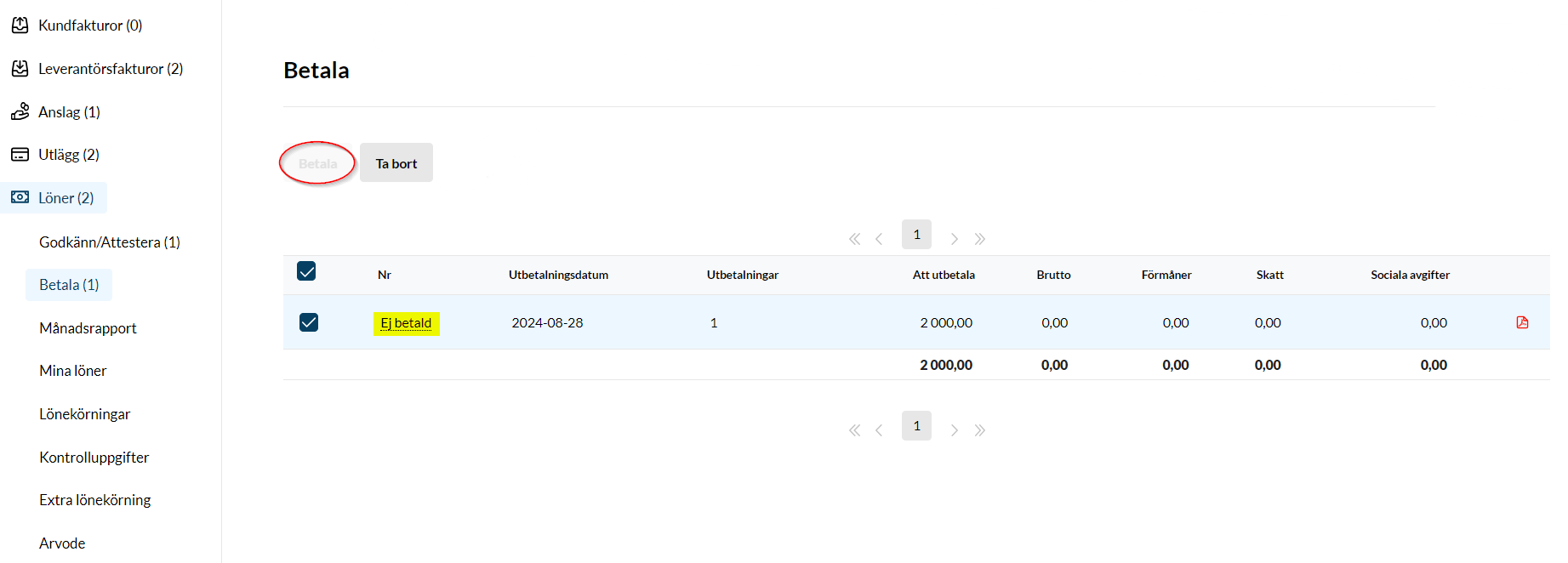
If the foundation does not have segregation of duties between authorisation and payment, you can click the arrow next to authorise from here and choose “Authorise and pay”.
If the foundation has segregation of duties, one person authorises in the first step. The assignment is then moved to Payroll > Pay, where a second person selects the assignment and clicks “Pay”.
FAQ
I got a message that the payment failed. What should I do?
If your payment bounces, contact your customer manager at SEB for a manual payout. All salary payments from Kleer are made in SEK, and not all foreign banks accept that.