

Project managers in Kleer: authorising time and creating projects
What you can do as a project manager in Kleer, and how you authorise your project members' time.
What does it mean to be a project manager in Kleer?
What permissions do you have as a project manager?
As a project manager you can always do two things:
- Administer the project you are project manager for. Read more in Introduction to Projects in Kleer.
- You can also authorise the time that your project members have worked in your project.
If you have permission to create your own projects, that is a separate permission that also lets you create your own projects.
Authorise time
If you are a project manager in Kleer, you have the heading Time records > Approve/Authorise in the left-hand column. This is where your project members’ time reports end up, and it is where you authorise their time. You can also click into the time report to save, authorise and see more.
1. The authorisation view
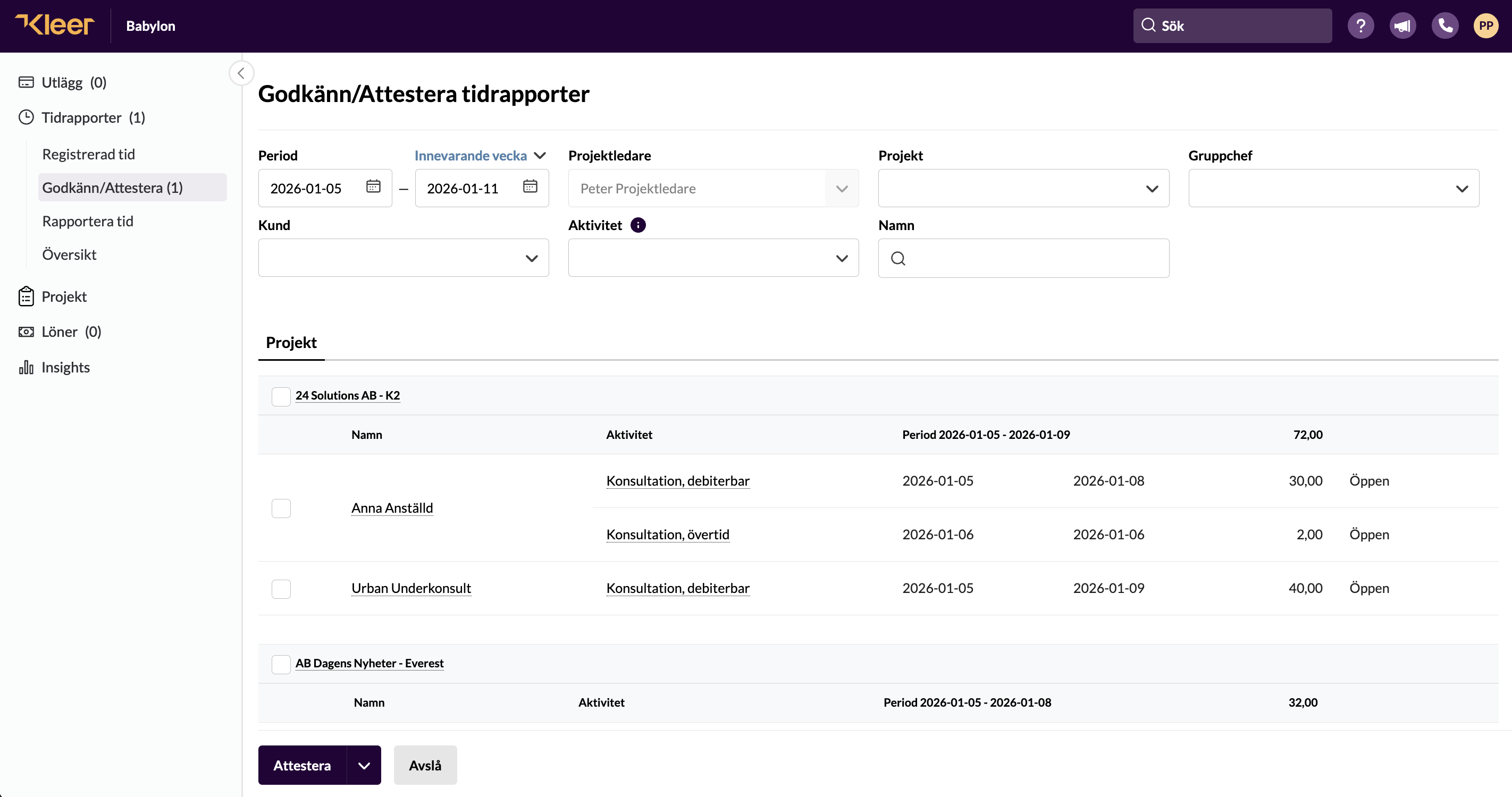
Here the time is authorised or rejected. If you are project manager for many projects, you can filter the search on for example project, or search by name to find the time you want to look at more closely. The field project manager will be locked to you, since you cannot access other project managers’ information.
2. The time report
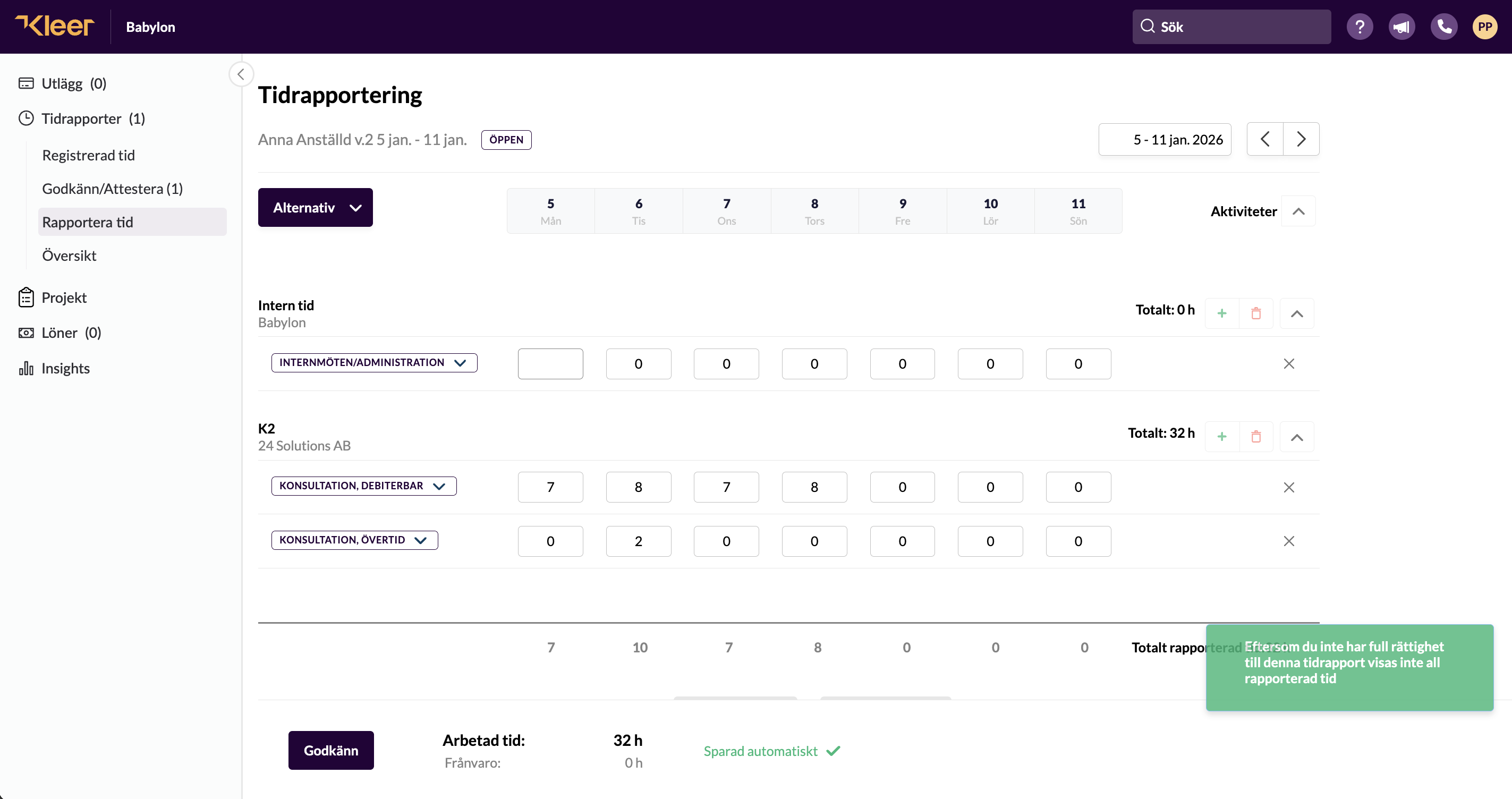
If you click the name in the authorisation view, you go on to the employee’s time report. Here you can edit and authorise the project member’s worked time. Since the employee can be on more projects than yours, you only see what concerns your projects. You do not see any absence as a project manager either.
In the calendar you see which week you are looking at at the moment. The colours in the calendar describe whether there is no reported time in the period, and whether the time report is open, approved or authorised.
If you have permission to create your own projects, you can go to Time records > Projects and click New project.
You can also create a new project by ticking a project you want to copy and then clicking the button Copy.
Once the project is created, you can read more below about what needs to be filled in.
If I am both project manager and line manager, how do I keep track of this when I authorise time?
Answer: If you have both these roles in the company, the following filters are shown in the “Authorise” tab: the filter User and the filter Project. The filter Project shows what is to be authorised for your projects. Under the filter User you see the user’s total time including absence, which is to be reviewed by you as line manager. Depending on your company’s set-up, you may have permission to approve the time, or also to authorise it.
Depending on your permissions, you may also have a third filter, “My team”.
If the company has the subcontractor module switched on, there is also the filter User type, where you can choose to see only Employees, Subcontractors, Others or All.
Can a project manager approve and/or authorise a project member’s absence?
Answer: No. This is excluded from the time report that the project manager gets to see. Only managers and payroll administrators can see absence.