

Absence requests in Kleer
How you apply for leave in Kleer, how managers approve the requests and who can see the overview of approved leave.
With Absence requests, employees apply for leave, and managers review, approve or reject the requests. When a request is approved, the time report and the monthly report are updated automatically, so no further reporting is needed.
You find the feature under Absence requests in the main menu. It has two views:
- The employee view, where you create your requests and follow them.
- The manager view, where managers review and handle requests from their employees.
Requests follow the organisation structure in the company. A request is sent to the user who is registered as the line manager.
Applying for leave
Create a new request
- Go to Absence requests and click New request.
- Fill in the type of leave.
- Fill in from and to.
- If the request is for parental leave, choose which child it concerns.
- Write a comment. It is optional, except when the leave type is an activity that requires an internal comment. Then you must fill it in before the request can be submitted.
- Click New request to submit the request.
The request is sent to your line manager, who gets an email. You get an email yourself when the request has been approved or rejected. When it is approved, your time report and monthly report are updated according to the leave type you chose.
Follow your requests
Under Absence requests > My absence requests you see your own requests with their status. For parental leave, the child’s name is shown together with the leave type, for example Parental leave. Sixten, so that requests for different children can be told apart. The list is paged, so if you have many requests you browse between the pages instead of scrolling a long list.
In the app you can open a request to see it in detail. You can withdraw a request that is still waiting for a decision yourself from there. A request that has already been decided is only shown, for reference.
If your manager rejects a request, the reason is shown in your view of the requests, not only in the email.
Good to know
- You cannot apply for leave for historical dates or for days that are already reported in the time report or the monthly report.
- The time reports (weekly reports) for the period cannot be approved before the request is approved.
- Leave that is already approved cannot be withdrawn. It is corrected in the monthly report by removing the whole period or individual days.
As a manager
If you have employees who report to you, you handle their requests under Absence requests.
Review and approve requests
You handle the requests that are waiting for your decision under Absence requests > Approve. Choose List or Timeline at the top right. You can approve or reject from both views.
- List: lists all requests, with employee, period, type of leave, number of days and comment.
- Timeline: a calendar that gives a visual picture of overlapping periods and how many people are away per week. It makes planning easier.
When you have approved leave, the employee gets an email, and the time report and the monthly report are updated with the leave period. If you reject a request, the employee also gets an email. The reason you write is passed on to the employee’s own view of the requests, so the reason is shown there and not only in the email.
New requests in the app
You see new absence requests to handle directly in the app’s to-do card, together with everything else that is waiting for you. The number of open requests is also shown as a number (badge) next to the menu item on the web.
Overview of approved leave
You then see all approved requests under Absence requests > Overview. Choose List or Timeline (calendar) at the top right. You choose the period by browsing between months or entering your own date range. If you have access, you can also choose a manager under Nearest manager and see the leave according to the hierarchy.
In the app you can browse the calendar forward with no upper limit, so even approved leave far ahead can be seen.
This is the view that can be made available to employees, see The overview for employees.
As a higher-level manager
Managers at higher levels in the organisation hierarchy have access to all requests. If a manager is unavailable and cannot approve leave, you as a higher-level manager can approve it instead.
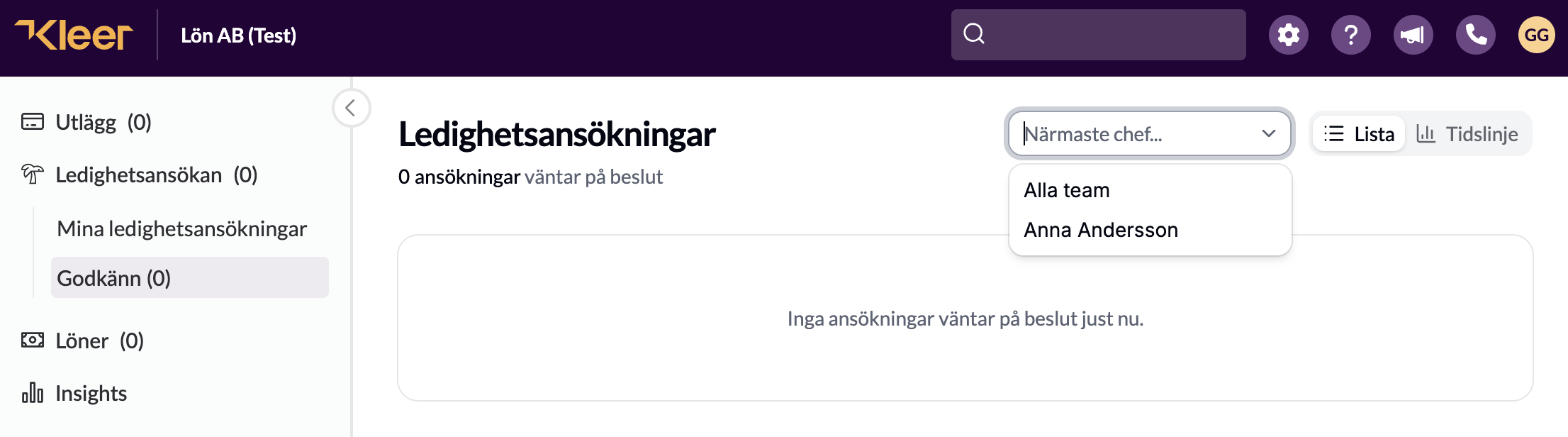
- Go to Absence requests > Approve and choose the manager under Nearest manager.
- See the requests that are waiting for a decision.
- Select the requests and click Approve or Reject.
Access to the overview
From the start, these users can see the overview of approved leave:
- Managers with direct reports.
- Users with the permission Administer all the payroll. They see all approved leave in the same way as a manager and can also approve or reject requests.
- Users with the permission Read all the payroll. They see all managers and their requests, but read only. The permission does not give the right to approve or reject a request.
The overview for employees
The overview can also be made available to employees, for example to see which colleagues are away during a vacation week. There are two levels:
- Colleagues with the same manager: the employee sees approved leave for colleagues who report to the same manager, including colleagues in other teams with the same manager.
- The whole company: the employee sees approved leave for all employees in the company.
Only approved leave is shown, and managers’ access is not affected by which level is chosen.