

Transactions & accumulators
The report Transactions & accumulators in the new payroll engine: a complete summary of payroll transactions and accumulated values per pay period, which can be filtered by pay item, absence type and date range.
A complete report on payroll transactions and accumulated values
For those of you who use our new payroll engine, there is now a report that gives a full summary of all the payroll transactions and accumulators that were created during a pay period.
Payroll: Transactions
You reach the report via the main menu, Payroll and Transactions. In the report you can search for one or more pay items, one or more absence types and within a chosen period.
How it works
- Choose pay item and type to filter out the right transactions. You can choose several pay items and pay item types at the same time (or leave this blank to get a total overview).
- Enter a date range (from and to) for the period you want to analyse.
- Click Show: you immediately get a summary of all registered entries.
In the transaction report you see
- Item and description: for example monthly salary, social security contributions or other pay items.
- Quantity and price: shows the scope and the value of each transaction.
- Amount, start date and end date: gives clear information about the period’s payments.
- Grouping per employee: makes it easy to follow each person’s total payroll cost.
- Dimensions: an extra column that is shown for companies with dimension accounting activated.
When should I use the report?
Use it when you want to compare payroll costs between months or search for the total costs of the compensation you have. It is also a valuable tool when you need quick underlying data for reporting and follow-up.
More uses
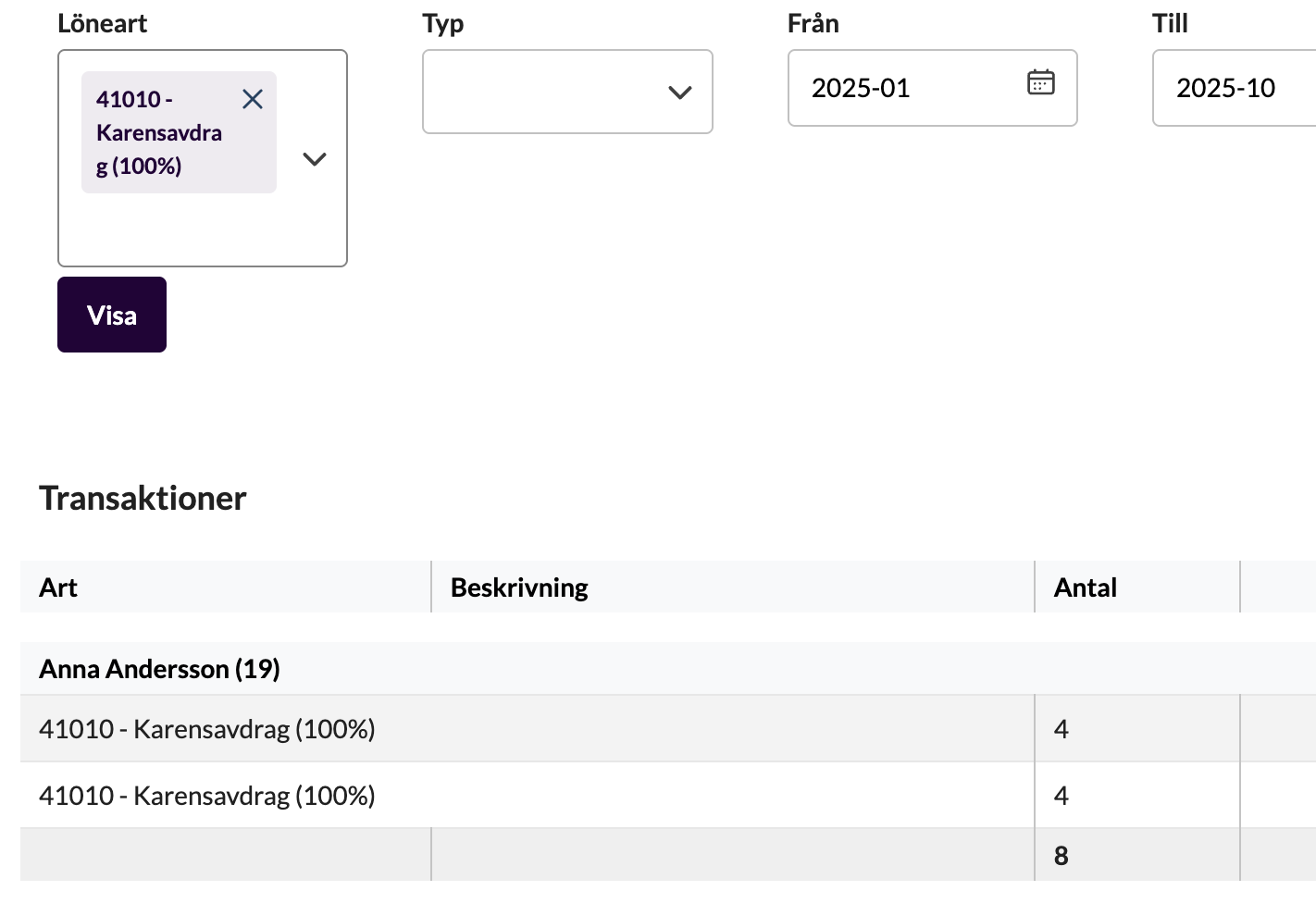
Here you can also get a complete picture of, for example, the qualifying deduction for sick days (karens), which can be relevant for applying for compensation from the Swedish Social Insurance Agency (Försäkringskassan) for users with high-risk protection (högriskskydd).
Search for the pay item Karens and adjust the period to the range you want to search.
Payroll: Accumulators
You reach the report via the main menu, Payroll and Accumulators. In the report you can search for a specific accumulator or user during a chosen period.
General search
- Enter a period to search, for example, during the current year to find all accumulators for all users
- Click Show: you immediately get a summary of all registered entries.
- Change the display mode under Grouping to group by Employee or Year/Month
Search for an accumulator or a user
- Click Selected under User to get results only for one of your employees
- To refine the search further, you can click Selected under Accumulators and choose one or more specific accumulators
In the accumulator report you see
- Accumulator and its accumulated values during the period searched.
- Code and Name: the code is unique for each accumulator and the name describes which value has been accumulated.
- Month and Year give clear information about the period’s accumulated total.
Things to keep in mind
Values are accumulated every month and reset at a given point in time (usually at a year break or a vacation break). Different values can be accumulated for different users, for example for absence that does not qualify for vacation, or when the employment rate changes.
Who can see these reports?
Payroll administrators
Users with the permission “Administer all the payroll” or “Read all the payroll” see the salary report.