

Introduction to permissions
How to give or remove a single permission on a user's employment contract, step by step.
Introduction to permissions in Kleer
An introduction to permissions and how they are given out
Permissions in brief
For a person to be able to log in to the system, they need to be set up as a user in Kleer.
To get access to the different parts of the system, the user also needs to have one or more permissions.
Those who have the permission Finance manager (usually called Administrator in Foundations) can change other users’ permissions.
To give out a permission, you need to have that permission yourself. Note that some permissions are included in ready-made roles. In that case it is enough to have the role that includes the permission in order to give out the individual permission. Read more in the guide Permissions in Kleer.
If you have questions about permissions, do not hesitate to contact your Kleer consultant.
Give a permission to a user
Under Settings in the top menu (the cogwheel) and Users, all the users in the company are shown in a list.
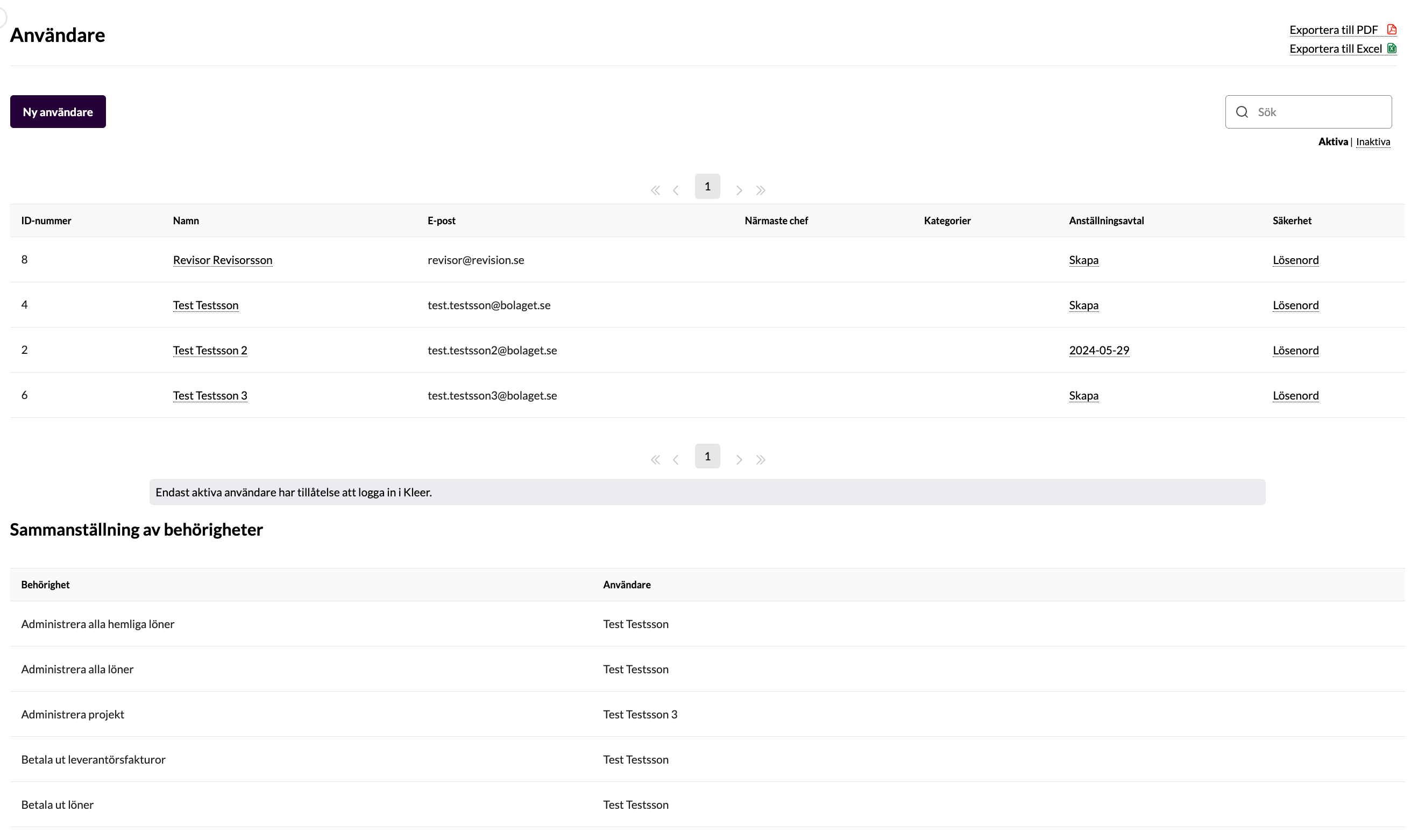
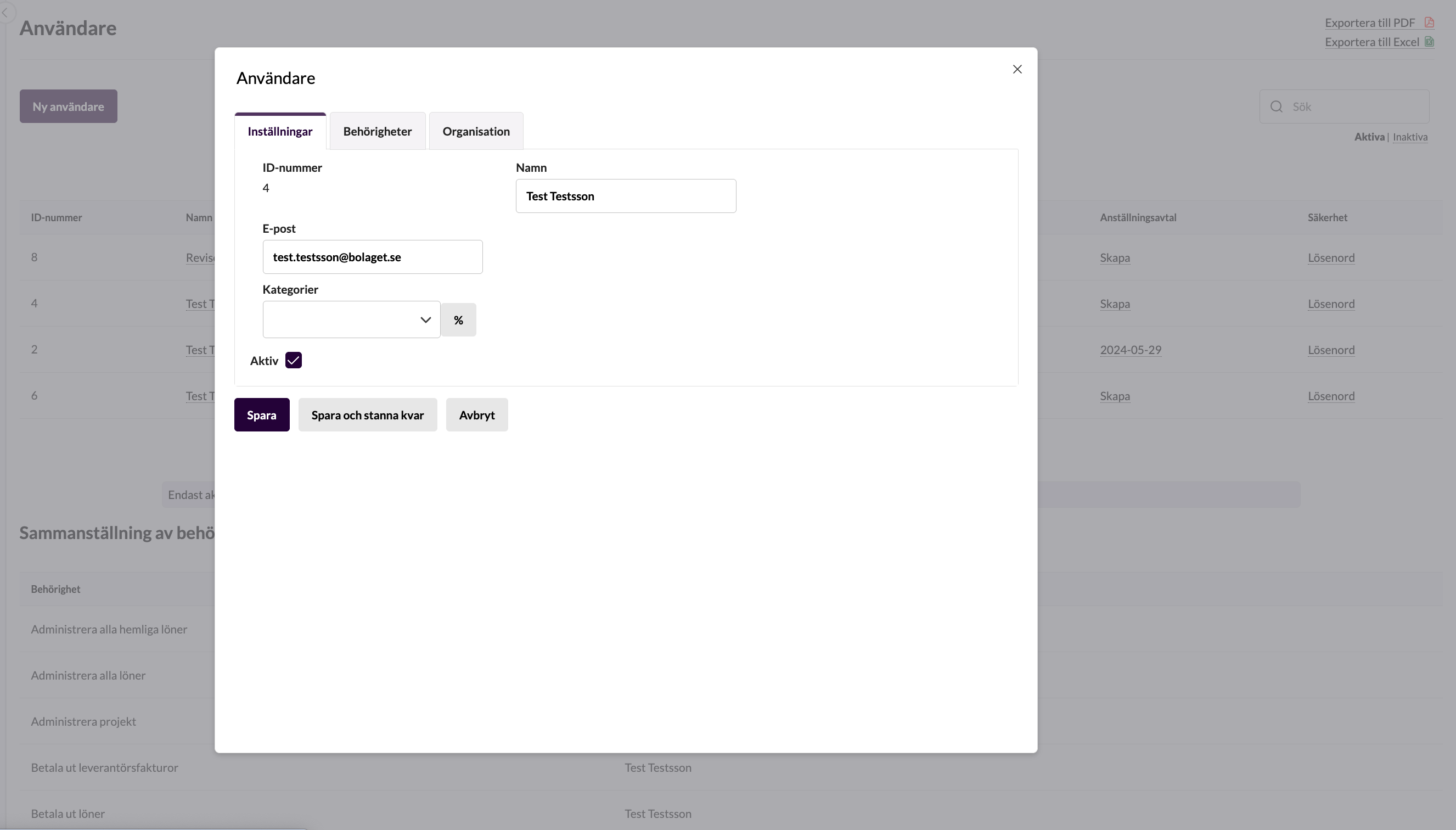
Click the name of the user whose permissions you want to adjust.
In the window that opens, go to the Permissions tab, where you can tick or untick permissions.
Do not forget to save your changes!
The flow in pictures:
- In the user list, click the name of the person whose permissions you want to change.
- In the window that opens, go to the Permissions tab.
- Tick or untick permissions.
- Do not forget to scroll down and Save!